9
Chapter 2
Connect the Hardware
2 3
Internet
1
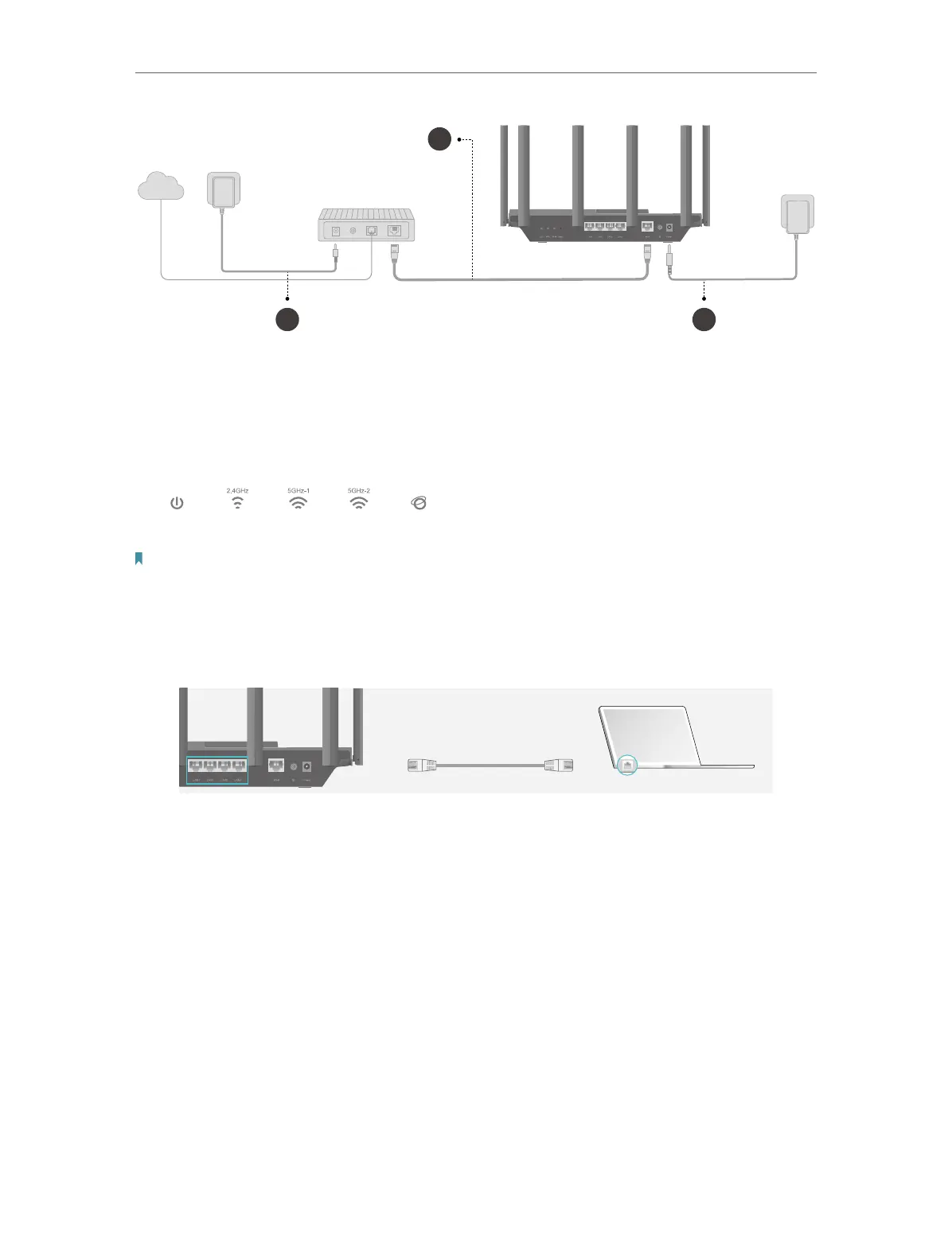
1. Connect the powered-off modem to the router’s WAN port with an Ethernet cable.
2. Turn on the modem, and then wait about 2 minutes for it to restart.
3. Connect the power adapter to the router and turn on the router.
4. Verify that the hardware connection is correct by checking the following LEDs.
Power
2.4 GHz
5 GHz-1
Internet
5 GHz-2
Note: If the 2.4 GHz LED and 5 GHz LEDs are off, press and hold the Wi-Fi button on the back for more than 2 seconds.
These LEDs should turn solid on.
5. Connect your computer to the router.
• Method 1: Wired
Turn off the Wi-Fi on your computer and connect the devices as shown below.
Ethernet cable
• Method 2: Wirelessly
1 ) Find the SSID (Network Name) and Wireless Password printed on the label at
the bottom of the router.
2 ) Click the network icon of your computer or go to Wi-Fi Settings of your smart
device, and then select the SSID to join the network.






 To Next Page