5
Chapter 1
Get to Know About Your Router
(Internet)
White On Internet service is available.
Red On
The router’s Internet port is connected, but the internet service
is not available.
Off The router’s Internet port is unplugged.
(Ethernet)
On
At least one powered-on device is connected to the router’s LAN
port.
Off No powered-on device is connected to the router’s LAN port.
(USB)
On The USB device is identified and ready to use.
Off No USB device is plugged in to the USB port.
(WPS)
On/Off
This light remains on for 5 minutes when a WPS connection is
established, then turns off.
Flashing WPS connection is in progress. This may take up to 2 minutes.
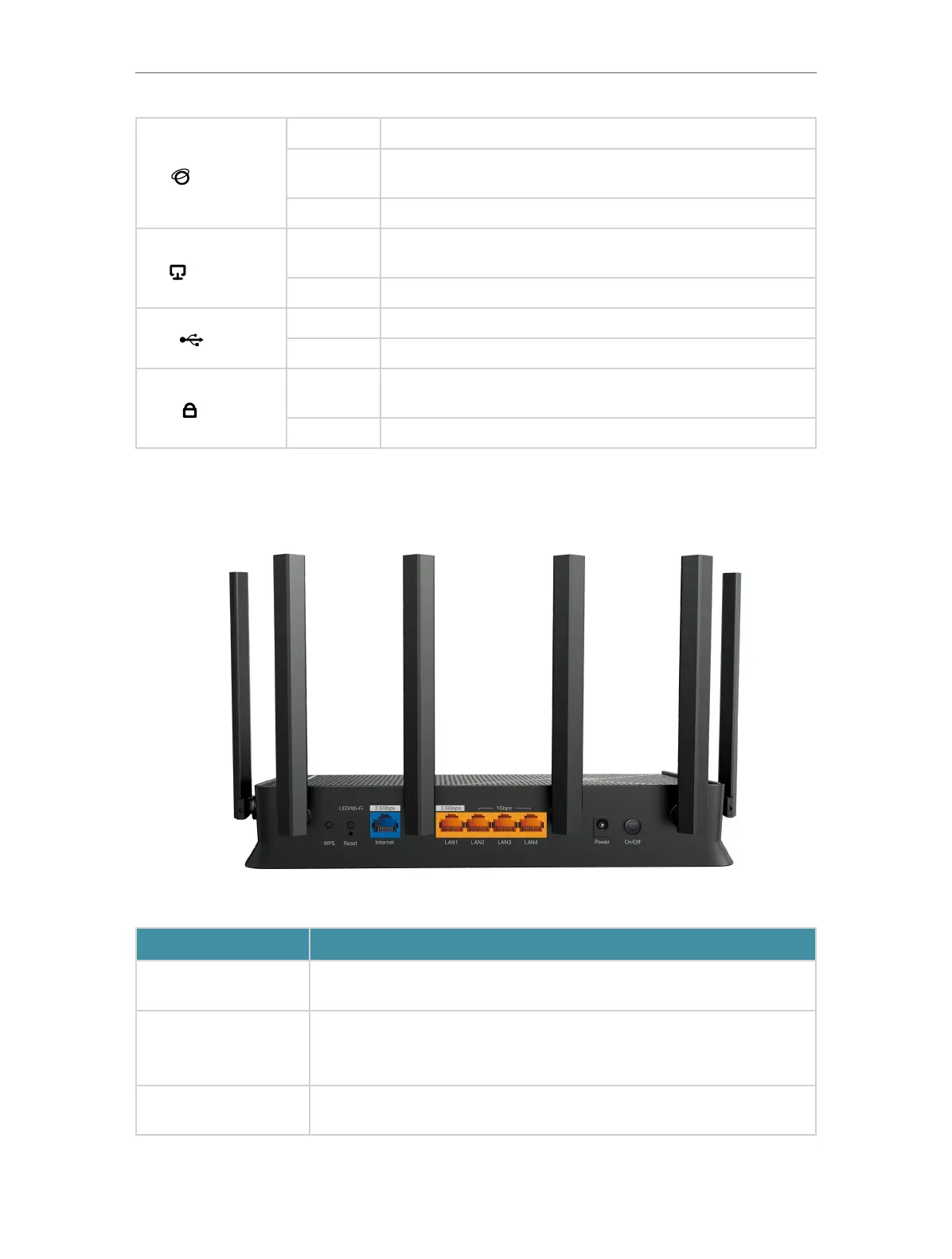
1. 2. 2. Back Panel
The following parts are located on the back panel.
Item Description
WPS
Press for 1 second, and immediately press the WPS button on your client
device to start the WPS process.
LED/ Wi-Fi
Press for 1 second to turn on or off the LED of your router.
Press and hold for about 2 seconds to turn on or off the wireless function of
your router.
Reset
Press and hold this button for about 10 seconds until the Power LED blinks
to reset the router to its factory default settings.








 To Next Page