122
Chapter 17
Manage the Router
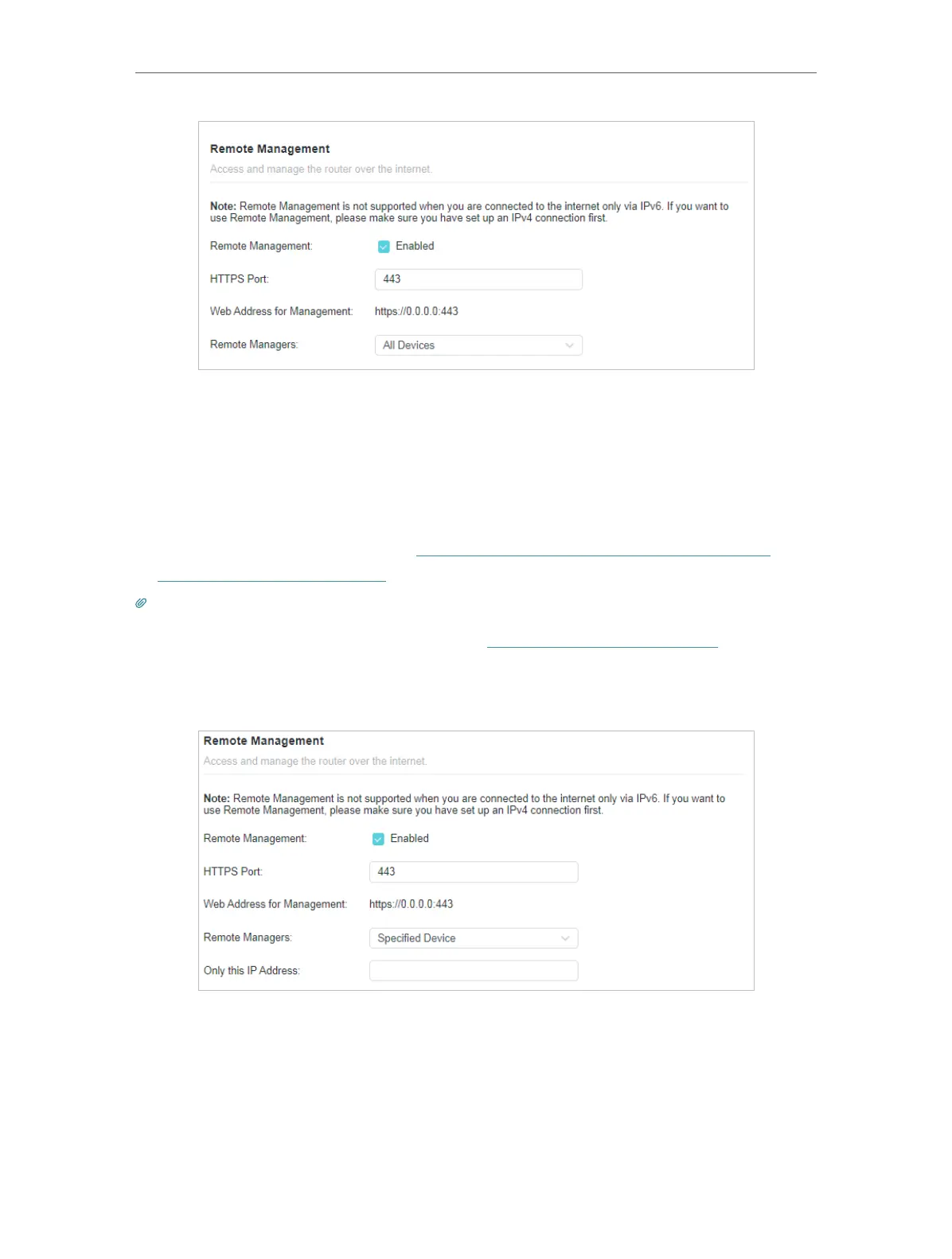
1. Tick the Enable checkbox of Remote Management.
2. Keep the HTTPS port as default settings (recommended) or enter a value between
1024 and 65535.
3. Select All Devices for Specified Devices.
4. Click SAVE.
Devices on the internet can log in to https://Router’s WAN IP address:port number (such
as https://113.116.60.229:1024) to manage the router.
Tips:
• You can find the WAN IP address of the router on Network Map > Internet.
• The router’s WAN IP is usually a dynamic IP. Please refer to Set Up a Dynamic DNS Service Account if you want to log
in to the router through a domain name.
• Allow a specific device to manage the router remotely:
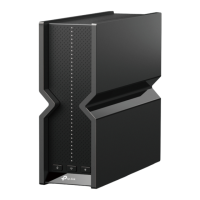
1. Tick the Enable checkbox of Remote Management.
2. Keep the HTTPS and HTTP port as default settings (recommended) or enter a value
between 1024 and 65535.
3. Select Specified Device for Remote Managers.
4. In the Only this IP Address field, enter the IP address of the remote device to manage
the router.








 To Next Page