� If your internet connection comes from an
Ethernet outlet, connect the router’s WAN port
to it, then follow step 4 and 5.
� If you want to congure this new router as an
access point to extend your network, refer to the
Access Point Mode section on the back page.
Quick Installation Guide
2. Open the Tether app and log in with your TP-Link ID.
Note: If you don’t have an account, please create one rst.
Congure the router
Download the Tether app via Apple Store or Google
Play, or simply scan the QR code below.
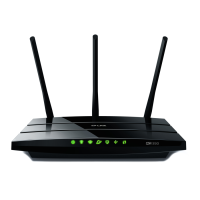
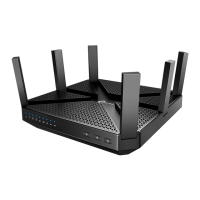
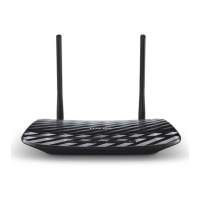
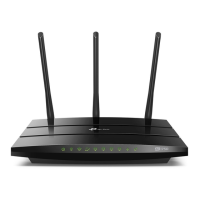
*Images may dier from the actual product.
Modem
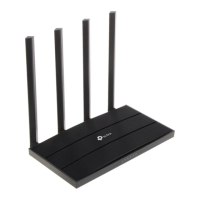
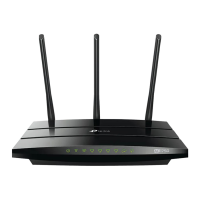
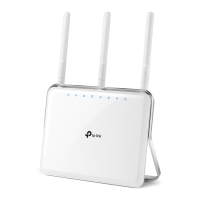
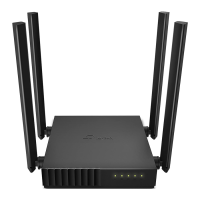
Router
Power adapter
Connect to the internet
Connect to the power socket
Power on the modem and then wait
about 2 minutes for it to restart.
Connect the powered-o modem to the
router’s WAN port via an Ethernet cable.
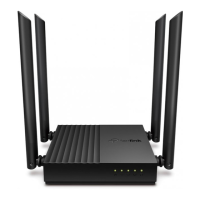
Dual-Band Wi-Fi Router
Verify that the router’s LED turns
solid on before continuing.
Unplug your modem, and remove
the backup battery if it has one.
Important
Connect the power adapter to the router.
Method 1: Via TP-Link Tether App
3. Tap the button in the Tether app and select Router >
Wireless Router. Follow the steps to complete the
setup and connect to the internet.
Scan for Tether Tether
or
Welcome to Tether
Log In
TP-Link ID (Email)
Password
Choose your device type
1.






 To Next Page
