8
3. Turn on the modem, and then wait about 2 minutes for it to restart.
4. Connect the power adapter to the router and turn on the router.
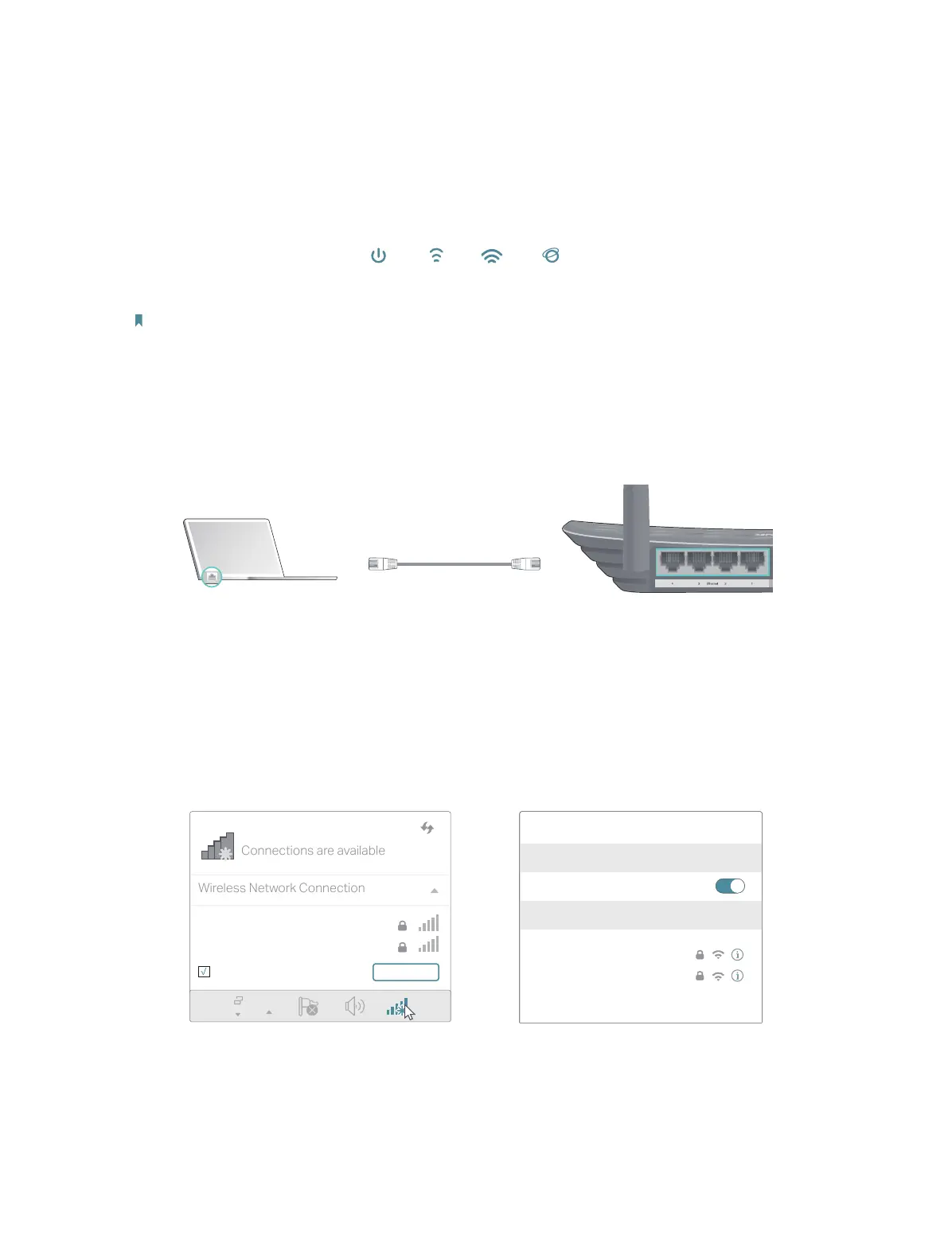
5. Verify that the following LEDs are on and solid to confirm the hardware is connected
correctly.
Power
On
5G
On
On
Internet
2.4G
On
Note:
If the 2.4G and 5G LEDs are off, press and hold the Wi-Fi/WPS button on the rear panel for more than 5 seconds to turn
them on.
6. Connect your computer to the router.
• Method 1: Wired
Turn off the Wi-Fi on your computer and connect the devices as shown below.
Ethernet cable
• Method 2: Wirelessly
1 ) Find the SSID (Network Name) and Wireless Password printed on the label at
the bottom of the router.
2 ) Click the network icon of your computer or go to Wi-Fi Settings of your smart
device, and then select the SSID to join the network.
OR
Connections are available
Wireless Network Connection
Connect automatically Connect
TP-Link_XXX X
TP-Link_XXX X_5G
Wi-Fi
Wi-Fi
TP-Link_XXX X
TP-Link_XXX X_5G
CHOOSE A NETWORK...
Other...
< Settings
Smart DeviceComputer
• Method 3: Use the WPS button
Wireless devices that support WPS, including Android phones, tablets, most USB
network cards, can be connected to your router through this method.









 To Next Page