29
QoS (Quality of Service) is designed to ensure the efficient operation of the network
when come across network overload or congestion.
Specify priority levels for some devices or applications.
For example, I have several devices that are connected to my
wireless network. I would like to set an intermediate speed on
the Internet for my phone.
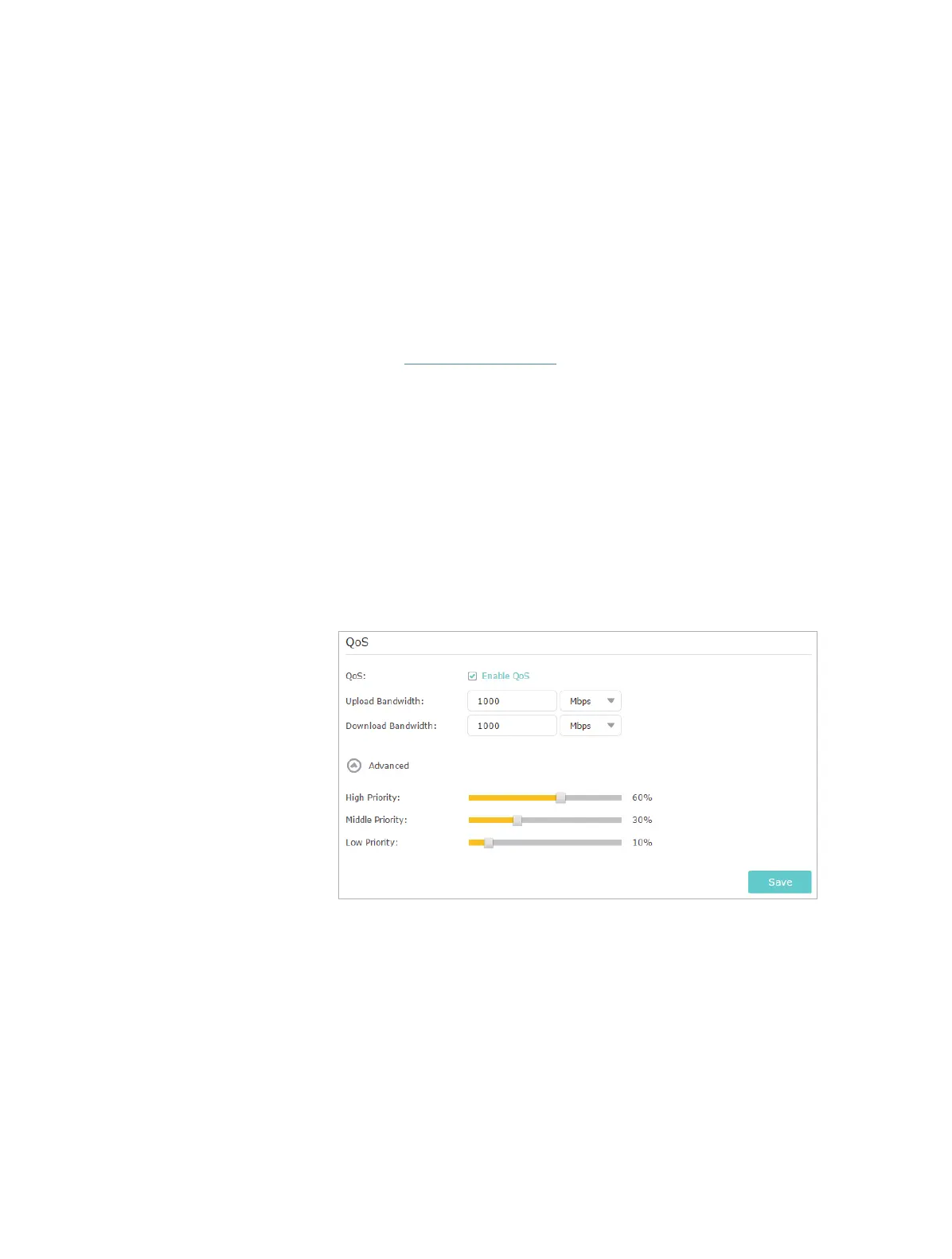
1. Enable QoS and set bandwidth allocation.
1 ) Visit http://tplinkwifi.net, and log in with the password you
set for the router.
2 ) Go to Advanced > QoS.
3 ) Select Enable QoS.
4 ) Input the maximum upload and download bandwidth
provided by your Internet service provider. 1Mbps equal
s to 1000Kbps.
5 ) Click Advanced and drag the scroll bar to set the
bandwidth priority percentage.
6 ) Click Save.
2. Add a middle priority QoS rule for the phone.
1 ) Click Add in Qos Rule List section.
I want to:
How can I
do that?










 To Next Page