66
1. Visit http://tplinkwifi.net, and log in with your TP-Link ID or the password you set for
the router.
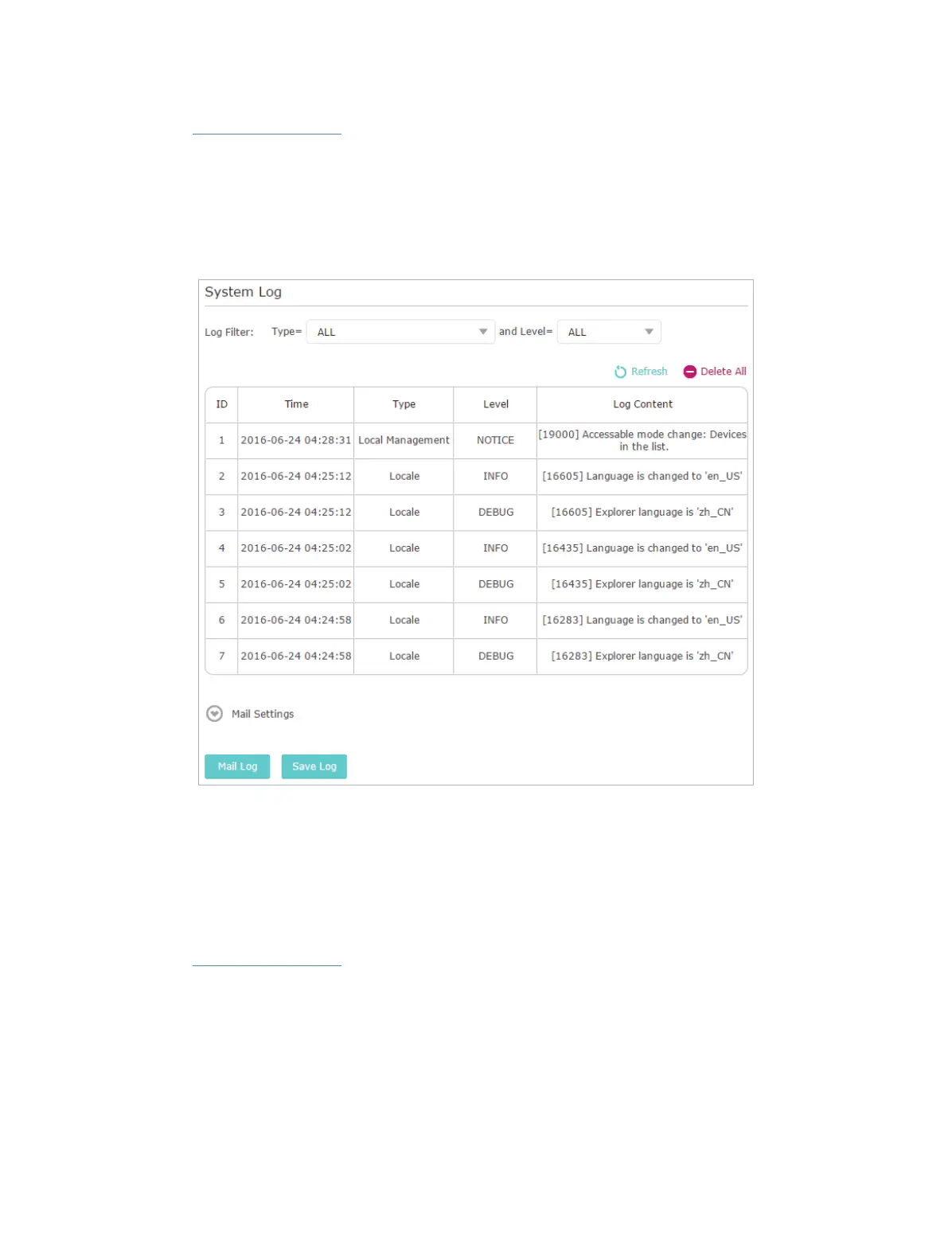
2. Go to Advanced > System Tools > System Log.
3. Choose the type and level of the system logs according to your need.
4. Click Save Log to save the system logs to local.
¾ To Send the System Log to a Mailbox at a Fixed Time:
For example, I want to check my router’s working status at a fixed time every day,
however, it’s too troublesome to log in to the web interface every time I want to go
checking. It would be great if the system logs could be sent to my mailbox at 8 a.m.
every day.
1. Visit http://tplinkwifi.net, and log in with your TP-Link ID or the password you set for
the router.
2. Go to Advanced > System Tools > System Log.
3. Click Mail Settings.
4. Enter the information with the help of page tips:


 To Next Page
 Loading...