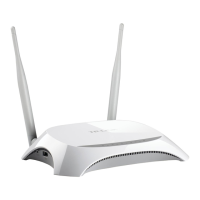
TL-MR3420 3G/3.75G Wireless N Router
-23-
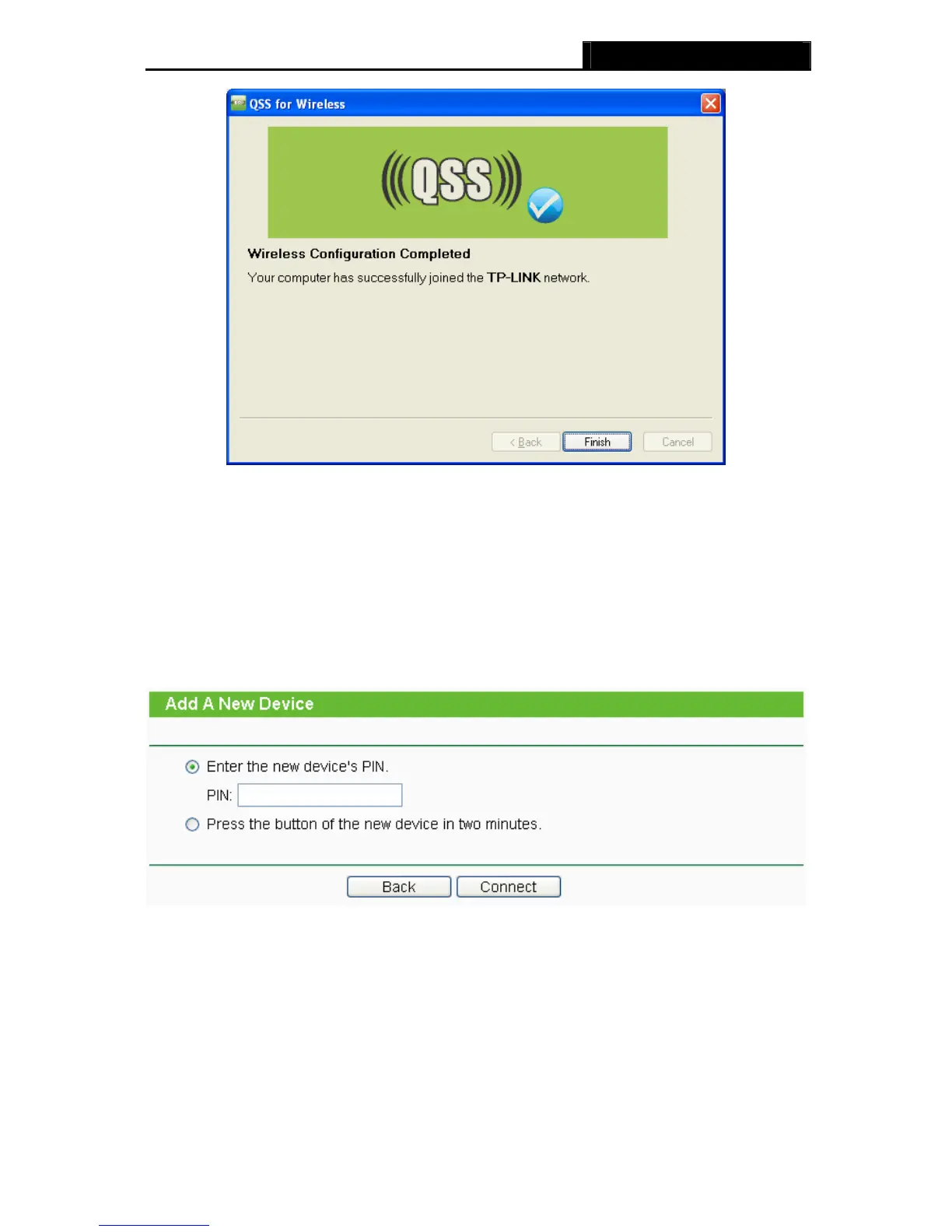
The QSS Configuration Screen of Wireless Adapter
II. By PIN
If the new device supports Wi-Fi Protected Setup and the PIN method, you can add it to the
network by PIN with the following two methods.
Method One: Enter the PIN into my Router
Step 1: Keep the default QSS Status as Enabled and click the Add device button in
Figure 4-2,
then the following screen will appear.
Step 2: Choose Enter the new device's PIN and enter the PIN code of the wireless adapter in
the field behind PIN in the above figure. Then click Connect.
)
Note:
The PIN code of the adapter is always displayed on the QSS configuration screen
Step 3: For the configuration of the wireless adapter, please choose Enter a PIN into my access
point or a registrar in the configuration utility of the QSS as below, and click Next.





 To Next Page