TL-MR3420 3G/3.75G Wireless N Router
-65-
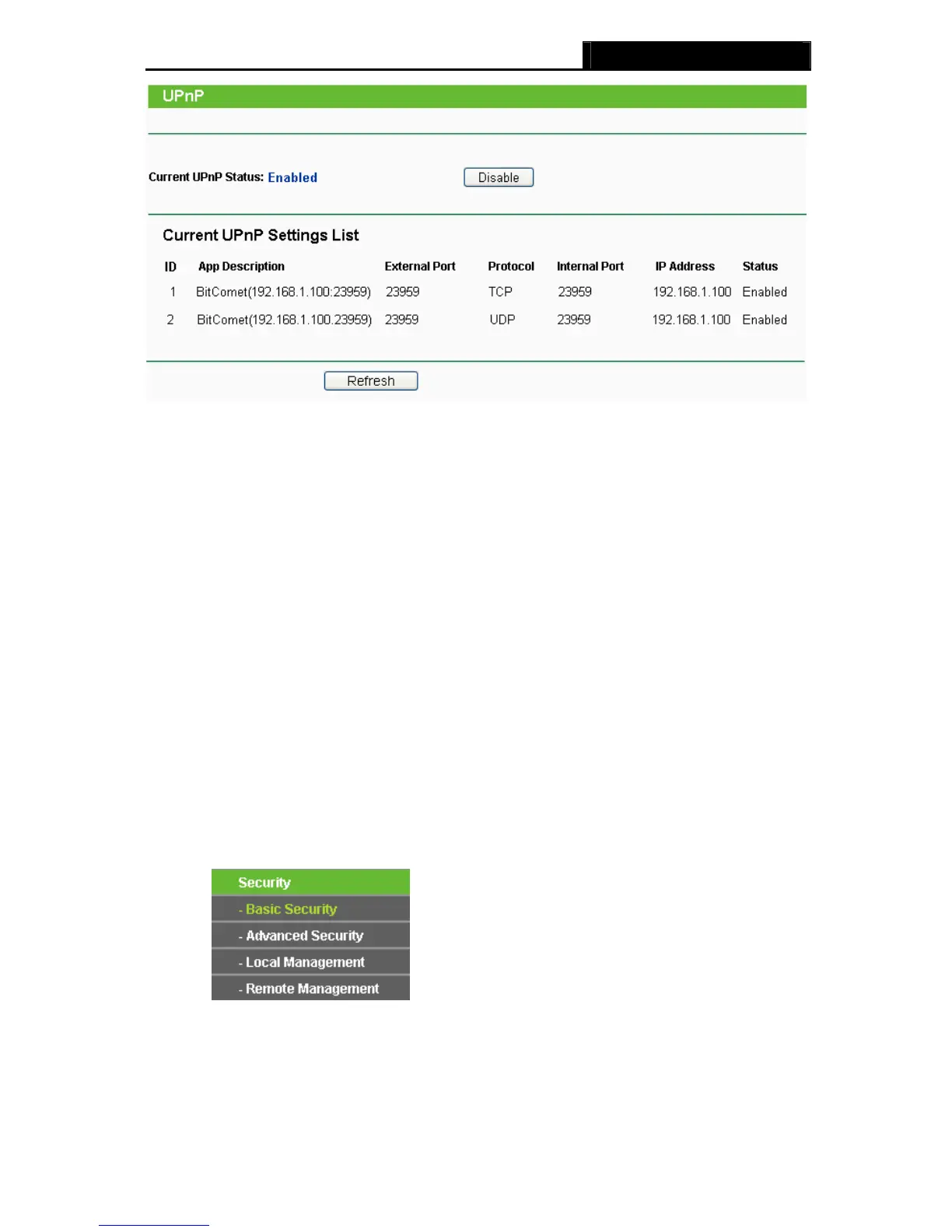
Figure 4-42 UPnP Setting
¾ Current UPnP Status - UPnP can be enabled or disabled by clicking the Enable or Disable
button. As allowing this may present a risk to security, this feature is enabled by default.
¾ Current UPnP Settings List - This table displays the current UPnP information.
z App Description -The description provided by the application in the UPnP request
z External Port - External port, which the router opened for the application.
z Protocol - Shows which type of protocol is opened.
z Internal Port - Internal port, which the router opened for local host.
z IP Address - The UPnP device that is currently accessing the router.
z Status - The port’s status displayed here. “Enabled” means that port is still active.
Otherwise, the port is inactive.
Click Refresh to update the Current UPnP Settings List.
4.9 Security
Figure 4-43 The Security menu
There are four submenus under the Security menu as shown in Figure 4-43: Basic Securit
y,
Advanced Security, Local Management and Remote Management. Click any of them, and you
will be able to configure the corresponding function.





 To Next Page