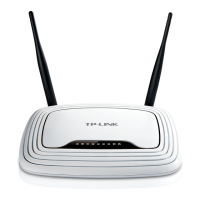
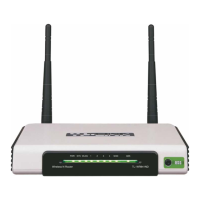
TL-WR842ND 300Mbps Multi-Function Wireless N Router
- 21 -
4.4 WPS
This section will guide you to add a new wireless device to an existing network quickly by WPS
(Wi-Fi Protected Setup) function.
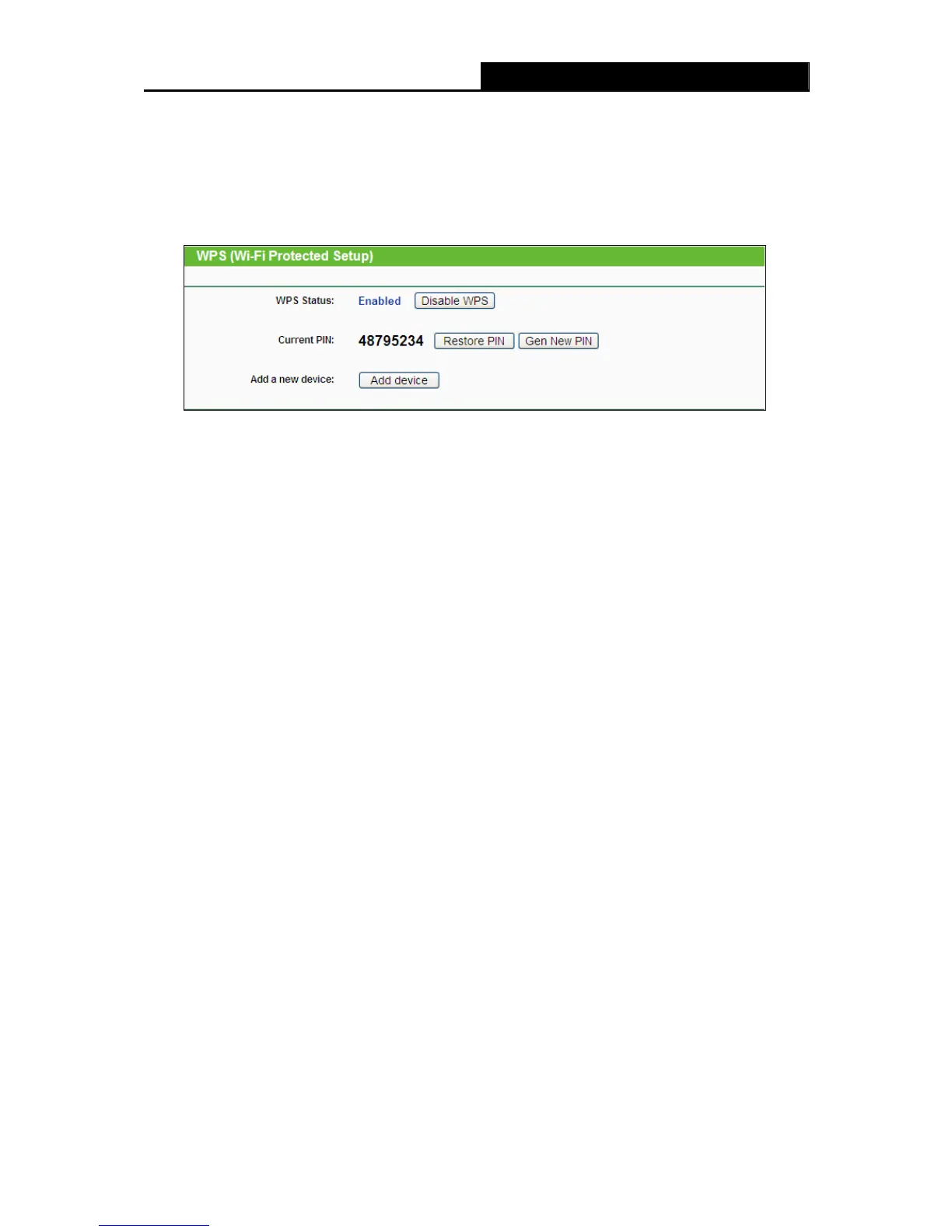
a). Choose menu “WPS”, and you will see the next screen (shown in Figure 4-2 ).
Figure 4-2 WPS
¾ WPS Status - Enable or disable the WPS function here.
¾ Current PIN - The current value of the Router's PIN is displayed here. The default PIN of the
Router can be found in the label or User Guide.
¾ Restore PIN - Restore the PIN of the Router to its default.
¾ Gen New PIN - Click this button, and then you can get a new random value for the Router's
PIN. You can ensure the network security by generating a new PIN.
¾ Add device - You can add a new device to the existing network manually by clicking this
button.
b). To add a new device:
If the wireless adapter supports Wi-Fi Protected Setup (WPS), you can establish a wireless
connection between wireless adapter and Router using either Push Button Configuration (PBC)
method or PIN method.
)
Note:
To build a successful connection by WPS, you should also do the corresponding configuration of
the new device for WPS function meanwhile.
I. Use the Wi-Fi Protected Setup Button
Use this method if your client device has a Wi-Fi Protected Setup button.
Step 1: Press the WPS/RESET button on the back panel of the Router, as shown in the following
figure.




 To Next Page