EasyManua.ls Logo

TP-Link TL-WR802N - User Manual

TP-Link TL-WR802N
287 pages
Print Icon
To Next Page IconTo Next Page
Loading...
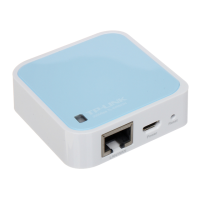
TL-WR802N
300Mbps Wireless N Nano Router
Rev: 1.0.0
191001
1144

Table of Contents

Other manuals for TP-Link TL-WR802N

Questions and Answers

  • B
    bhansenJul 27, 2025
    How to reset password on TP-Link Network Router?
    • S
      sandra02Jul 27, 2025
      If you've forgotten your password for the TP-Link Network Router, here's what you can do: * Restore the TL-WR802N to its factory default settings. * To log in to the Web Management page, use the default username and password: admin, admin. * To connect to the Wireless Network, use the default password on the label. * Try to configure TL-WR802N once again by following the instructions in the QIG.
  • L
    Laura LeeAug 4, 2025
    What to do if I cannot access Internet via my Cable Modem using TP-Link Network Router?
    • W
      Wendy MezaAug 4, 2025
      If you cannot access the Internet via your cable modem with the TP-Link Network Router, try the following: 1. Reset the cable modem by powering it off, and then powering it back on. Wait until its ONLINE LED is solid. 2. Unplug the TL-WR802N and plug it back in. This will allow you to access Internet in most cases. 3. If the above doesn't work, reset the TL-WR802N so that it defaults back to Router Mode.
  • K
    Kenneth HarrisonAug 11, 2025
    Why does my TP-Link Network Router wireless keep dropping?
    • A
      Andrew ConleyAug 11, 2025
      If your wireless connection keeps dropping on your TP-Link Network Router, it might be due to unstable wireless channel settings. Setting your wireless channel to a static channel between 1 and 11 will prevent the wireless frequency from changing, and likely stabilize your network connection.
  • J
    jessegravesAug 19, 2025
    What to do if TP-Link Network Router signal strength is low?
    • T
      Teresa HendersonAug 19, 2025
      If you are experiencing low signal strength with your TP-Link Network Router, it could be due to obstructions from walls or objects. Try placing your TL-WR802N in a higher location, keeping it away from obstructed locations like under or behind a desk. Putting your TL-WR802N in a location central to your home will maximize your signal coverage.

Summary

Connecting the TP-Link TL-WR802 N Router

Router Connection Guide

Step-by-step instructions for physically connecting the router in various modes.

Configuration for Wireless Router Mode

Network Settings (WAN, MAC Clone, LAN)

Configuration of WAN, LAN, and wireless network parameters like SSID and security.

Wireless Configuration (Settings, Security, Advanced)

Covers all wireless network setup and management options.

Security Settings (Basic, Advanced, Management)

Enhances network protection against threats and unauthorized access.

System Tools (Time, Diagnostic, Firmware, Defaults, Backup, Reboot, Password, Log, Stats)

Provides essential router management and maintenance functions.

Access Point Mode Configuration

AP Mode Network and Wireless Setup

Configures LAN, wireless network name, security, and other AP mode settings.

WISP Client Router Mode Configuration

TP-Link TL-WR802N Specifications

General IconGeneral
VPN supportPPTP, L2TP, IPSec
Ethernet LANYes
Cabling technology10/100Base-T(X)
Networking standardsIEEE 802.11b, IEEE 802.11g, IEEE 802.11n
Ethernet LAN data rates10, 100 Mbit/s
Ethernet LAN interface typeFast Ethernet
Wi-Fi bandSingle-band (2.4 GHz)
Wi-Fi standards802.11b, 802.11g, Wi-Fi 4 (802.11n)
Top Wi-Fi standardWi-Fi 4 (802.11n)
WLAN data transfer rate (max)300 Mbit/s
Rack mountingNo
Frequency band2.4 GHz
Frequency range2.4 - 2.4835 GHz
USB ports quantity1
WLAN data transfer rates supported11, 54, 300 Mbit/s
Security algorithms128-bit WEP, 152-bit WEP, 64-bit WEP, WPA, WPA-PSK, WPA2, WPA2-PSK
Product typeTabletop router
Product colorBlue, White
Storage temperature (T-T)-40 - 70 °C
Operating temperature (T-T)0 - 40 °C
Storage relative humidity (H-H)5 - 90 %
Operating relative humidity (H-H)10 - 90 %
CertificationCE, FCC, RoHS
Receive power270M: -65dBm@10% PER , 130M: -70dBm@10% PER , 108M: -82dBm@10% PER , 54M: -73dBm@10% PER , 11M: -82dBm@8% PER , 6M: -86dBm@10% PER , 1M: -90dBm@8% PER dBmW
Transmit powerCE: , \u003C20dBm(2.4GHz) , FCC: , \u003C30dBm dBmW
Mac operating systems supportedmacOS
Windows operating systems supportedWindows 2000, Windows 7 Enterprise, Windows 7 Enterprise x64, Windows 7 Home Basic, Windows 7 Home Basic x64, Windows 7 Home Premium, Windows 7 Home Premium x64, Windows 7 Professional, Windows 7 Professional x64, Windows 7 Starter, Windows 7 Starter x64, Windows 7 Ultimate, Windows 7 Ultimate x64, Windows 8, Windows 8 Enterprise, Windows 8 Enterprise x64, Windows 8 Pro, Windows 8 Pro x64, Windows 8 x64, Windows 8.1, Windows 8.1 Enterprise, Windows 8.1 Enterprise x64, Windows 8.1 Pro, Windows 8.1 Pro x64, Windows 8.1 x64, Windows 98SE, Windows NT, Windows Vista Business, Windows Vista Business x64, Windows Vista Enterprise, Windows Vista Enterprise x64, Windows Vista Home Basic, Windows Vista Home Basic x64, Windows Vista Home Premium, Windows Vista Home Premium x64, Windows Vista Ultimate, Windows Vista Ultimate x64, Windows XP Home, Windows XP Home x64, Windows XP Professional, Windows XP Professional x64
WAN connection typeRJ-45
Output current1 A
Output voltage5 V
Power source typeDC
Package depth109 mm
Package width110 mm
Package height73.5 mm
Package weight240 g
Weight and Dimensions IconWeight and Dimensions
Width57 mm
Height18 mm

Related product manuals