6Chapter 2 . Basics
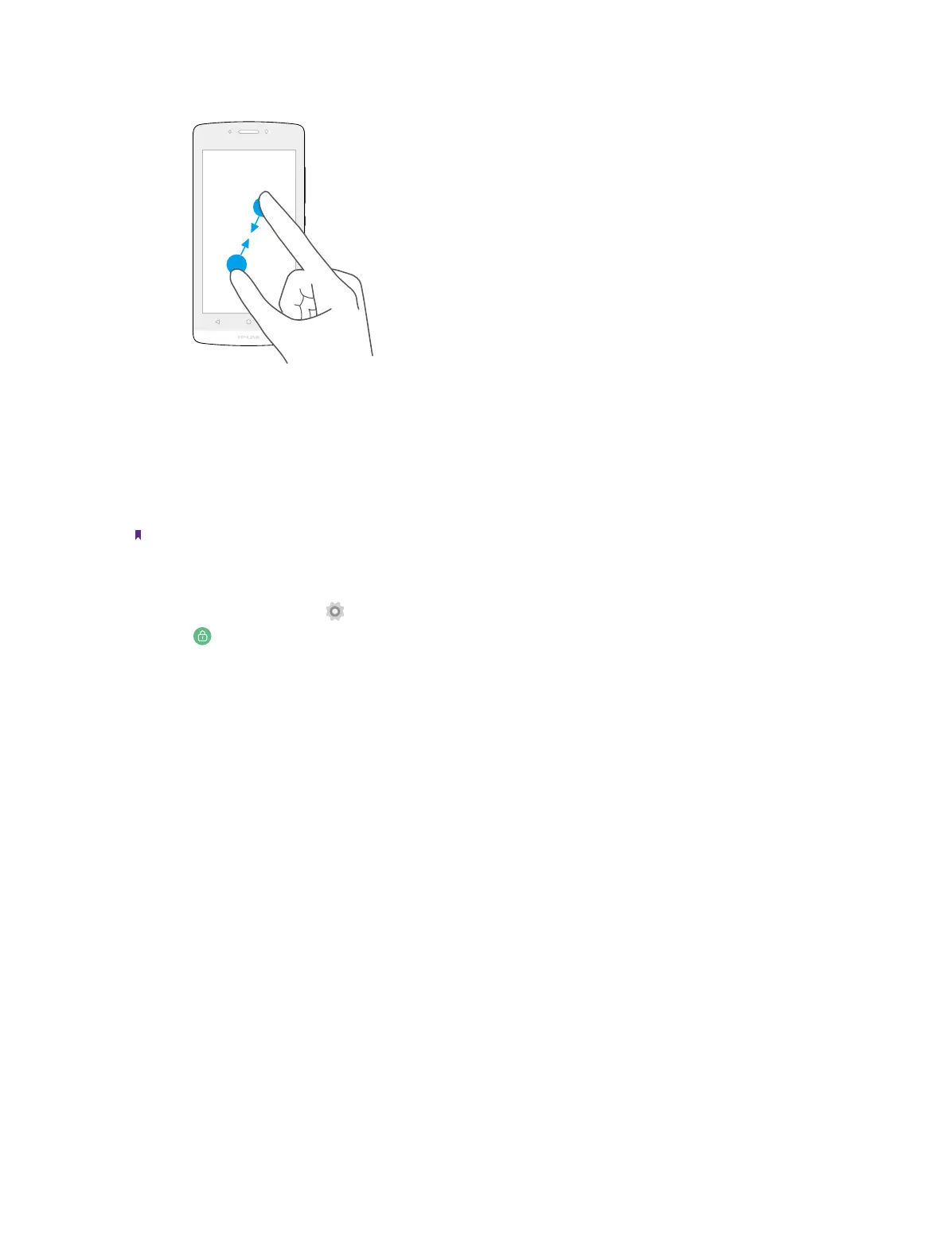
Zoom out: Pinch two fingers together on the screen. For example, pinch two fingers together to zoom out
while viewing a picture or a web page.
2. 2 Unlock and lock the screen
Use the screen lock features to secure your phone.
• Screen unlock: Press the Power button, then swipe the screen.
• Screen lock: Press the Power button to turn the screen off.
Note: By default, your phone locks automatically when the screen times out.
If you want to set a more secure lock, you can do as follows:
1. On the Home screen, tap
settings.
2. Tap
security.
3. Tap Screen lock to choose a screen lock and level of security.
• None: Never use a screen lock.
• Swipe: Swipe the screen to unlock it. It’s the default option and offers no security.
• Pattern: Slide your finger on the dots to create a pattern. You can use the pattern to unlock the screen.
• PIN: Create a PIN code to unlock the screen.
• Password: Create a password to unlock the screen.


 To Next Page