Designed in Austin, TX 512-347-1100 | ketra.com ©2017 Ketra, Inc. All rights reserved
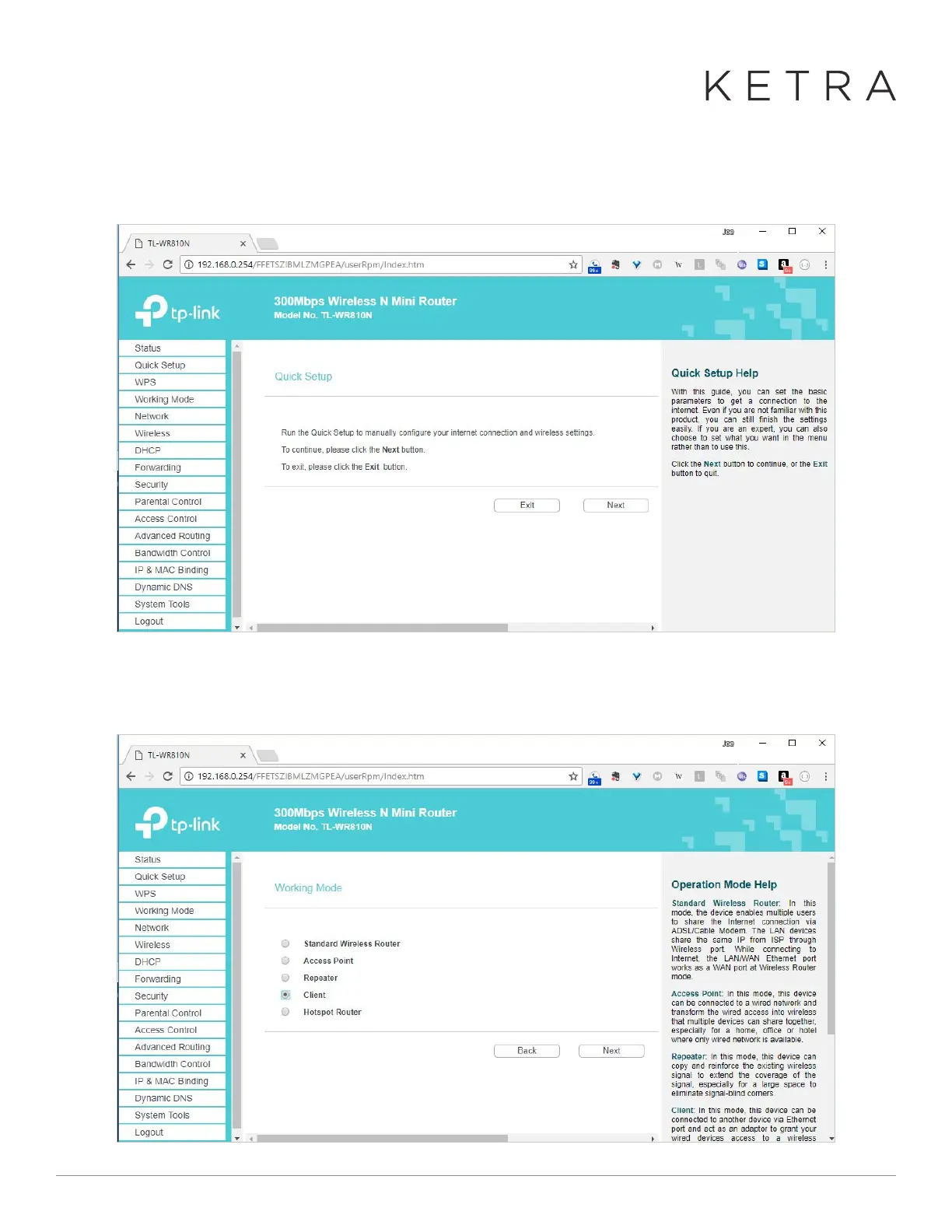
3. In a web browser, go to http://192.168.0.254 and log in with username “admin” and password “admin”. This
should take you to the Quick Setup page. Press “Next” to start the wizard.
4. On the first page of the wizard, select “Client” as the working mode and press “next”.
● In a web browser, go to http://192.168.0.254 and log in with username “admin” and
password “admin”. This should take you to the Quick Setup page. Press “Next” to start
the wizard.
● On the first page of the wizard, select “Client” as the working mode and press “next”
● On the next page, enter the details of the hotspot to which you will be connecting. You
can press “Survey” to choose from the available networks. (Make sure your hotspot is
● In a web browser, go to http://192.168.0.254 and log in with username “admin” and
password “admin”. This should take you to the Quick Setup page. Press “Next” to start
the wizard.
● On the first page of the wizard, select “Client” as the working mode and press “next”
● On the next page, enter the details of the hotspot to which you will be connecting. You
can press “Survey” to choose from the available networks. (Make sure your hotspot is


 To Next Page