CAUTION:
Be sure to use high-quality thermal paper recommended in the user’s
manual. Too wide or narrow paper rolls will cause paper jam. Low
quality thermal paper will lower the printing quality and shorten the print-
head life.
CAUTION:
Do not press the 【 】 button while no paper roll is installed and do
not pull paper forward or backward by hand, doing this will lower the
print-head life and even damage the printer.
Cleaning the Print Head
Paper dust on the heating element can lower the print quality. Please
clean the print head as described below:
Cleaning Step
1. Power off before cleaning the printer head, and make sure that power
supply and communication cable is also disconnected.
2. Open the upper cover of printer; take out the thermal paper roll.
Clean the heating unit of the print head with a cotton swab moistened
with alcohol solution.
3. After cleaning, be sure the alcohol on the head is thoroughly
desiccated. Put the paper roll back and close the cover. Turn on the
power and begin the self-test in order to check the printing quality
after cleaning.
4. If the printing quality is still not good after cleaning, please contact
the servicing professionals.
Figure 1-17 Paper loaded correctly Figure 1-18 Installed incorrectly
CAUTION:
1. Do not scrape or hit the print head by any hard object such as sand
paper, edge of knife or screwdriver. It will cause permanent
damage to the print head.
2. Be careful not to touch the print head before it cools down.
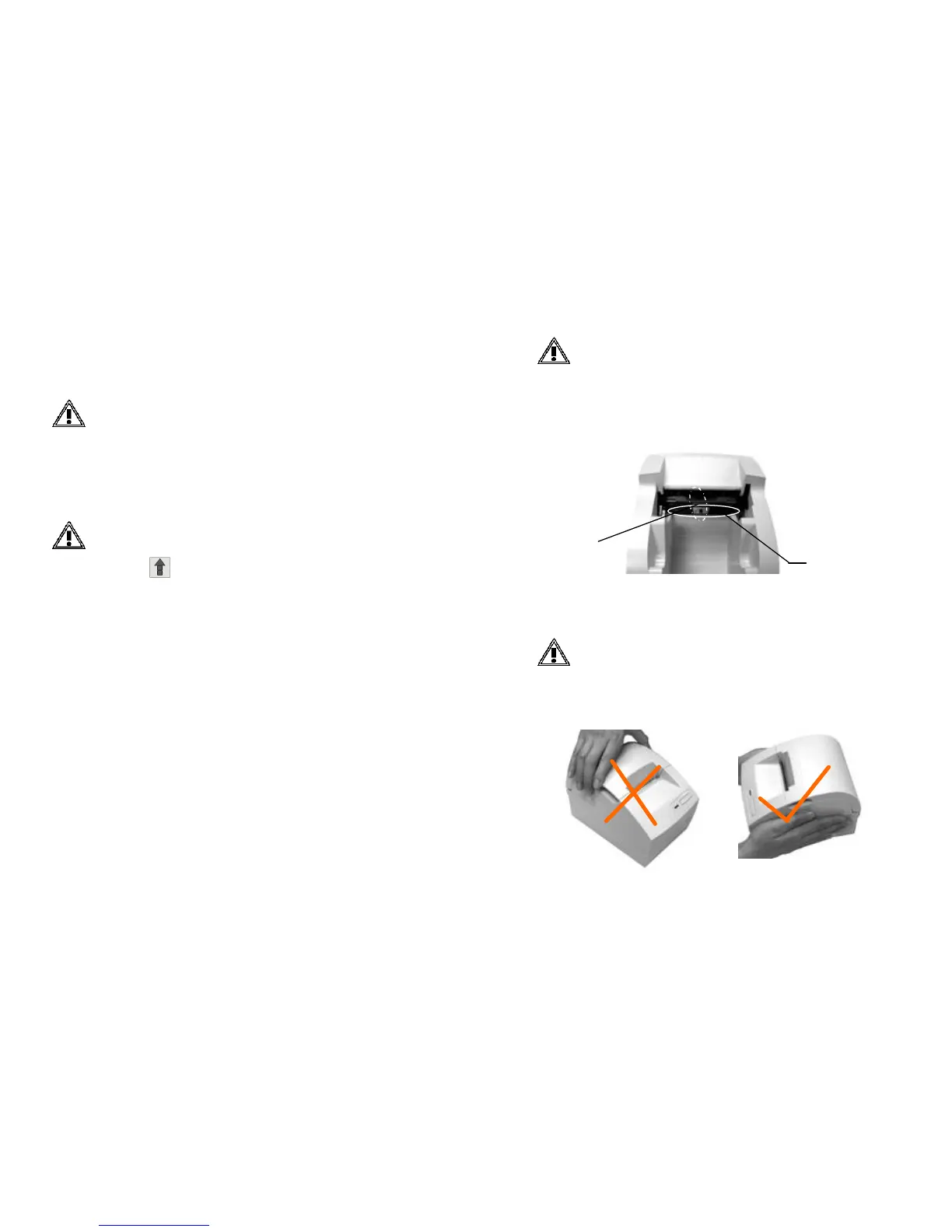
CAUTION:
When moving the printer, please don’t just take the upper part. Please
see the following figures for details.
Figure 1-20 Figure 1-21
Cleaning Area
Printing Head
Figure 1-19 Cleaning the print head



 To Next Page