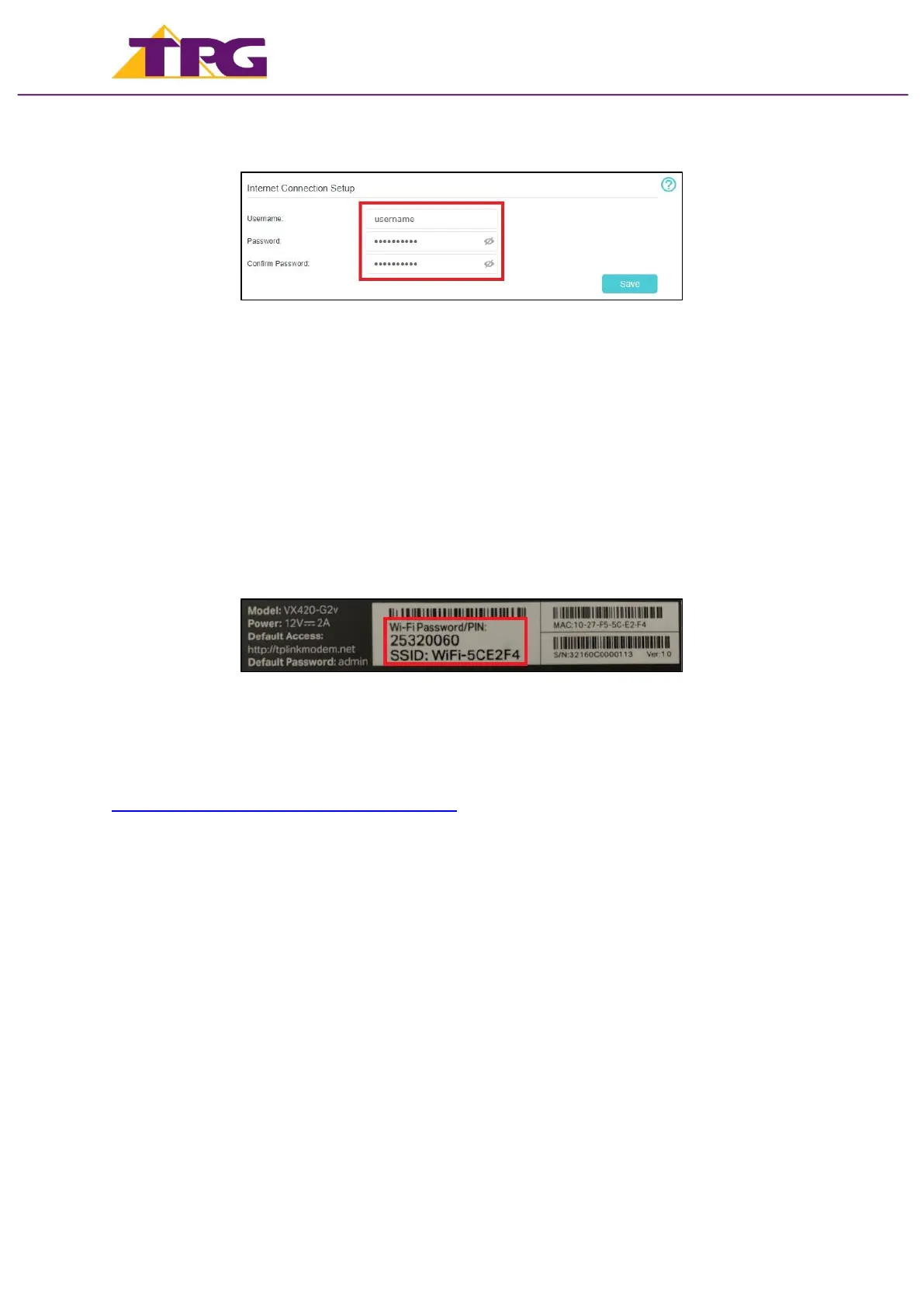
4. Enter your TPG Username and Password.
5. Click Save.
Once you receive notification that your TPG NBN service is active, your TP-Link VX420-G2v
should now be online. If you are still having issues, please call us on 1300 997 271 for
further assistance.
Connecting To WiFi
It is easiest to connect your devices using the modem’s default WiFi Network Name (SSID)
and Password.
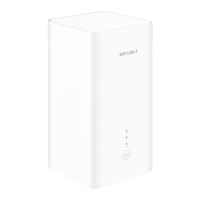
The default WiFi Network name (SSID) and Password can be located on the Barcode
sticker on the base of the modem.
Your modem will automatically connect your devices to the best WiFi network possible
(5Ghz). However, the older devices may only be capable of connecting to the 2.4Ghz WiFi
network.
For step by step guide on connecting to your WiFi network, please visit
https://www.tpg.com.au/support/wifi-setup.
Configuring Your WiFi Settings
You can change your WiFi details if you prefer to customise your WiFi network.
1. Use a device to connect to your modem via WiFi or Ethernet cable.
2. Go to http://192.168.1.1 in your browser.
3. Log in with your TP-Link modem password.
By default, the password is admin.


 To Next Page