21
User’s manual
EN
Tracer eXplore
SJ 4060 + WiFi
5. Switching modes
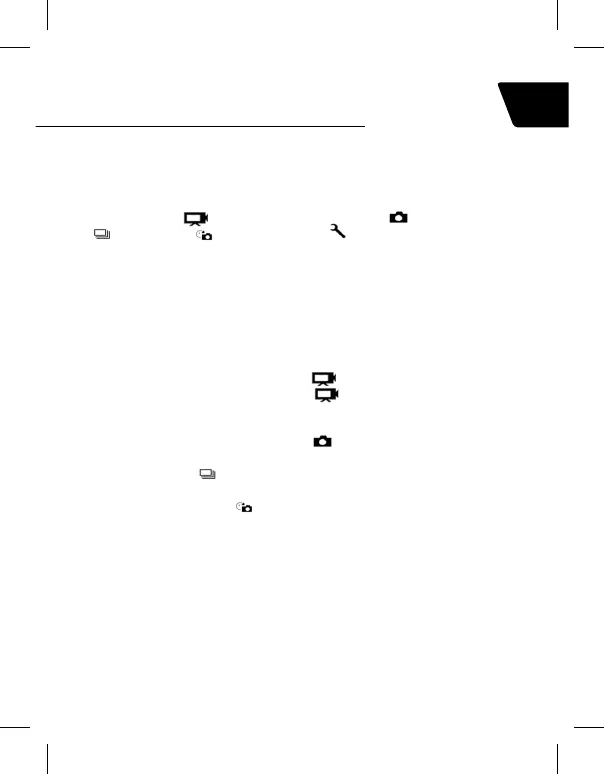
You may switch between different modes: Video / Photo / Playback / Menu
by pressing the ON/OFF button.
The mode currently active is displayed by icons in the upper left corner of
the screen. The
icon indicates the Video mode, - Photo mode,
- Burst mode, - Time Lapse mode, - camera settings.
Press the "Up" button on the side of the camera briey to enter playback
mode.
Playback mode menu will be displayed. Use the Up and Down buttons to
select the desired type of video/photo les. Press OK to begin playback.
6. Recording
1. Movie recording
Switch the camera to Video mode. The
icon will be displayed. Press
the "OK" button to begin recording. The
icon will turn red. Press the
"OK" button again to stop recording – all indicators stop ashing.
2. Taking pictures
Switch the camera to Photo mode. The
icon will be displayed. Press
the "OK" button to take a photo.
3. The Burst mode
allows to take a series of three shots in less than
one second
4. The Time Lapse mode
allows to take a series of shots at specied
intervals. Press OK again to nish taking photos. To create a time lapse
recording, transfer photos to the computer and use lm creating software.


 To Next Page