MN
38
AX
50
TTL
88
STATUS
OK
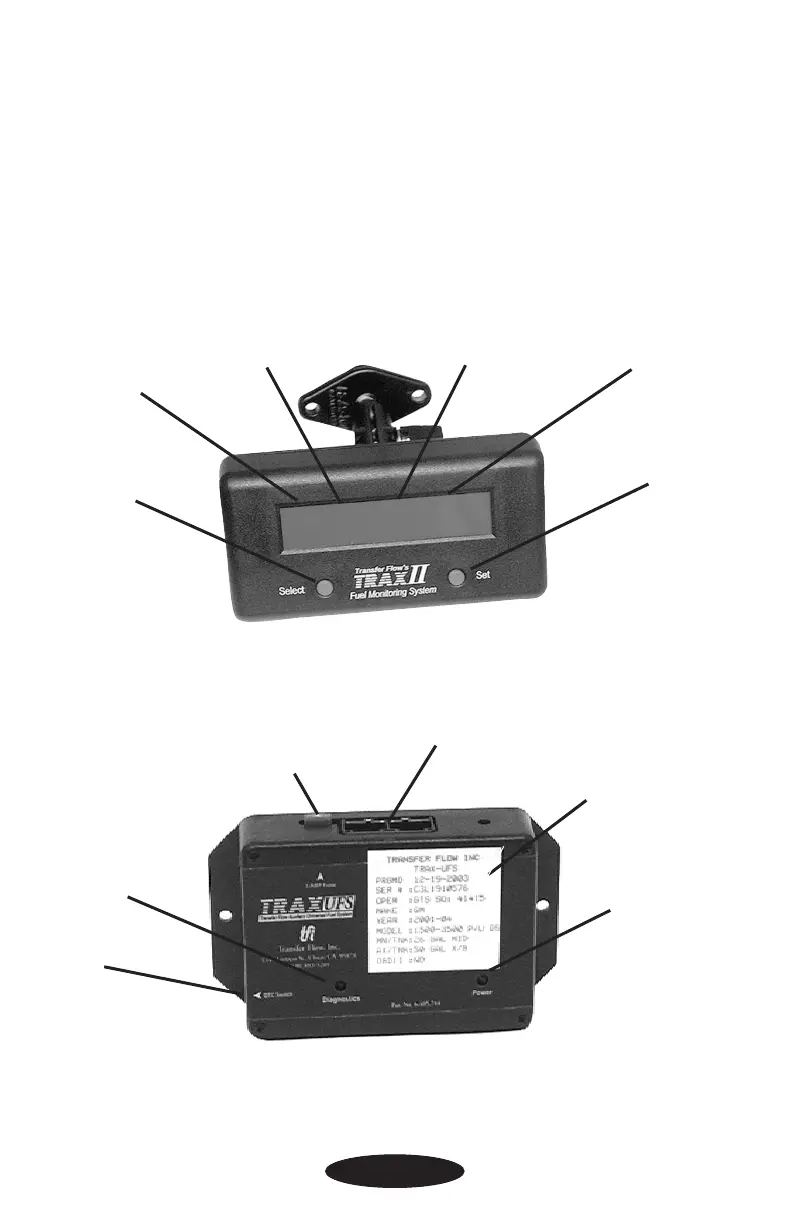
Dash Mounted LCD
FIGURE 1
Gallons in
main (OEM) tank
Gallons in
auxiliary tank
Total gallons being
monitored on vehicle
Operational status
of vehicle’s fuel system
Trax-UFS Computer Module
FIGURE 2
Troubleshooting light
(red light)
Power light
(green light)
Vehicle
information label
8 pin connector
Page 2
LCD Adjustment Directions
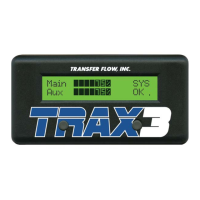
e two buttons on the front of TRAX LCD modules can be used to adjust the contrast and
backlight of the LCD display. Follow these steps to adjust the contrast or backlight setting:
1. When your vehicle and the TRAX module are running, press both buttons at the same
time on the front of the display to enter the “LCD Adjust” screen.
2. Press the Left or Right button to adjust the Contrast or Backlight respectively.
3. Press the + and - buttons until the desired Contrast or Backlight setting is achieved.
4. Press both buttons at the same time to exit the “LCD Adjust” mode and save your
settings.
Select light set-
ting of LCD
Set the light
setting of the LCD
DTC switch
5 amp fuse



 To Next Page