1.1 Features
•
Supports JPG,PNG format picture browsing; supports image rotation, scaling; supports auto
play with multiple special effects, supports background music playback;
•
Clock and calendar display: supports calendar, month calendar and clock display; supports MP3
and WMA audio file format playback; supports AVI, MP4, MKV, RMVB, MOV video file format
playback;
•
Can set for system parameters and functions;
•
Supports a large variety of cards, including: SD, MMC, etc., and supports software upgrading via
SD card;
•
Supports USB2.0, can be configured as USB OTG; supports a large variety of U disk, MP3 and
other USB devices;
•
Support infrared remote control.
2. KEY DEFINITIONS IN THE REMOTE CONTROL
Users can use the remote control to achieve full functions. Key definitions in the remote control are
as below:
1.
MUTE: Press to turn off the sound when
playing; press again to re-open the sound.
2.
STANDBY: Press to enter into standby mode
when playing; press again to return.
3.
PHOTO: Picture playback shortcuts.
4. MUSIC: Music playback shortcuts.
5. MOVIE: Movie Playback shortcuts,
6. PLAY/PAUSE: Play / Pause.
7. UP: Cursor up key.
8. EXIT: Return key.
9. LEFT: Cursor left key.
10. ENTER: Confirm key.
11. RIGHT: Cursor right key.
12. SETUP: Setting Shortcuts.
13. DOWN: Cursor down key.
14. CALENDAR: Clock and calendar shortcuts.
15. VOL+: The button to increase the sound
volume.
16.
◄◄:
Rewind key.
17. PREVIOUS: Move to previous picture, song or
video.
18. VOL-: The button to decrease the sound
volume.
19.
►►:
Fast forward key.
20. NEXT: Move to next picture, song or video.
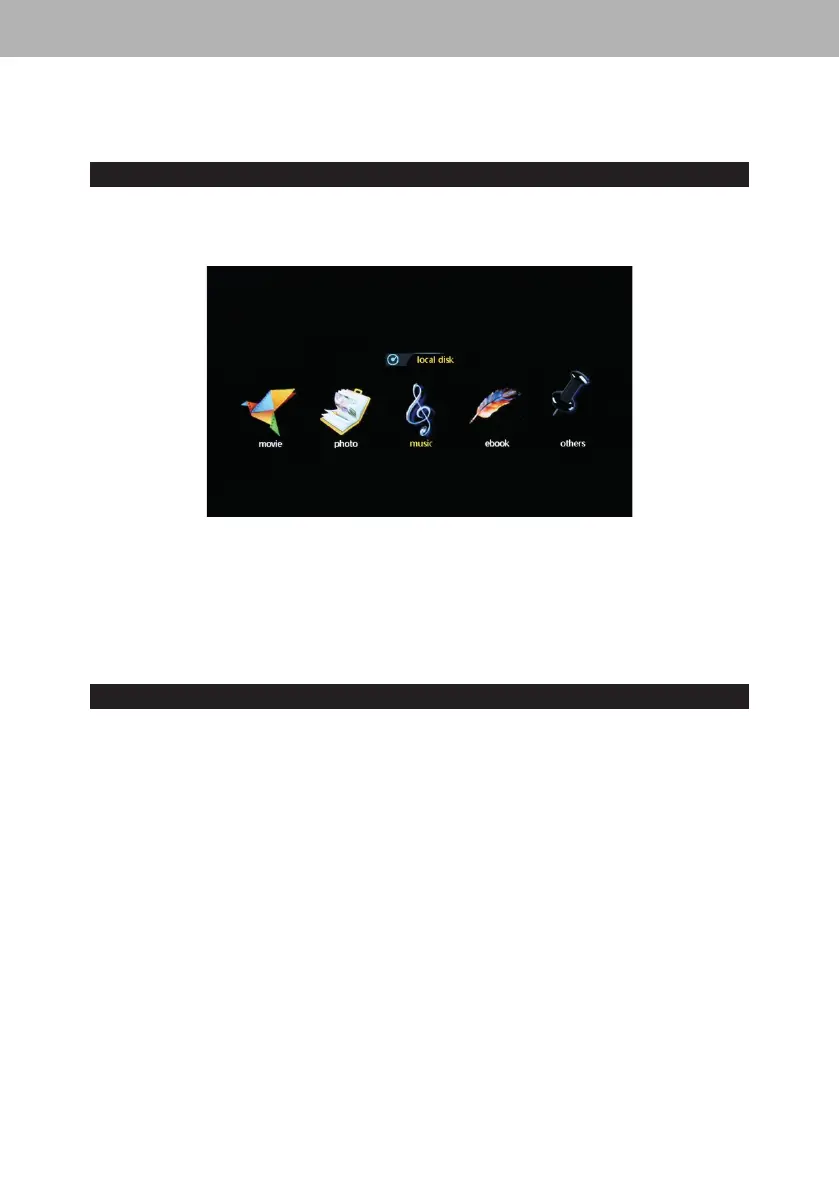
21. Slid show: Play photos+music
show the main menu screen when power on.
If “Autoplay” option of the Main Menu is designated for other options, and with USB or SD inserting,
it will auto play the designed options. When SD and USB are inserted simultaneously, it will play the
connect in USB by default.


 To Next Page