Follow these steps in the wizard:
Configure the implement.1.
Select the pattern type.2.
Drive and define the guidance line.3.
Step 1: Configure the implement
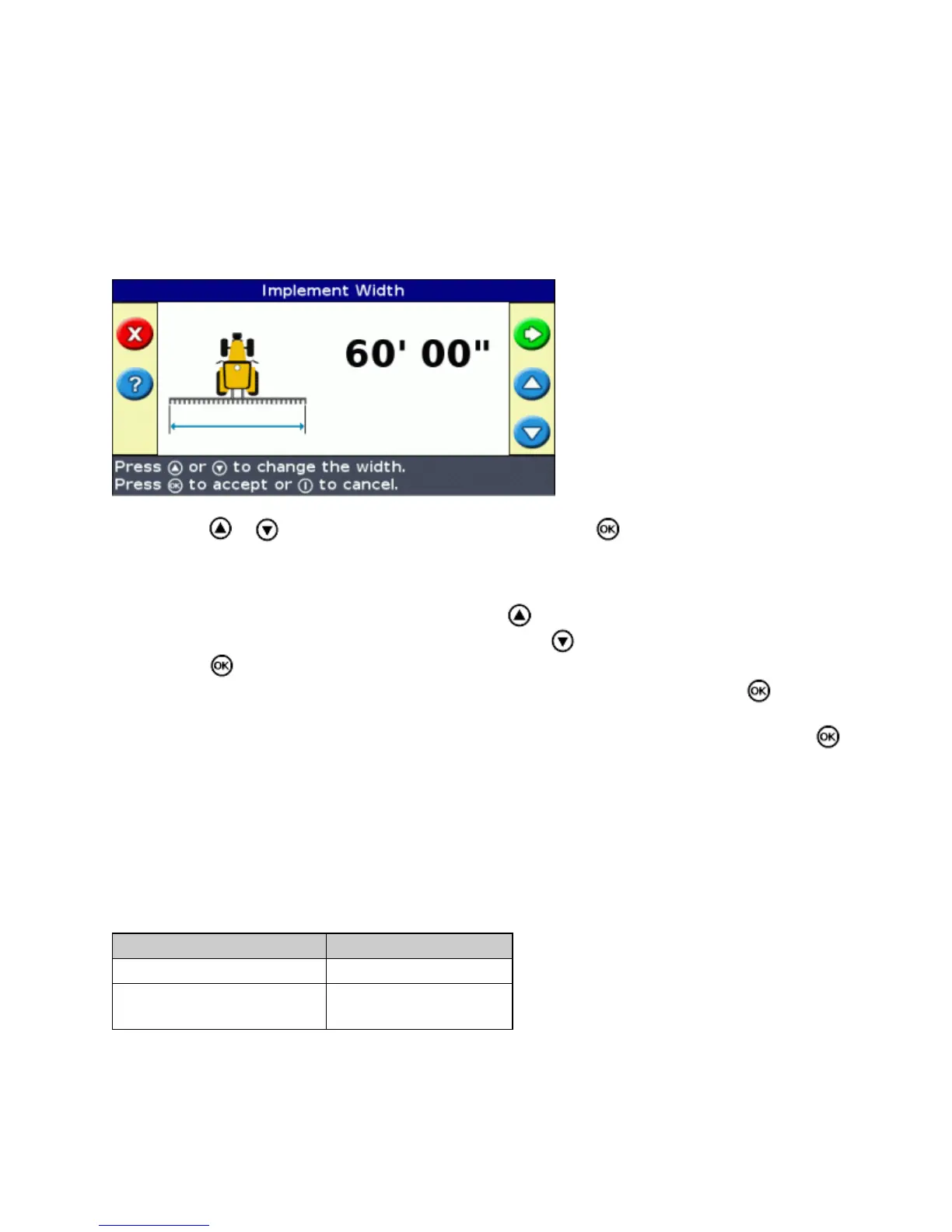
The Implement Width screen appears:
Press or to adjust the implement width and then press . The Overlap/Skip screen appears.1.
Do one of the following:2.
If you want your passes to meet so you have full coverage without overlaps, use the default
Overlap/Skip value.
♦
If you want your passes to overlap, press to enter an overlap distance.♦
If you want a space between your passes, press to enter a skip distance.♦
Press . The Forward/Back Offset screen appears.3.
Enter the distance that the implement is offset back from the antenna and then press . The Left/Right
Offset screen appears.
4.
Enter the distance that the implement is offset to the left or right of the antenna and then press . The
Pattern Type screen appears.
5.
Step 2: Select the pattern type
Select which of the seven guidance patterns you want to base guidance on. For a description of the different field
patterns, see Guidance Patterns.
Some guidance patterns require additional information:
IF YOU SELECTED... YOU NEED TO...
A+ define the heading.
Headlands
define the number of
circuits.
When you have entered any additional pattern information, the main guidance screen appears.
Step 3: Driving and defining the guidance line
39



 To Next Page