2-37
Operating Your Tablet Computer
To tag photos with GPS
Perform the following to tag photos with GPS location.
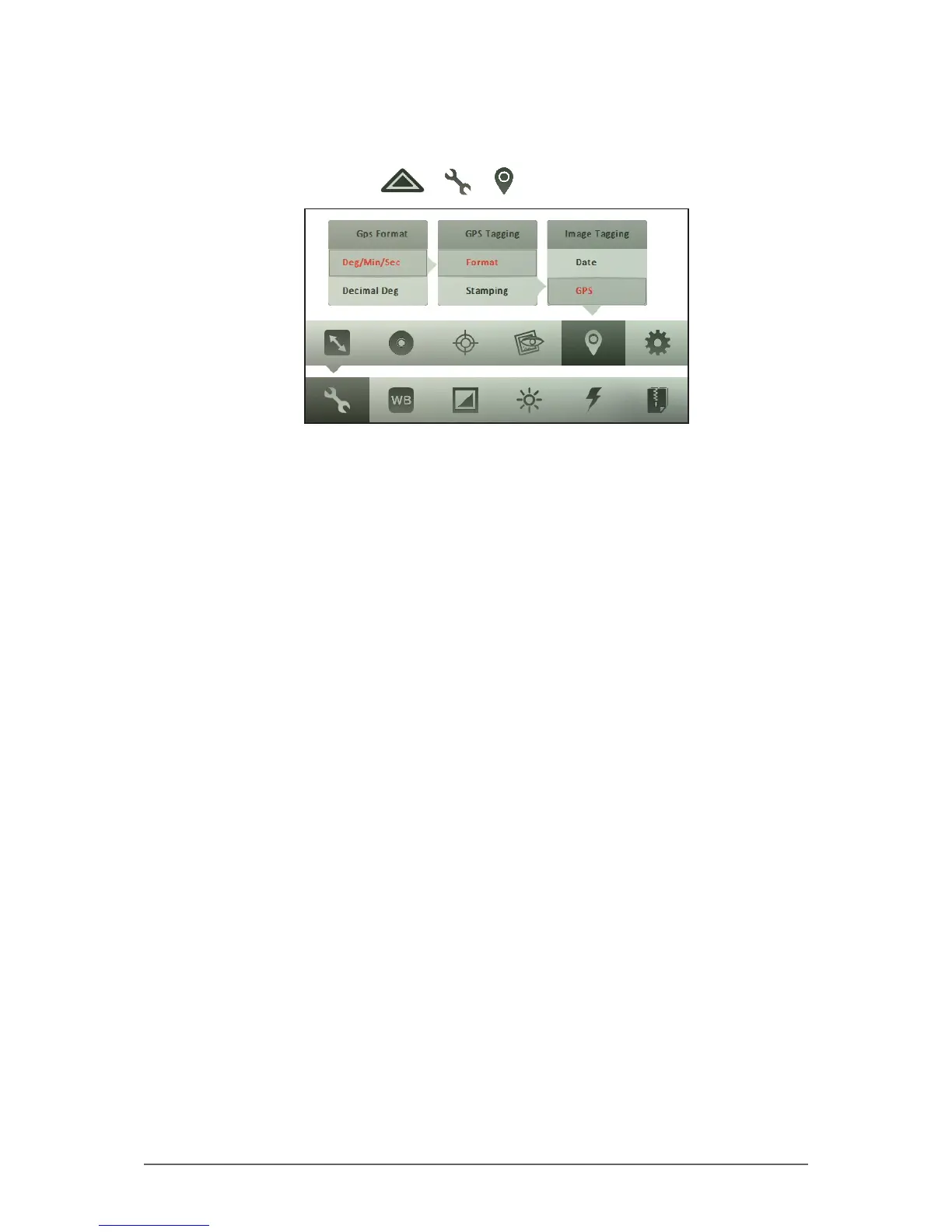
1. In Photo mode, tap > > .
2. Tap GPS.
3. Tap Format, and then tap one of the following options:
• Deg/Min/Sec: Select this option to tag and display the GPS location in
Deg/Min/Sec format.
• Decimal Deg: Select this option to tag and display the GPS location in
decimal degree format.
4. Tap Stamping, and then tap one of the following options:
• Image Stamp: Select this option to tag and add the GPS location on
captured photos.
• Exif: Select this option to tag and save the GPS location to the exif
data of the captured photo. The GPS location is not shown on the
screen nor on printed photos.
• Both: Select this option to tag and display the GPS location on
captured photos and save the location on the exif data.
• Off: Select this option to hide the GPS location.



 To Next Page