2-32 Operating Your Tablet Computer
Using the System Utility
Wireless Switch
The Wireless Switch allows you to manage the Wireless device(s)
(wireless LAN and Bluetooth wireless features – refer to Chapter 2 on
turning on/off wireless LAN radio and Bluetooth wireless feature). When
you receive the tablet computer, this switch is on by default
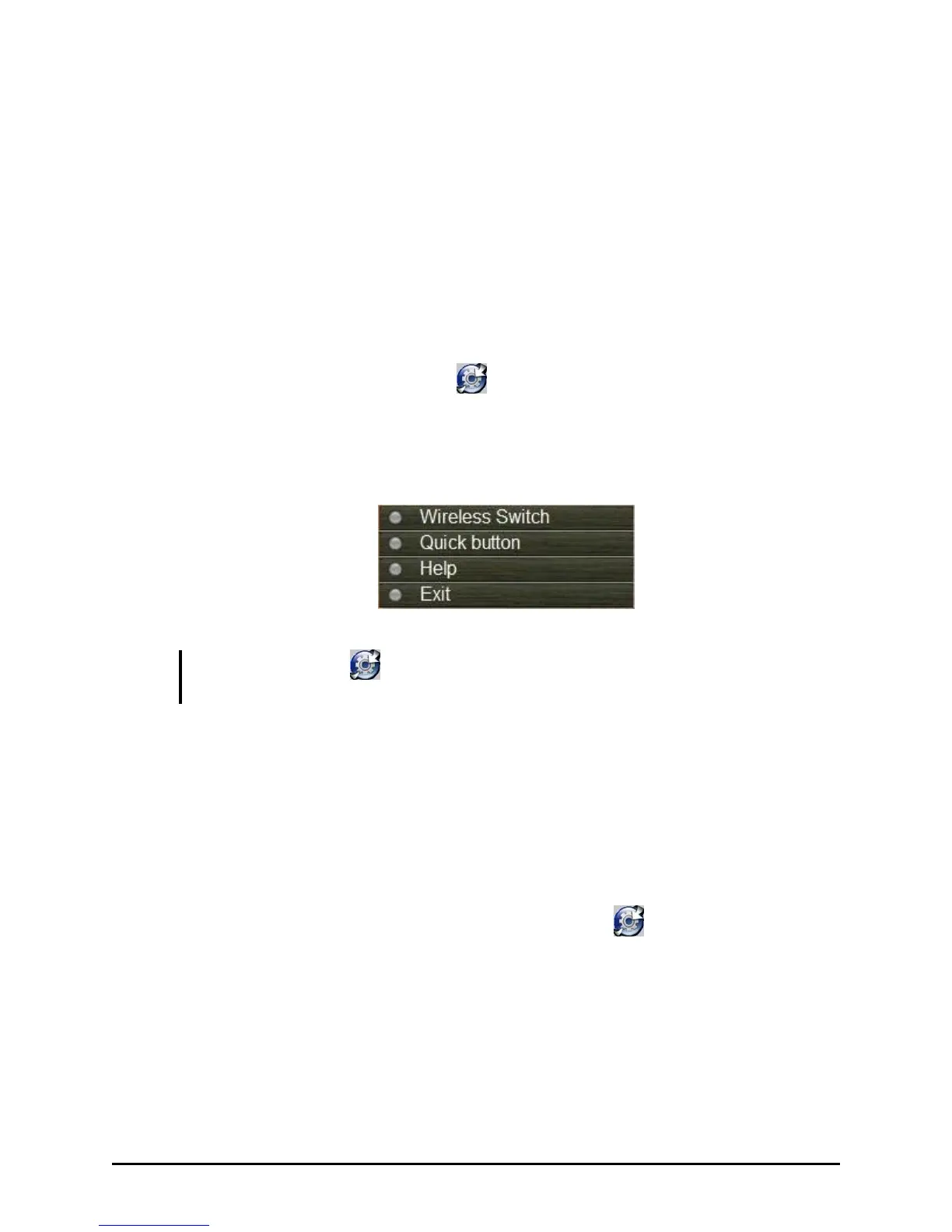
Tap and hold the stylus on the icon located in the Windows system
tray until the ring appears. Lift up the stylus and the menu appears. When
no wireless device(s) is currently detected, it is indicated by the button
highlighted as gray.
NOTE: If there is no icon located in the Windows system tray, tap Start All
Programs System utility OSD.
Quick Button Define
The three quick buttons F1, F2, and F3 are located on the left side of the
LCD panel. The quick launch key utility allows you to re-define the F1,
F2, and F3 quick launch keys.
To start the utility, tap and hold the stylus on the icon in the Windows
system tray until the ring appears. Lift up the stylus and select the item
Quick button.


 To Next Page
 Loading...