4
Basic Operation continued
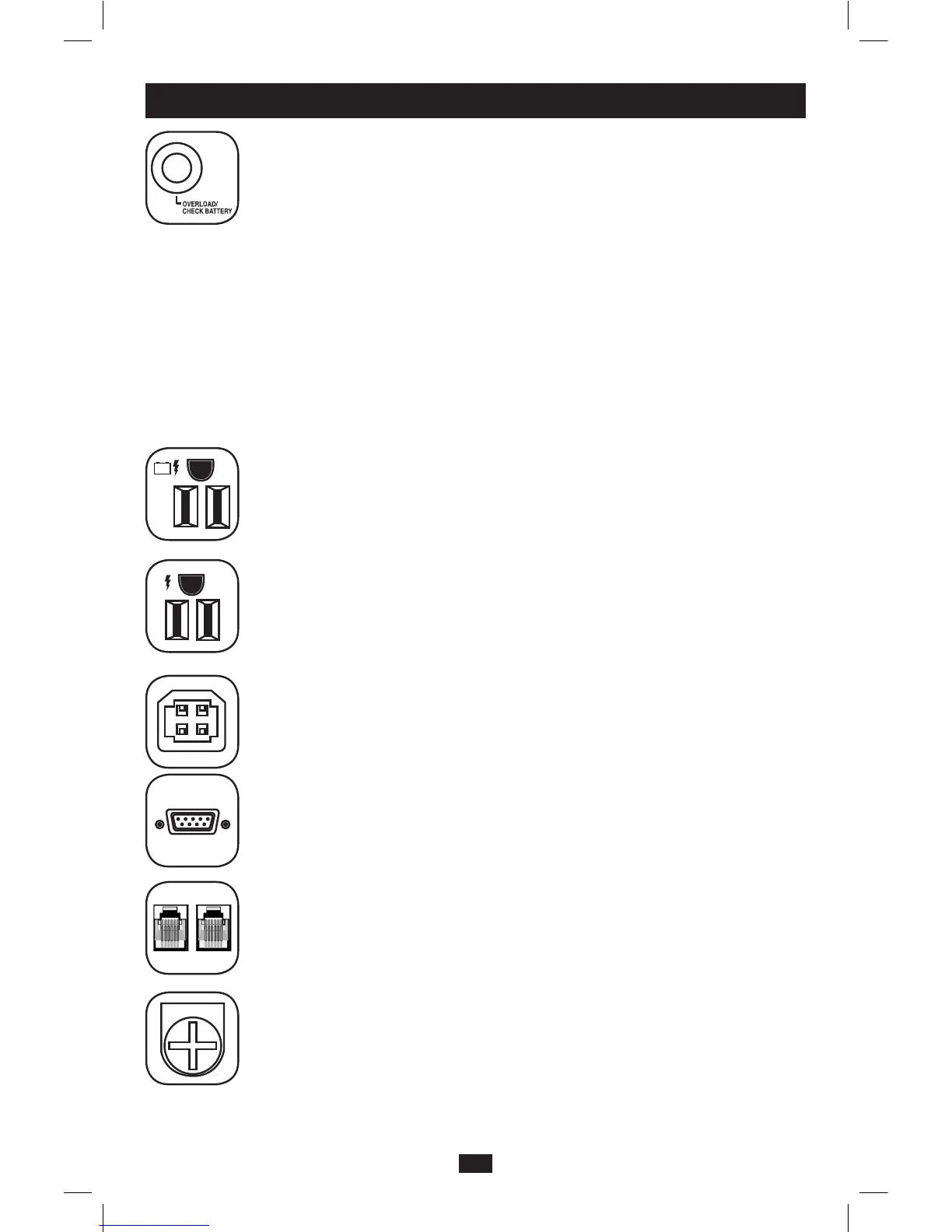
“OVERLOAD/CHECK BATTERY” LED: this red LED lights continuously after a self-
test to indicate the capacity of the battery-supported outlets has been exceeded.
To clear the overload, unplug some of your equipment from the battery-supported
outlets; then use the ON/OFF/TEST button to run a Self-Test. If the UPS continues to
detect an overload, remove more equipment and repeat the self test until successful.
CAUTION!Anyoverloadthatisnotcorrectedbytheuserimmediatelyfollowing
aself-testmaycausetheUPStoshutdownandceasesupplyingoutputpower
intheeventofablackoutorbrownout.The LED ashes to indicate the battery
needs to be recharged or replaced. If the LED ashes (and a continuous alarm sounds)
during a prolonged blackout or brownout, the UPS’s batteries are nearly out of power;
you should save les and shut down your equipment immediately. If the LED ashes
following a UPS self-test (after the UPS is turned ON), it may indicate that the battery
needs to be replaced. Allow the UPS to recharge continuously for 12 hours; then
use the ON/OFF/TEST button to run a Self Test. If the LED continues to ash, contact
Tripp Lite for service. Should your UPS require battery replacement, visit Tripp Lite
on the web at www.tripplite.com/support/battery/index.cfm to locate the specic
replacement battery for your UPS.
BatteryBackupProtected/SurgeProtectedOutlets:Provide both battery backup
and surge protection. Plug your computer, monitor and other critical equipment into
these outlets. NOTE: DO NOT PLUG LASER PRINTERS INTO THESE OUTLETS.
Surge-OnlyProtectedOutlets:Provide surge and line noise protection, not battery
backup. Plug equipment (such as a printer, scanner or fax machine) that does not
require battery backup during a utility power failure into these outlets.
USBorDB9CommunicationPort(selectmodelsonly):These ports can connect
your UPS to any computer for automatic file saves and unattended shutdown in the
event of a power failure. Use with Tripp Lite’s PowerAlert Software and appropriate
USB or DB9 cable. A PowerAlert CD and USB or DB9 cable may be included with your
UPS; if so, insert the CD into the CD tray of your computer and follow the installation
instructions. If PowerAlert Software and the appropriate cable did not come with your
UPS, you can obtain the software FREE via the Web at www.tripplite.com. Any user-
supplied DB9 pass-through or USB cable may then be used to connect your UPS to
your computer. NOTE: This connection is optional. The UPS will work properly without
this connection.
Tel/DSLProtectionJacks(selectmodelsonly):stop surges on the phone or fax line.
Connecting your equipment to these jacks is optional. Your UPS will work properly
without this connection.
GroundConnection:Use this to connect any equipment that requires a chassis
ground.



 To Next Page