EasyManua.ls Logo

Tripp Lite B051-000 - User Manual

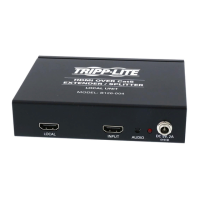
Tripp Lite B051-000
65 pages
Print Icon
To Next Page IconTo Next Page
Loading...
1
Owner’s Manual
Warranty
Registration:
register online today for a
chance to win a FREE Tripp Lite
product—www.tripplite.com/warranty
IP Remote Access Unit
Model:
B051-000
FCC Information
This is an FCC Class A product. In a domestic environment this product may cause radio interference in which case the user may be required to
take adequate measures.
This equipment has been tested and found to comply within the limits for a Class A digital device, pursuant to Part 15 of the FCC Rules. These
limits are designed to provide reasonable protection against harmful interference when the equipment is operated in a commercial environment.
This equipment generates, uses and can radiate radio frequency energy and, if not installed and used in accordance with the instruction manual,
may cause harmful interference to radio communications. Operation of this equipment in a residential area is likely to cause harmful interference
in which case the user will be required to correct the interference at their own expense.
RoHS
This product is RoHS compliant.
Package Contents
The B051-000 package consists of:
(1) B051-000 IP Remote Access Unit
(1) USB KVM Cable Kit
(1) PS/2 KVM Cable Kit
(1) USB – PS/2 Console Connector Kit
(1) USB 2.0 Virtual Media Cable
(1) Power Adapter
(1) Rackmounting Kit
(1) Software CD with Owner’s Manual
(1) Quick Start Guide
Tripp Lite World Headquarters
1111 W. 35th Street, Chicago, IL 60609 USA
(773) 869-1234 • www.tripplite.com
Note: Follow these instructions to ensure proper operation and prevent damage to this device and its connected equipment.
Copyright © 2009 Tripp Lite. All rights reserved. All trademarks are the property of their respective owners.

Table of Contents

Other manuals for Tripp Lite B051-000

Questions and Answers

  • D
    Danielle GonzalezSep 23, 2025
    Why there is no Virtual Media icon on my Control Panel of Tripp Lite B051-000?
    • M
      Mark ThompsonSep 23, 2025
      If there is no Virtual Media icon on your Control Panel when using the Tripp Lite Remote Control, it is because the virtual media function is only supported by the Windows Client program.
  • J
    Justin WongAug 23, 2025
    Why are the mouse and keyboard not responding on Tripp Lite B051-000?
    • A
      Amanda McknightAug 23, 2025
      If you're experiencing mouse and/or keyboard unresponsiveness while accessing your Tripp Lite Remote Control via local console: * Unplug and replug the cable(s) from the console port(s). * Turn the connected computer/server off and then back on. Remember, all connected devices should be powered off when connecting to the unit.
  • C
    Charles HubbardAug 25, 2025
    What to do if Virtual Media doesn’t work on Tripp Lite B051-000 Remote Control?
    • S
      Sara MoranAug 25, 2025
      If Virtual Media isn’t working on your Tripp Lite Remote Control, ensure that the Virtual Media cable is properly connected.
  • L
    Larry SanchezAug 27, 2025
    Why does Tripp Lite Remote Control show '404 Object Not Found' error?
    • F
      fsandersAug 27, 2025
      If you're seeing the message '404 Object Not Found' when logging in from a browser, and a login string has been set, ensure you include the forward slash and the correct login string when specifying the B051-000 IP address.
  • C
    christinepetersonAug 27, 2025
    What to do if Tripp Lite Remote Control has sudden loss of network connection?
    • P
      Patricia RyanAug 27, 2025
      If you're experiencing a sudden loss of network connection with your Tripp Lite Remote Control B051-000, close your current connection, wait about 30 seconds, and then log in again.
  • R
    Raymond MillerSep 17, 2025
    Why the local and remote mouse pointers do not sync on Tripp Lite Remote Control?
    • A
      Alex RuizSep 18, 2025
      If the local and remote mouse pointers do not synchronize when using the Tripp Lite Remote Control with Mac computers, there are two USB I/O settings: Mac 1 and Mac 2. If you experience pointer sync problems, try selecting the other mode. Mac 1 generally works with older operating system versions, and Mac 2 works with newer ones, but the reverse may be true in some cases.
  • M
    martindanielSep 14, 2025
    How to solve video display problems with HD15 interface systems on Tripp Lite Remote Control?
    • M
      Manuel HansenSep 14, 2025
      If you are experiencing video display problems with HD15 interface systems (e.g. Sun Blade 1000 servers) when using the Tripp Lite Remote Control, the display resolution should be set to 1024 x 768: Under Text Mode: 1. Go to OK mode and issue the following commands: setenv output-device screen:r1024x768x60 reset-all Under XWindow: 1. Open a console and issue the following command: m64config -res 1024x768x60 2. Log out. 3. Log in.
  • A
    Andrea WilkersonSep 15, 2025
    How to solve video display problems with 13W3 interface systems on Tripp Lite Remote Control?
    • V
      vegadeborahSep 15, 2025
      If you are experiencing video display problems with 13W3 interface systems (e.g. Sun Ultra servers) when using the Tripp Lite Remote Control, the display resolution should be set to 1024 x 768: Under Text Mode: 1. Go to OK mode and issue the following commands: setenv output-device screen:r1024x768x60 reset-all Under XWindow: 1. Open a console and issue the following command: m64config -res 1024x768x60 2. Log out. 3. Log in.
  • J
    Jessica KempSep 6, 2025
    What to do if Tripp Lite Remote Control has no video display?
    • L
      Lori OwensSep 6, 2025
      To resolve the issue of no video display on the remote console of your Tripp Lite Remote Control, ensure that the resolution of the monitor being used to display the remote computer/server is higher than that of the remote computer/server.
  • K
    Kelly BlackSep 3, 2025
    How to fix Tripp Lite B051-000 web page display errors?
    • T
      travistracySep 3, 2025
      If you're experiencing issues where the web page doesn't display correctly and you receive an error message about problems preventing the page from displaying properly when opening a viewer with your Tripp Lite Remote Control, the solution is: * Enable Active Scripting, ActiveX Controls, and Java Applets in Internet Explorer's security settings. Verify that these are not blocked by Internet Explorer or other programs like Anti-Virus or Firewall. * Ensure your anti-virus isn't scanning Temporary Internet Files or Downloaded Program Files folders. * Delete temporary internet files and cookies in Internet Explorer and clear browser history. * Ensure you have the latest versions of Microsoft DirectX and Java installed.

Summary

Owners Manual

Introduction

Features

Lists the key functionalities and capabilities of the IP Remote Access Unit.

Introduction (cont.)

Hardware Setup

Safety Instructions

General and rack mounting safety guidelines to prevent damage or injury.

Hardware Setup (cont.)

Installation Procedures

Step-by-step instructions for rack mounting and DIN rail mounting.

Installation Steps

Detailed connection steps for local console, KVM, Virtual Media, and network.

Setting up an IP Address

IP Address Determination Methods

Explains how to find or assign an IP address using IP Installer or Browser.

IP Installer Utility

Guide to using the IP Installer for assigning IP addresses.

Setting up an IP Address (cont.)

Browser Access and Network Settings

Accessing via browser and configuring network settings.

Browser Login Process

How to log in via browser and handle security alerts.

Administration

Network Configuration

Covers IP address, DNS server, and access port settings.

Administration (cont.)

MAC Filtering

How to add, delete, or modify MAC filters for access control.

User Management Details

Explanation of username, password, and permissions fields.

IP Filtering

How to add, delete, or modify IP filters for access control.

Advanced Network Management Settings (ANMS)

Overview of ANMS for external authorization management.

The Windows Client

The Windows Client (cont.)

Virtual Media Function

How to use USB devices remotely via the Windows client.

The Java Applet

The Java Applet (cont.)

The Log File

The Log Server

The Log Server (cont.)

AP Operation

AP Operation (cont.)

LDAP Authentication Settings

Settings for LDAP/LDAPS authentication and authorization.

Extend and Update Active Directory Schema

Steps to create new attributes and extend object classes.

User Management

Creating and managing user profiles and access rights.

IP Address and DNS Server Configuration

Setting up network parameters for the unit.

ANMS Settings Overview

Introduction to Advanced Network Management Settings.

Security Overview and Filtering

Controlling access using IP and MAC filters.

RADIUS Settings

Configuration for RADIUS server authorization.

LDAP Configuration: Active Directory

Steps for extending Active Directory schema for LDAP.

OpenLDAP Server Configuration

Customizing the slapd.conf file.

The Administrator Utility

Introduction to the utility for configuration.

Administrator Utility: Network Settings

Configuration of network environment and access ports.

Customizing the OpenLDAP Schema

Extending the schema for the B051-000.

Appendix

Appendix (cont.)

Troubleshooting: General Operation

Solutions for general operational issues.

Troubleshooting: The Java Applet

Solutions for Java Applet connection problems.

Troubleshooting: The Windows Client

Solutions for Windows client connection issues.

Tripp Lite B051-000 Specifications

General IconGeneral
ModelB051-000
CategoryRemote Control
Number of Local Users Supported1
Number of Remote Users Supported1
Voltage Rating5V DC
Power Rating2.5W
Ports1
Control MethodHot Keys
Current Rating500mA
Operating Temperature0°C to 50°C (32°F to 122°F)

Related product manuals