11
Browser (continued)
AP Windows Client
Setting up an IP Address
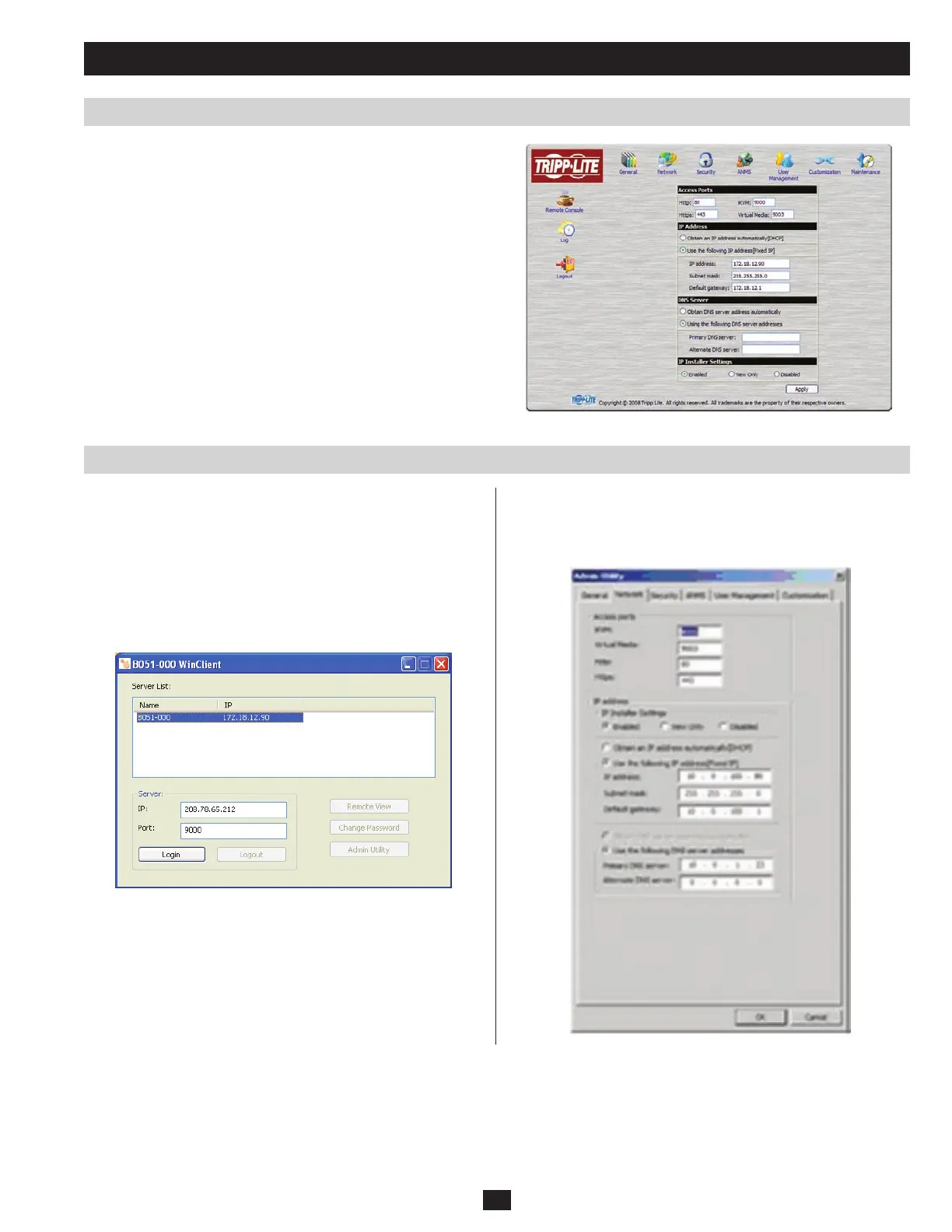
3. Once logged into the B051-000, you can customize the Network
Settings by clicking on the Network Icon on the B051-000 home
page. Assign an IP address for the B051-000 that is suitable for the
network segment that it resides on.
4. After you log out, reset your computer’s IP address to its original
value.
For computers running Windows, the B051-000 IP address can be
determined using the Windows AP program. Run the Windows
Client AP Installer file from the CD that came with the B051-000
and follow the step-by-step instructions. The first time you login to
the AP Windows Client, you will need the serial number located
on the CD that came with the B051-000. This is not the same as the
serial number on the bottom of the unit. When you run the program it
searches the network segment for B051-000 devices, and displays the
results in a dialog box similar to the one below:
To update the network settings, you must click on the Login button
to log into the B051-000. Once logged in, click on the Admin Utility
button to access the B051-000 Admin Utility. From there you can get
to the network settings screen by clicking the Network tab.



 To Next Page
 Loading...