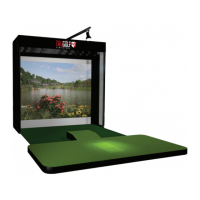
The APOGEE Launch Monitor by TruGolf is a ceiling-mounted, photometric launch monitor designed for golf simulators. It measures club and ball data without the need for specialized golf balls or marked clubs. The system includes various features such as voice commands, a laser indicator, point of impact replay, auto diagnostic, and auto calibration.
Technical Specifications:
-
Minimum System Requirements for E6 CONNECT:
- Intel i5 Processor
- 8GB RAM
- Nvidia 1070
- 25GB of Hard Drive Space
- Windows 10 64-Bit
- Internet Connection
-
Installation Height: APOGEE must be securely installed between 9' to 10' feet above the hitting surface.
-
Tee Box Dimensions: The acceptable hitting area for users is 10" W x 8" D.
-
Connectivity: Uses CAT6 cable (50') and a USB to CAT6 Network Adapter for connection to a simulator computer.
-
Power: Requires a power cable.
-
Cameras: Includes a Center Camera and an Offset Camera.
-
Lighting System: Features an internal infrared lighting system with light passing through the acrylic faceplate.
-
Microphone: Located in the center of the APOGEE Launch Monitor.
-
Indicators:
- System Status Indicator (SSI): The APOGEE logo color changes according to the system status (Blue for Operational, Yellow for Calibration in Progress, Red for User should launch APOGEE Control Center).
- System Connection Indicator (SCI): The SCI lightbar changes color upon error (Orange for System Booting, Yellow for Searching for Connection, White for Connected to APOGEE Control Center, Purple for Calibration in Progress, Blue for Connected to E6 CONNECT, Red for Issue Found).
- APOGEE Laser Indicator: A visual aid to help users place the ball for accurate readings.
Usage Features:
APOGEE Control Center (ACC):
The ACC is a standalone software that helps users manage their APOGEE Launch Monitor. It provides diagnostic and automated calibration features to identify and solve technical problems.
- Calibration: Launches the Automated Calibration Wizard (ACW). This wizard checks installation alignment and adjusts apertures for ambient light, guiding users through necessary steps.
- APOGEE Firmware Update: Allows users to update to the newest version of APOGEE firmware or revert to previous versions.
- APOGEE Reboot: Reboots the APOGEE device.
- APOGEE Reset to Defaults: Resets APOGEE's calibration settings to factory defaults.
- System Controls:
- Tee Laser: Turn the laser on/off.
- Microphone: Turn the microphone on/off.
- Status: Provides real-time status of network connections, camera system, cooling system fan status, and the internal temperature of the APOGEE device.
- Networking System: Displays Internet Connection and APOGEE Connection status (connected/disconnected).
- Camera System: Shows Center Camera and Offset Camera online/offline status.
- Cooling System: Displays online/offline status for Fan 1 and Fan 2, and lists the live internal temperature of the APOGEE device.
- Tools: Access to firmware updates, reboot, and reset to defaults.
- Support: View and submit logs to the TruGolf Support Team. User contact information is connected with these reports.
- Documentation: Collection of APOGEE documentation.
"Hey APOGEE" Voice Commands:
The APOGEE system includes a proprietary voice command feature designed to increase the speed and convenience of your indoor golf round.
- Activate Voice Commands: "Hey APOGEE"
- Cancel Voice Command: "Cancel"
- Resume Play: "Resume"
- Confirmation - Yes: "Yes", "Yeah", "Yep"
- Confirmation - No: "No", "Nope"
- Show Club Select Menu: "Club Menu", "Club Select"
- Club Options: "Auto Select", "Driver", "Three Wood", "Five Wood", "Four Hybrid", "Four Iron", "Five Iron", "Six Iron", "Seven Iron", "Eight Iron", "Nine Iron", "Pitching Wedge", "Sand Wedge", "Putter"
- Mulligan: "Mulligan", "Confirmation"
- Next Hole: "Next Hole", "Confirmation"
- Show Analyzer: "Analyzer"
- Show Scorecard: "Scorecard"
- Rehit: "Rehit", "Confirmation"
- Hole Preview: "Hole Preview"
- Pickup: "Pickup", "Confirmation"
- Practice: "Practice"
- Change Camera Aim: "Aim Right", "Aim Left", "Reset Aim", "Aim at Pin"
- Toggle Weather: "Weather"
- Toggle Top View: "Top View"
Installation Process:
- Identify Centerline: Place reflective dots at the center of your Tee Box and the center point of your screen. Use a laser level to align the included laser with the two dots to determine the centerline of your simulator.
- Note: If your mat is not centered in your simulator space, the centerline at the screen should match the offset of the mat.
- Measure Tee to APOGEE Distance: Measure the distance from the turf to the ceiling. Use the provided table to find the corresponding "Tee to APOGEE" distance (e.g., for 108"-109" ceiling height, Tee to APOGEE is 21"). Measure forward from the center of your desired tee location and place a mark on the floor with a reflective dot. Use a plumb bob to mark the corresponding spot on the ceiling with a pencil.
- Detach Mount: The APOGEE Mount ships attached to the APOGEE unit. Loosen the 4 screws (two front, two back) to detach the mount. DO NOT REMOVE THE SCREWS.
- Attach Mount to Ceiling: Attach the APOGEE Mount using one of the included screws and a fender washer through the center hole on the mount to the mark on the ceiling. DO NOT TIGHTEN FULLY AT THIS POINT.
- Note: Screws are included for mounting to drywall or wooden surfaces.
- Align Mount: Rotate and adjust the mount until the laser bisects all center holes to ensure it is parallel to the screen. Then, tighten down the center screw.
- Secure Mount: Add additional screws to secure the APOGEE Mount to the ceiling.
- Slide APOGEE into Mount: Slide the APOGEE unit up into the mount, then over and down into the slotted section.
- Secure APOGEE: Tighten the 2 screws in the front and 2 screws in the back to secure APOGEE to the mount.
Wiring:
- Connect the power cable and the network cable into the back of the APOGEE unit.
- Run the cables along the edge of the simulator.
- Connect the CAT6 cable to the USB RJ45 adapter.
- Connect the USB RJ45 adapter into the back of the computer.
Maintenance Features:
- APOGEE Firmware Update: Allows users to update to the newest version of APOGEE firmware or revert to previous firmware versions.
- APOGEE Reboot: Reboots the APOGEE device to resolve potential issues.
- APOGEE Reset to Defaults: Resets APOGEE's calibration settings to factory defaults, which can be useful for troubleshooting or re-calibration.
- System Log: Provides a refreshable feed of the latest logs from APOGEE.
- Submit to TruGolf: Allows users to submit data logs to the TruGolf Support Team for review upon submission of a support ticket.
- Clear Logs: Clears the logs currently stored on your computer.
- Support Information: Includes contact details for customer support (Toll Free: 877-711-6691, Direct Line: 801-677-1123) and a support website (https://trugolf.com/support).
- Auto Diagnostic: The system includes auto diagnostic features to help identify and solve technical problems.
- Auto Calibration: The system includes auto calibration features for optimal performance.
Important Notes:
- Some lighting environments and custom club finishes may require a metallic sticker for accurate Club Face Angle data. However, trajectory data is derived from the measured ball characteristics.
- The device is designed and assembled in the USA.
- Customer support is available Monday-Friday, 9:00 am-5:00 pm MST.

 Need help?
 General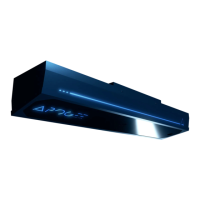

 To Next Page