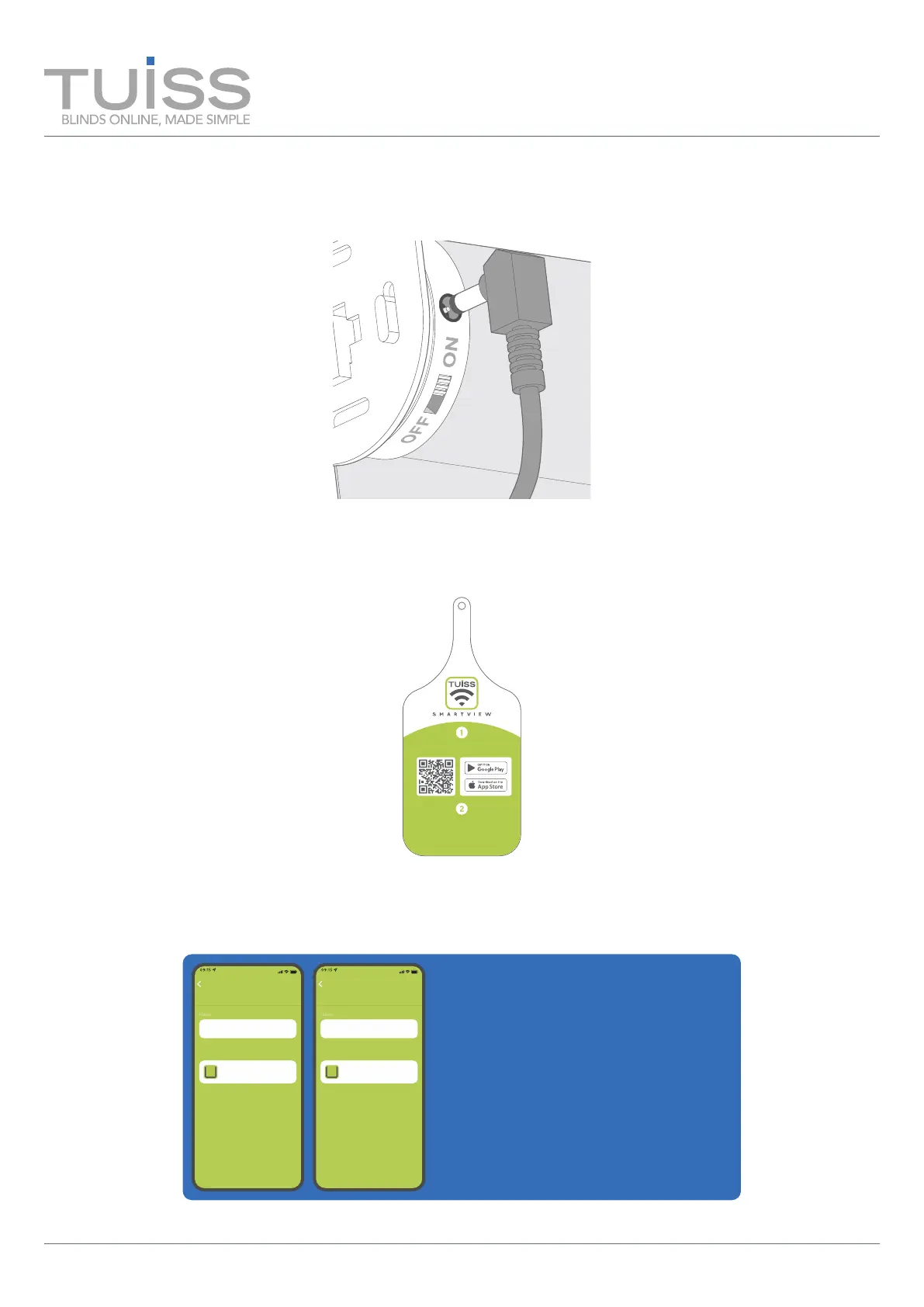
Once your blinds are installed we recommend plugging in the motor to allow them to fully charge before use. Plug the charging
cable (included) into the motor charging port and allow to charge until the LED on the charger plug turns green.
Download the SMARTVIEW app
Follow the instructions in the
app, then flip this label to find
the blind ID to add this blind
On the front of the swing tag that comes with each blind, you’ll find a handy QR code you can scan with your phone. Scan this to
download the SmartView app - you’ll be setting up your blinds in moments!
Double Roller 1 (Blackout)
Eg. Left window, Roller blind or west window.
Double Roller 1 (Blackout)
Lounge
Preview
Double Roller 1 (Sheer)
Eg. Left window, Roller blind or west window.
Double Roller 1 (Sheer)
Lounge
Preview
Top Tip
When scanning your blinds into the app, each
blind from a pair will be scanned separately.
You may find it helpful to name your blinds in
such a way that it’s obvious which blinds are
part of which pair.
Installation Guide
Double Roller Blinds
Page 6 of 6
Download the SmartView App
Only applicable for SmartView Double Roller Blinds


 To Previous Page
 Loading...