USING TUNAI BUTTON WITH iOS
iPhone 5, 5S, 6, 6S, 7, 7S, 8, 8S Users (With Physical Home Button)
In order to trigger Siri, iPhone owners with devices from iPhone 5 to iPhone 8
(with physical home button) will have to switch from Mode A to Mode B. Mode
A is the default mode shipped.
iOS MODE SWITCH
1. MODE A: Disable triggering Siri from TUNAI BUTTON. (Default mode
shipped)
2. MODE B: Enable triggering Siri from TUNAI BUTTON.
3. Use the switch on back of TUNAI BUTTON to choose between Mode A
and Mode B.
Note: iPhone virtual keyboard will be hidden in Mode B. You will need to hold
down “<” key to unhide the virtual keyboard.
STEPS FOR SWITCHING MODE
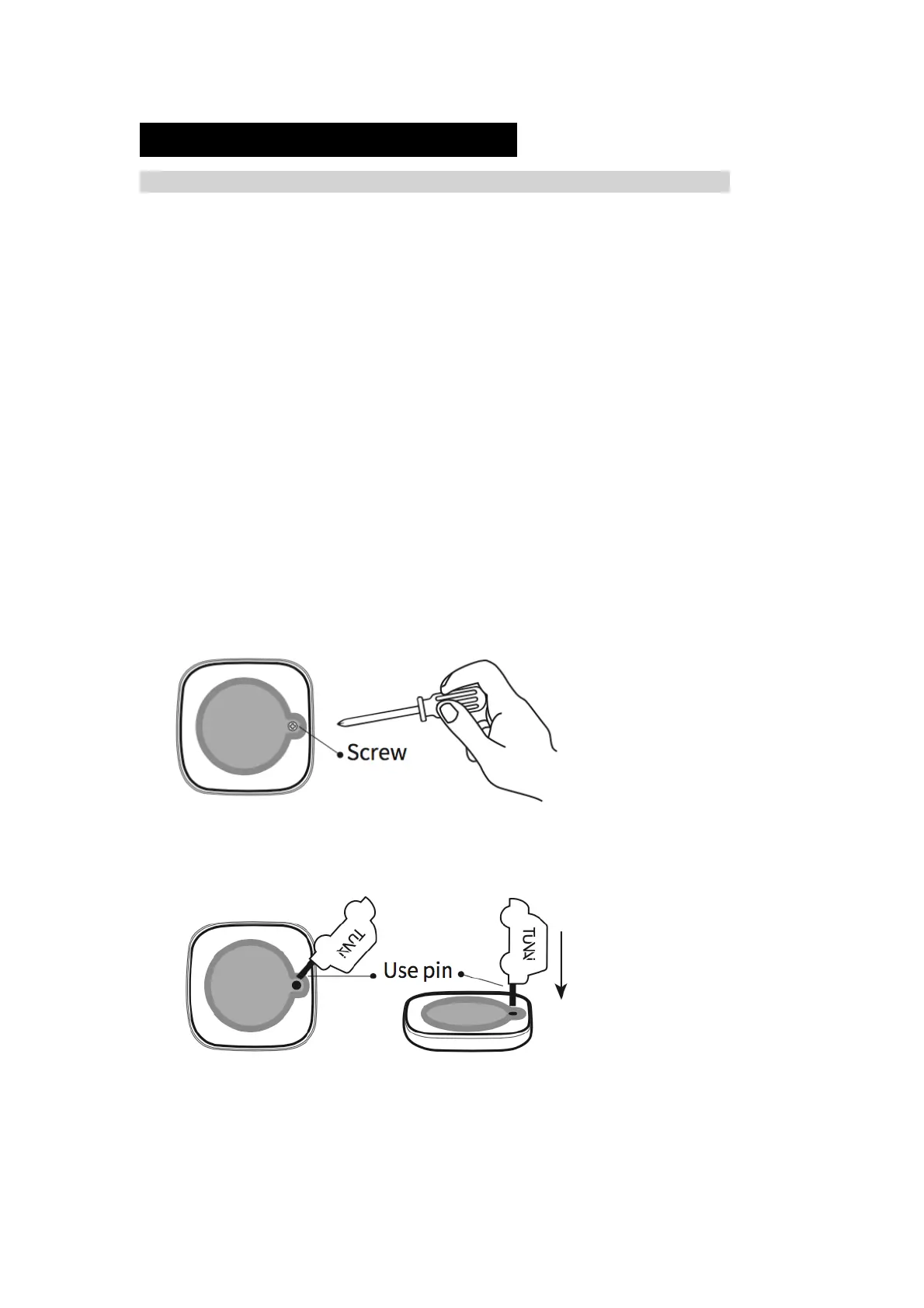
1. 1.Remove the screw on back of TUNAI BUTTON
Note: TUNAI BUTTON does not ship with a screw.
2. Use the pin included to open the battery case.
Note: Please use the pin included to open the back cover. Any scratches or
damages on the back cover caused by improper usage of other tools to open
the case will not be covered by the warranty.


 To Next Page