10 iP300 Quick Start Guide 11
iP Series Bluetooth Instructions
Bluetooth Connection
To stream audio from a Bluetooth-enabled device, you will need at least one iP speaker and an iPad*/iPhone/Android*/Windows* device with basic
Bluetooth connectivity.
With a streaming-only Bluetooth connection, all related iP DSP functions must still be controlled directly from the iP rear panel via the rotary encoder.
For Apple* iOS devices, you can also download a dedicated TURBOSOUND iP Bluetooth app from the App Store. This iP Bluetooth app allows you to control a single or
stereo pair of iP speakers, including all DSP functions, remotely from your iOS device (see “Bluetooth Control” below for more information).
Bluetooth Streaming
To stream Bluetooth audio with any Bluetooth device (iPad/iPhone/Android/Windows, etc.)
Mono operation
1. Enable Bluetooth on your remote device.
2. Switch on your iP speaker and minimize the volume.
3. Select “Pair device” from the iP speaker’s Bluetooth menu.
4. Check that your remote device is searching for a connection.
5. Once your device detects the iP speaker, select the iP speaker from your remote device’s menu (e.g., “TURBOSOUND iP300”).
6. Wait until the remote device shows an active connection, and then check the speaker’s Bluetooth menu, which should display the name of the remote device
(e.g., “HUAWEI P7-L07”).
7. Bluetooth music can now be streamed to your iP speaker. The stereo signal will automatically mix down to mono.
8. The iP speaker will display the Bluetooth indicator on the main, top-level DSP screen.
Stereo operation
1. Complete the steps above to connect the fi rst speaker to Bluetooth audio.
2. The first connected speaker automatically becomes the MASTER speaker.
3. Switch on the second speaker, which becomes the SLAVE speaker.
4. Select “Link speaker” from the SLAVE speaker's Bluetooth menu.
5. The SLAVE speaker will display “Slave linking...”
6. Select “Link speaker” from the MASTER speaker’s Bluetooth menu.
7. The MASTER speaker will display “Master Linking...”
8. WAIT for the speakers to link.
9. Once the linking process is complete, Bluetooth audio will stream to the two speakers. The MASTER speaker will receive the left channel, and the SLAVE speaker will
receive the right channel.
10. MASTER and SLAVE connection will be indicated on the main, top-level DSP screens.
*iPad and Apple are trademarks of Apple Inc. Android is a trademark of Google Inc. Windows is either a registered trademark or trademark of Microsof t Corporation in the United States and/or
other countries.
iP300 DSP Menu Structure
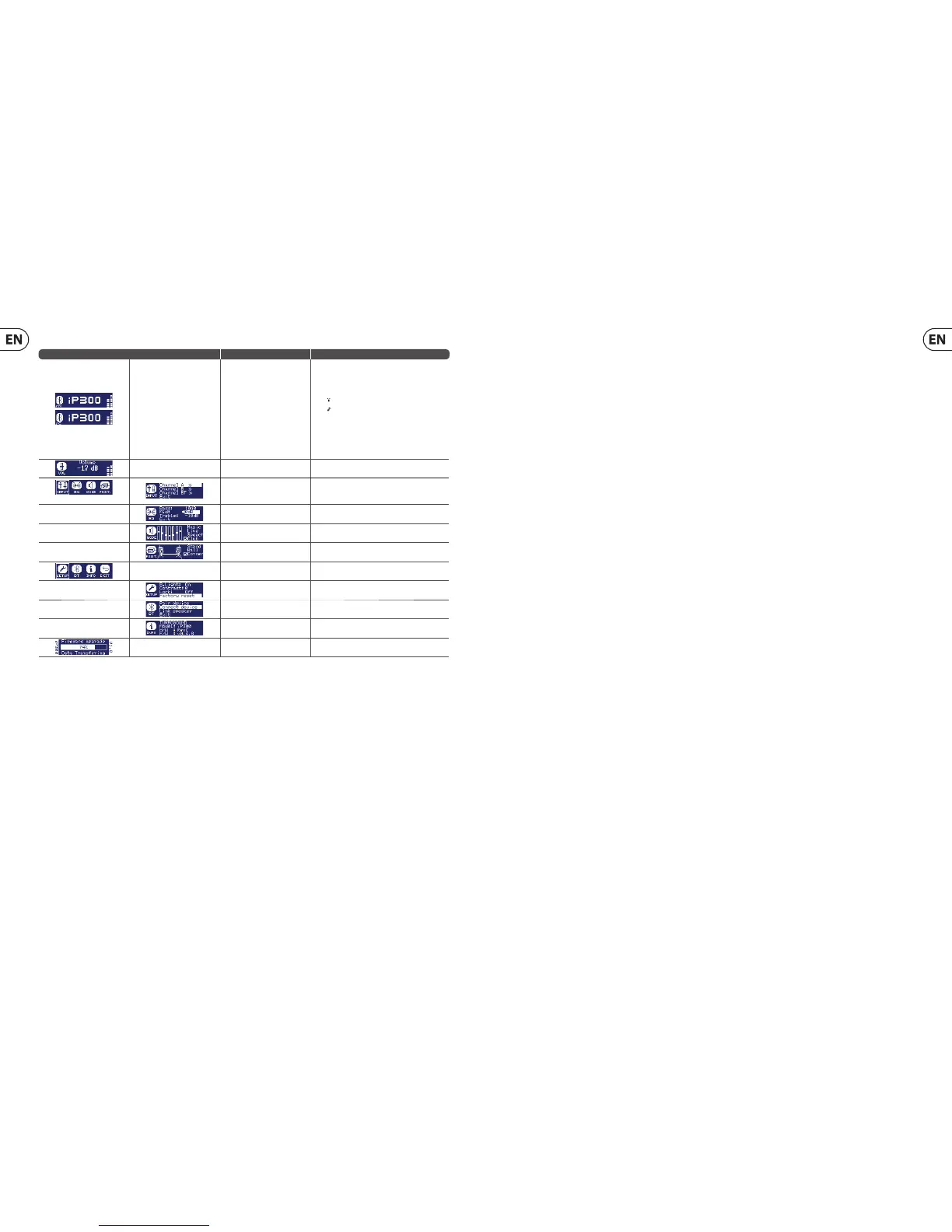
Menu Sub-Menu Fullrange Function
Main Screen
Displays level indicators and model name.
Displays the following Bluetooth* statusinformation:
• Bluetooth symbol indicates connection to audio and/or Bluetooth symbol indicates connection to audio and/or
remote control device (iPhone*, etc.).remote control device (iPhone*, etc.).
• “ ” indicates that the remote control APP connected.” indicates that the remote control APP connected.
• “ ” indicates audio streaming is connected.” indicates audio streaming is connected.
• “M” or “S” indicates that the speaker is linked to another iP “M” or “S” indicates that the speaker is linked to another iP
speaker asspeaker as MASTER (left channel, “M”) or SLAVE annel, “S”).
Rotate the encoder knob to adjust the output volume.
Press the encoder knob enter the last used sub-menu.
Press the Process and Setup buttons to access sub-menus.
Volume Rotate the encoder to change the output volume.
PROCESS
INPUT
Sets input mixer level EQ and reverb for analogue input A and B,
as well as level for Bluetooth.
EQ (Equalisation)
Allows adjustment of three band equaliser with controls for bass,
midrange and treble.
MODE
Selects from 4 preset equalisations, depending on function and
music type.
POSIT (Position)
Selects DSP compensation depending on the speaker position:
stand, wall, corner.
SETUP Sets LCD back panel contrast, device lock and factory reset.
BT (Bluetooth)
Lets you pair the speaker with mobile Bluetooth devices and link to
another iP speaker as MASTER / SLAVE.
INFO Displays model and firmware information.
DFU
Indicates device is updating firmware from APP software
via Bluetooth.
*iPhone is a trademark of Apple Inc. The Bluetooth word mark and logos are registered trademarks owned by Bluetooth SIG, Inc. and any use of such marks is under license.
iP Series Analogue Connection
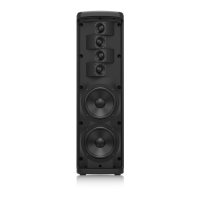
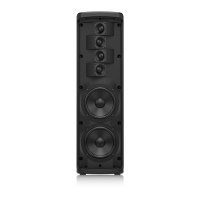
Despite their sophistication, iP speakers offer straightforward analogue connectivity, and you can easily arrange the iP system to allow simple control of levels from
other devices, such as mixers. You can also daisy-chain multiple iP speakers using only the analogue connections, and then directly control the overall level from your
mixer’s master fader.
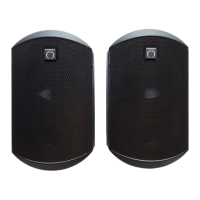
For example, you have four iP speakers and a mixer with simple left-right stereo outputs. For typical operation, set the DSP volume and input gain settings on all
speakers to a flat “0 dB” setting. Connect the mixer’s left and right stereo outputs to the first two speakers’ analogue INPUT A connections (the left and right mixer
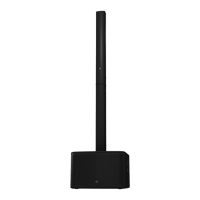
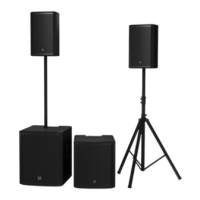
outputs will go to separate speakers). Then, run cables from the OUTPUT analogue connections to the remaining two speakers. In a similar way, subwoofers can also be
linked to the analogue OUTPUT.





 To Next Page