2. Digital Pen Settings
2.1 Key Functions
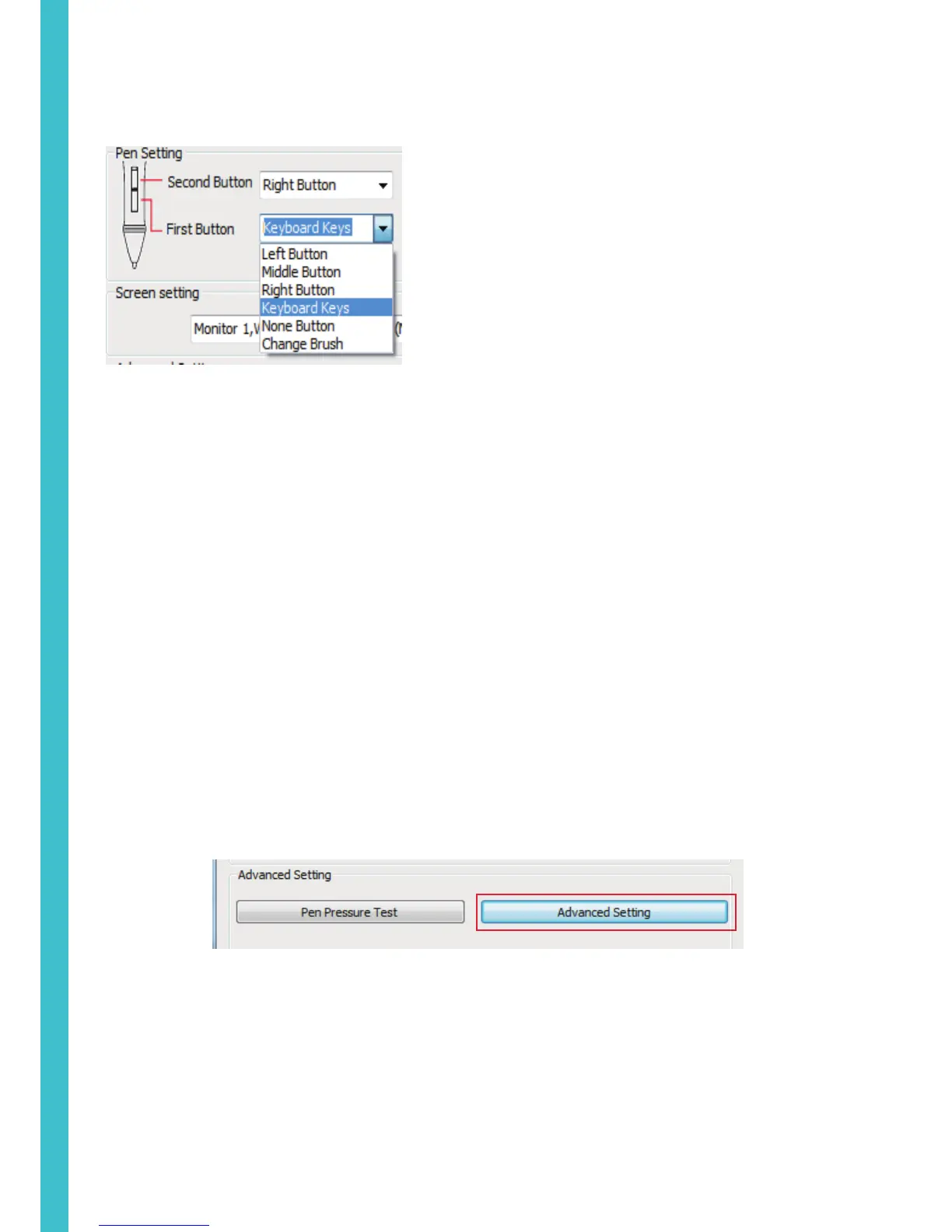
Above menu shows the defining button of the digital pen. Selecting its “left, middle, right,
keyboard keys, None Button,Change Brush” on the corresponding right drop-down menu of the pen function settings
window’s “the first button, the second button” can achieve its functions.
When finished the first button and the second button selecting the keyboard keys, all the other keys can be freely defined.
When this done, you can achieve all the keys functions of the graphic software.
Digital pressure sensitive pen default setting functions: 1.The pen nib is equivalent to the mouse left button function.
2.When the first button is E, you can switch it to eraser in the graphic software(such as photoshop etc.)
3.The second button is equivalent to the mouse right function.
3. Advanced Setting
Click work area of the control interface (above the red line area), you can enter into the work area interface.
5


 To Next Page