
 Need help?
Do you have a question about the Turtle Beach Ear Force XLC and is the answer not in the manual?
Press the XBOX guide button to access the XBOX Dashboard.
Navigate to the Settings tab and scroll to Preferences.
On the Preferences screen, select the Voice option.
Select 'Play Through Both' and set Volume level to 10.
Ensure XBOX Live chat volume is set to maximum (10).
Lower game volume to 50%-75% to prevent it drowning out chat.
Turn up the TV volume control to a comfortable listening level.
Adjust game and chat volume using the XLC in-line control.
If chat is too loud, increase game volume and decrease TV volume.
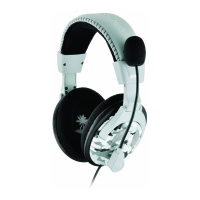
Combines XBOX LIVE chat and stereo game audio for immersive play.
Features twist-style ear cups and a multi-pivot headband for portability.
Noise-reduction ear cushions block distractions; overcomes communicator headset limits.
Set volume to minimum, then slowly increase to a comfortable level.
Overdriving headphones may damage them and your ears; listen moderately.
Avoid extreme volume levels for long periods to prevent hearing damage.
Connect XBOX audio to TV, XLC 3.5mm to TV headphone jack, and 2.5mm to controller.
Use splitter cable to connect XBOX audio to TV audio input and XLC to splitter.
Configure XBOX settings to send the chat signal to the speakers.
 General
| Cable length | 3.657 m |
|---|---|
| Headset type | Binaural |
| Product type | Headset |
| Wearing style | Head-band |
| Recommended usage | Gaming |
| Impedance | - Ω |
| Driver unit | 40 mm |
| Ear coupling | - |
| Headphone frequency | 30 - 20000 Hz |
| Headphone sensitivity | 120 dB |
| Microphone mute | Yes |
| Microphone frequency | 50 - 15000 Hz |
| Microphone connectivity | 2.5 mm |
| Depth (imperial) | 3.25 \ |
| Width (imperial) | 8.5 \ |
| Height (imperial) | 9.75 \ |
 Weight and Dimensions
| Depth | 82.55 mm |
|---|---|
| Width | 215.9 mm |
| Height | 247.65 mm |
| Weight | 233 g |





 To Next Page