EasyManua.ls Logo

TUYA Wifi Battery Camera - User Manual

TUYA Wifi Battery Camera
11 pages
Print Icon
To Next Page IconTo Next Page
Loading...
Instruction Manual
WIFI BATTERY CAMERA
Please read it carefully before using the device and keep this handy.
Technical Parameters:
Resolution: 720X1280 1920X1080 Video bit rate: adaptive
Viewing angle:135-165° Support capacity: Up to 128G
Audio: Built-in speaker & Microphone WiFi Mode: 2.4GHz 802.11n/g/n
Power Supply: DC 5V Battery: Rechargeable Battery
Motion Detection: PIR Sensor
Recording method: SD Memory Card/ Cloud Storage
Power consumption: Standby 200uA, Working 260mA
Product categories
Reset Button
Reset Button
Reset Button
Reset Button
Reset Button
Reset Button
Reset Button
Reset Button
Reset Button
Loudspeakers
Loudspeakers
Loudspeakers
Loudspeakers
Loudspeakers
Loudspeakers
Loudspeakers
battery
battery
battery
Loudspeakers
Loudspeakers
Loudspeakers
(optional)
solar panel
TF Card Slot
TF Card Slot
TF Card Slot
TF Card Slot
TF Card Slot
TF Card Slot
TF Card Slot
TF Card Slot
TF Card Slot
USB
Charging Port
USB Charging Port
USB
Charging Port
USB Charging Port
USB Charging Port
USB Charging Port
USB Charging Port
USB Charging Port
Bottom
Bottom
Bottom
Bottom
Bottom
Bottom
Top
Top
Back
Back
DIRECTORY
Product categories 1
Technical Parameters 4
APP Download&Installation 5
Register and log in 5
Add Device 6
View&Setting 9
FAQ 9
Device prompt and indicator condition 10
1 2 3 4
Question and Answer IconNeed help?

Do you have a question about the TUYA Wifi Battery Camera and is the answer not in the manual?

Overview

This document describes the Tuya WiFi Battery Camera, a smart security camera designed for easy installation and remote monitoring. It offers a range of features for home surveillance, including motion detection, two-way audio, and cloud storage.

Function Description

The Tuya WiFi Battery Camera is primarily used for security and surveillance. It captures video footage and provides real-time monitoring through a dedicated mobile application. Key functions include:

  • Video Recording: Records video in resolutions of 720x1280 or 1920x1080, offering clear visuals for monitoring.
  • Motion Detection: Equipped with a PIR sensor, the camera detects motion and can trigger alerts or start recording, enhancing security by notifying users of activity.
  • Two-Way Audio: Features a built-in speaker and microphone, allowing users to communicate with individuals near the camera remotely. This is useful for interacting with visitors or deterring intruders.
  • Remote Viewing: Users can access live video feeds and recorded footage from anywhere using the TuyaSmart app on their smartphone (iOS or Android).
  • Storage Options: Supports both SD memory card storage (up to 128GB) and cloud storage, providing flexible options for saving recordings.
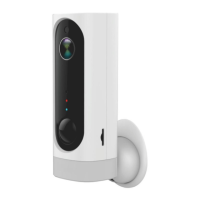
  • Battery Operation: Designed to be battery-powered, offering flexibility in placement without the need for constant power outlets. It uses a rechargeable battery.
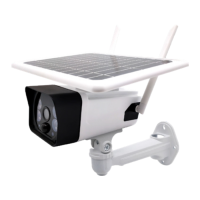
  • Solar Panel (Optional): Some models can be optionally connected to a solar panel for continuous charging, reducing the need for manual battery recharging and making it suitable for outdoor, off-grid installations.
  • Reset Functionality: Includes a reset button for troubleshooting or reconfiguring the device.

Important Technical Specifications

  • Resolution: 720x1280 or 1920x1080 (adaptive video bit rate).
  • Viewing Angle: 135-165 degrees, providing a wide field of view.
  • Audio: Built-in speaker and microphone for two-way communication.
  • Power Supply: DC 5V.
  • Motion Detection: PIR Sensor.
  • Recording Method: SD Memory Card / Cloud Storage.
  • Power Consumption: Standby 200uA, Working 260mA.
  • WiFi Mode: 2.4GHz 802.11n/g/n. Important Note: The camera only supports 2.4GHz WiFi networks; it does not support 5G WiFi. Users must ensure their router network is 2.4GHz for connection.
  • Support Capacity: Up to 128GB (for TF Card Slot).
  • Battery: Rechargeable Battery.

Usage Features

The Tuya WiFi Battery Camera is designed for user-friendly operation, from setup to daily monitoring.

APP Download & Installation

  1. Download: Users can download the "TuyaSmart" app by scanning a provided QR code or searching for it in the App Store (iOS) or App Market (Android).
  2. Permissions: During installation, users must allow and open all necessary app permissions to ensure normal functionality.

Register and Log In

  1. Account Creation: New users need to click "Sign Up" on the app's login screen, enter a phone number, and complete registration.
  2. Login: After registration, users can log in using their credentials.

Add Device

  1. Initiate Adding: From the APP Home page, users click "Add Device" or the "+" icon in the upper right corner.
  2. Select Device Type: Choose "Add Manually" and then select "Security & Video Surveillance" followed by "Smart Camera (Wi-Fi)".
  3. Distribution Network Mode:
    • Ensure the camera is in distribution network mode (indicator light red flashing quickly).
    • Confirm the indicator is flashing quickly or a prompt tone is heard, then click "Next".
    • Enter the connected WiFi password and click "Next".
    • Scan the QR code displayed on the phone screen with the camera lens at a distance of 15-20cm.
    • Wait for the device to connect to the server.
    • Once successfully added, users can name the device.

View & Setting

  1. Camera Preview Interface: Clicking on the device in the app leads to the camera preview interface. This interface allows for:
    • Live View: Real-time video feed.
    • Intercom: Two-way audio communication.
    • Video Playback: Accessing recorded footage.
    • Alarm Settings: Configuring motion detection alerts.
    • Pendant, Direction, and Zoom: Adjusting camera view (if applicable).
  2. Settings Interface: Clicking the upper right "Setting" button leads to the device settings interface, where users can:
    • Share Camera: Grant access to other users.
    • Basic Function Settings: Configure fundamental camera operations.
    • Advanced Settings: Access more detailed configurations.
    • PIR Power Management Settings: Adjust motion detection sensitivity and power saving.
    • Storage Settings: Manage SD card or cloud storage.

Device Prompt and Indicator Condition

The device provides various audio prompts and indicator light states to communicate its status:

  • Drop 1 sound: Equipment in accordance with the "reset button" 5 seconds, enter the reset state instantly, 1 "drop" sound equipment.
  • Drop 2 sound: Distribution network process, equipment, lens scanning QR code APP instant success, sound equipment "drops" 2.
  • Soft Music: In the process of distribution network, equipment successfully connected, routers equipment will play some soft music.

Indicator State Meanings:

  • Red flashing quickly: Device reset (wait for distribution network state), long press equipment "reset button" 5 seconds.
  • Blue flashing slowly: Device is in wake-up state and has been successfully connected to routers and servers.
  • Red flashing slowly: Device is under waking up and offline (device and router disconnected or router network).
  • No lighting: Device was sleeping or blackout or user active closed working indicator light.
  • Blue flashing quickly: Device is downloading the new firmware and upgrading the firmware (after the successful upgrade of the firmware, light is back to normal status).

Maintenance Features

  • Troubleshooting FAQ: The manual includes a FAQ section to address common issues:
    • Q: How to share the device?
      • A: In real-time video viewing screen, click the top right corner device button to enter setup interface, click the "share equipment", then click "add device", sharing by entering mobile number or email address, click "finish", sharing success.
    • Q: How to check camera abnormal offline?
      • A: 1. Check the power supply and the network if it is normal.
        1. Restart the device.
        1. Configure the camera.
        1. Check whether the home broadband is normal.
  • Firmware Upgrades: The camera supports firmware upgrades, indicated by a blue flashing light, ensuring the device remains up-to-date with the latest features and security patches.
  • Reset Button: The physical reset button allows users to restore the device to its factory settings, which can be useful for resolving persistent issues or reconfiguring the camera.
  • USB Charging Port: Provides a standard method for recharging the battery, ensuring continuous operation.
  • TF Card Slot: Allows for easy replacement or upgrade of the SD memory card for local storage.

TUYA Wifi Battery Camera Specifications

General IconGeneral
BrandTUYA
ModelWifi Battery Camera
CategorySecurity Camera
LanguageEnglish

Related product manuals