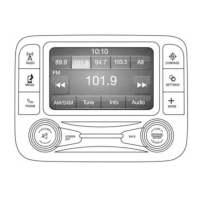
BUTTONS ON THE FACEPLATE
Buttons on the faceplate are located below, and beside the
Uconnect system in the center of the instrument panel. In
addition, there is a Scroll/Enter control knob located on
the right side. Turn the control knob to scroll through
menus and change settings (i.e., 30, 60, 90), push the
center of the control knob one or more times to select or
change a setting (i.e., ON, OFF).
Your Uconnect system may also have Display Off and
back arrow buttons on the faceplate.
Push the Display Off button on the faceplate to turn off
the Uconnect screen. Push the Display Off button on the
faceplate a second time to turn the screen on.
Push the Back Arrow button on the faceplate to exit out
of a Menu or certain option on the Uconnect system.
BUTTONS ON THE TOUCHSCREEN
Buttons on the touchscreen are accessible on the
Uconnect touchscreen.
CUSTOMER PROGRAMMABLE FEATURES —
UCONNECT 6.5 NAV SETTINGS
Press the Settings button to display the menu setting
screen. In this mode the Uconnect system allows you to
access programmable features that may be equipped
such as Display, Clock, Safety & Driving Assistance,
Lights, Doors & Locks, Auto-On Comfort & Remote Start,
Engine Off Options, Compass Settings, Audio, Phone/
Bluetooth, SiriusXM Setup and System Information.
NOTE:
• Only one touchscreen area may be selected at a time.
• Depending on the vehicles options, feature settings
may vary.
44 UCONNECT SETTINGS



 To Next Page