3
1.5.1 Remove the pen nib by hand or with an appropriate tool.
1.5.2 Install the spare pen nib.
1.6.1 Bluetooth mode user guide
a. Press and hold the power key for 3 seconds to turn on the device.
b. Press the power key 3 times in a row to enter Bluetooth pairing state (the
indicator light will be quickly flashing green).
c. Enter the Bluetooth connection interface on the computer/Android
phone/tablet and search for the device name“Q8W”and complete the pairing.
d .Run the driver, set the parameters and test the product performance (no
driver is required for mobile phones/tablet products).
1.6.2 Wired mode user guide
a. Connect the device to a computer/mobile phones/tablet or other device with
a USB data cable.
b. Run the driver, set the parameters and test the product's performance (no
driver is required for mobile phones/tablets products).
1.6.3 System Requirements
Wired mode: Windows 7 or later, Mac OS X 10.12 or later, Chrome OS 88 or later,
and Android 6.0 or later.
Bluetooth mode: Windows 10 or later, Mac OS X 10.12 or later, and Android 6.0 or
later.
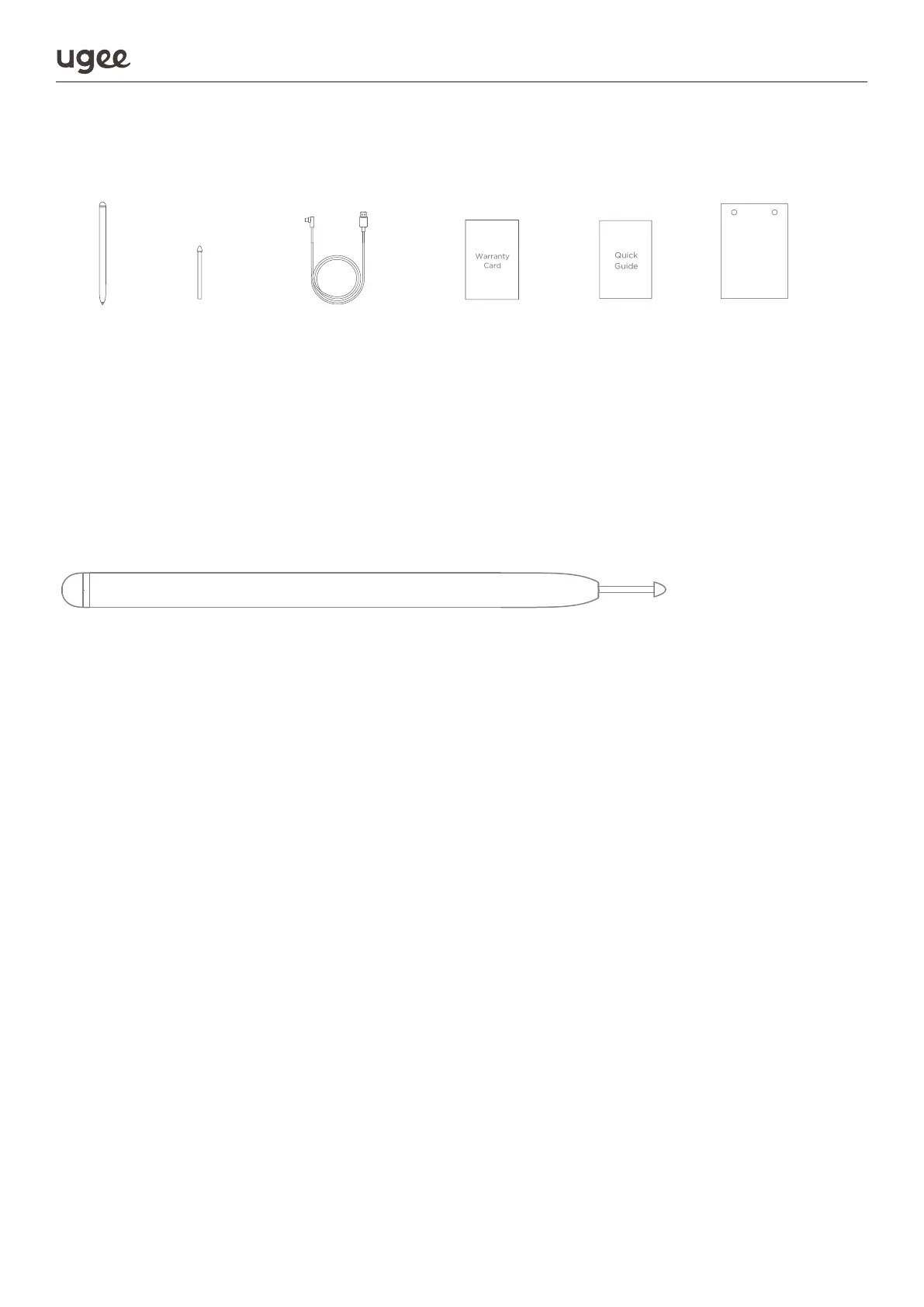
1.4 Accessories
1.5 Pen Nib Replacement
1.6 Q8W Bluetooth Graphics Drawing Tablet User Guide
Stylus Nibs USB-A to C Cable Warranty Card Quick Guide Texture Sheet
Tips: Some Android smartphones/tablets may not be able to use Bluetooth con-
nection for drawing due to hardware compatibility issues. If you encounter such
issues, please switch to wired mode and contact customer service for further assis-
tance.
1.6.4 Driver Download
Visit the ugee official website (www.ugee.com) to download the driver and follow
the instructions to complete the installation process (no driver is required for
mobile phones/tablets products).


 To Next Page
 Loading...