EasyManua.ls Logo

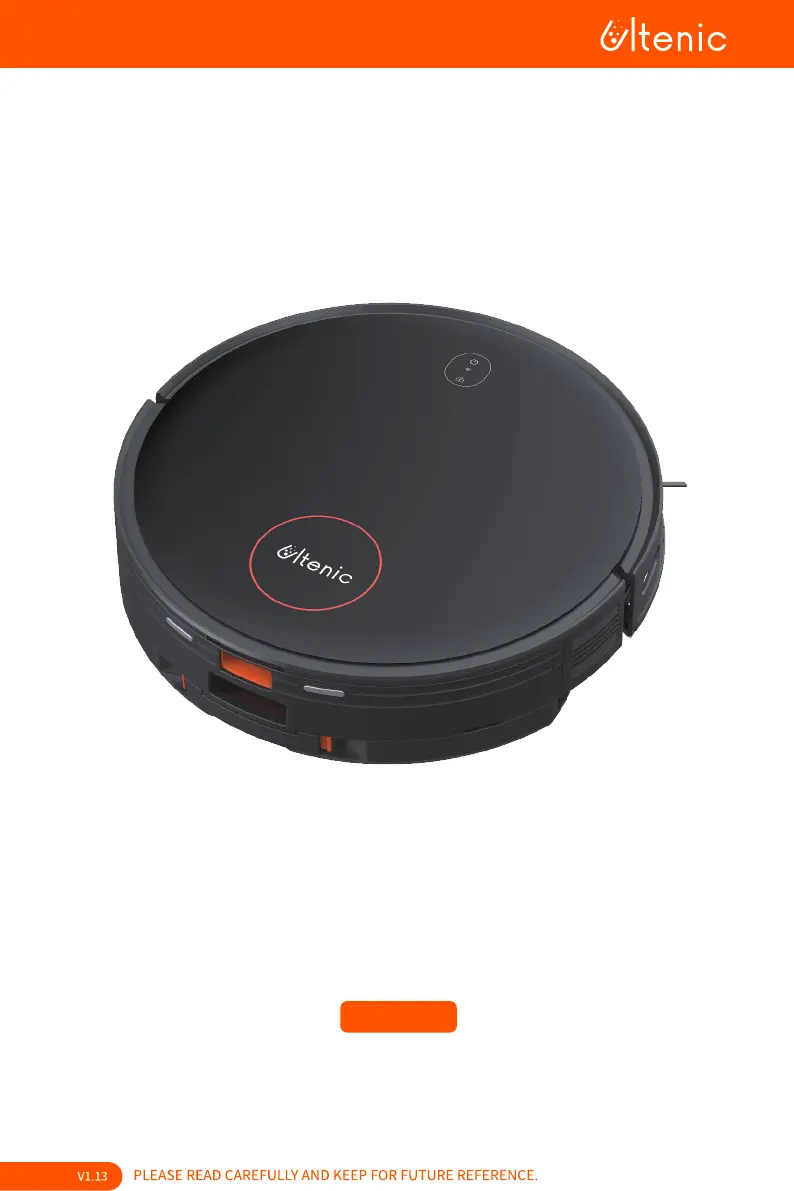
Ultenic D6S - User Manual

Ultenic D6S
43 pages
Print Icon
To Next Page IconTo Next Page
Loading...



Questions and Answers

  • R
    ricebenjaminNov 17, 2025
    Why won't my Ultenic D6S Kitchen Appliances main unit connect to the app?
    • G
      Gabriel GarciaNov 17, 2025
      If your Ultenic Kitchen Appliance main unit won't connect to the app, there are several potential causes: * Incorrect router username or password: Ensure you've entered the correct credentials. * Out of network coverage: Make sure the main unit is within your router's network range. * Not in configuration mode: The main unit needs to be in network configuration mode to connect to Wi-Fi. * Using 5G network: The unit only supports 2.4G networks. * Wrong app downloaded: Scan the QR code on the product or visit the app market to download the correct app. * Charging contacts not connected: Ensure the main unit is fully docked with the charging station and the power button is flashing. Also, check for dirt on the charging contacts and clean if necessary. * Incorrect charging stati...
  • T
    tjimenezNov 22, 2025
    Why does my Ultenic D6S Kitchen Appliances clean in an unorderly route?
    • S
      Stephanie JenningsNov 22, 2025
      If your Ultenic Kitchen Appliance is cleaning in an disorderly route, exhibiting route deviation, repetitive cleaning, and/or missing small areas, the following reasons and solutions may apply: * Wires and other easily entangled objects on the floor: Before cleaning, remove scattered wires, mops, and other objects from the ground. If the unit misses an area while scanning, it will automatically rescan the area; do not interfere. * Objects such as thresholds and steps: Close the door to the area and clean separately. The device will return to its starting point after cleaning. * Inaccessible areas: Organize the home environment to ensure the device can access and clean any area. * Dirty infrared obstacle avoidance sensor lenses: Wipe the sensor lens with a clean soft cloth or remov...

Summary

Warnings

Safety Instructions and Warnings

Comprehensive safety guidelines and warnings for safe operation and handling of the device.

Usage Restrictions

Specific limitations and prohibited uses to ensure safe and proper operation of the robot.

Battery and Charging Safety

Precautions related to the device's battery and charging process to prevent hazards.

Inside the Box

Product Description

Robot Components

Detailed identification of parts and sensors on the robot's top and bottom surfaces.

2-in-1 Dust Box and Water Tank

Description of the integrated dust box and water tank assembly and its components.

Charging Station Components

Identification of parts and indicators on the charging station.

Robot Indicator Lights

Explanation of the status lights on the robot and their meanings.

Charging Station Indicator Light

Explanation of the indicator light on the charging station and its meaning.

Product Operation

Getting Started: Before Using

Initial setup steps including charging station placement and robot charging.

App Connection and Setup

Guide for downloading the app and establishing Wi-Fi and Bluetooth connectivity.

Operation via Robot Control Panel

Instructions on how to control the robot using its built-in buttons.

Operation via Remote Control

Instructions on using the remote control for robot operation.

Navigation and Recharge Controls

Explanation of navigation keys and the recharge function on the remote.

Mopping Module Operation

Steps and notes for operating the mopping function of the robot.

Cleaning Precautions

Important precautions to take during cleaning to prevent entanglement or damage.

Maintenance

Mopping Module Maintenance

Procedures for cleaning and maintaining the mopping module after use.

Dust Box and HEPA Filter Maintenance

Steps for cleaning and maintaining the dust box and HEPA filter.

Brush and Sensor Maintenance

Guidance on cleaning the main brush, side brush, and mapping sensors.

Other Parts Maintenance

Instructions for cleaning other external parts of the robot and charging station.

Maintenance Frequency Guide

Recommended intervals for cleaning and replacing robot parts.

Product Specifications

Troubleshooting

App Connectivity Issues

Solutions for problems related to connecting the robot to the mobile application.

Charging Problems

Troubleshooting steps for issues where the robot fails to recharge.

Robot Stuck Issues

Solutions for when the robot becomes entangled or stuck during operation.

Object Bumping Issues

Causes and solutions for the robot bumping into objects.

Indicator Light and Noise Issues

Troubleshooting for abnormal indicator lights and excessive operating noise.

Unorderly Cleaning and Navigation Issues

Solutions for erratic cleaning paths and navigation problems.

Cleaning Ability and Dust Issues

Troubleshooting for reduced cleaning performance or dust shedding.

Water Tank and Drive Wheel Issues

Solutions for water tank dispensing problems and drive wheel entanglement.

Sensor Functionality Issues

Steps to resolve issues related to sensor errors or malfunction.

App Mapping and Scheduling Issues

Solutions for problems with app-based mapping and scheduled cleaning.

Ultenic D6S Specifications

General IconGeneral
TypeRobot Vacuum Cleaner
Battery Capacity2600 mAh
Run TimeUp to 120 minutes
Dustbin Capacity600 ml
Charging Time4-5 hours
Water Tank Capacity300 ml
Compatible Floor TypesHardwood, Tile, Carpet
ControlApp, Voice Control
FeaturesScheduled Cleaning
Noise Level65 dB
ConnectivityWi-Fi
NavigationLDS Laser Navigation

Related product manuals