EasyManua.ls Logo

Uniden iGO CAM 30 - User Manual

Uniden iGO CAM 30
20 pages
Print Icon
To Next Page IconTo Next Page
Loading...
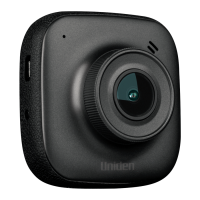
iGO CAM 30
Accident CAM
Vehicle Recorder
For more exciting new products please visit our website:
Australia: www.uniden.com.au

Questions and Answers

  • S
    Steven CooleyJul 28, 2025
    What to do if my Uniden Voice Recorder has cross-stripe interference in an image?
    • B
      brandon10Jul 28, 2025
      Cross-stripe interference can occur due to the light frequency. Try changing the light frequency depending on the light source. If the issue persists, you can also try pressing the ‘Reset’ button with a pin to restart the device.
  • V
    Vicki OrozcoAug 3, 2025
    Why are the images dark when recording water/sky with my Uniden iGO CAM 30?
    • D
      Daniel WilliamsAug 3, 2025
      If you are getting dark images while recording water or sky, try adjusting the exposure setting on your Uniden Voice Recorder.
  • C
    Courtney DavisAug 9, 2025
    Why is the video unclear on my Uniden Voice Recorder?
    • E
      ejordanAug 9, 2025
      If the video quality is unclear, make sure that there are no fingerprints or dirt on the lens of your Uniden Voice Recorder. Ensure that the lens is always kept clean.
  • B
    brownjocelynAug 14, 2025
    How to fix the color of the images on my Uniden Voice Recorder?
    • R
      Regina CraigAug 14, 2025
      If the color of the images is not good, set the ‘white balance’ setting to automatic on your Uniden Voice Recorder.
  • R
    Richard RayAug 20, 2025
    What to do if my Uniden iGO CAM 30 Voice Recorder cannot take photos or record videos?
    • J
      Jessica RamirezAug 20, 2025
      If your device is unable to take photos or record videos, ensure that the SD card is formatted properly and inserted correctly. It's recommended to use an SD card with a minimum of 8GB Class 10.

Summary

Important Safety Instructions

Whats In The Box

Controls & Indicators

Installation

Location

Install at the center of the windshield for a better view, ensuring the lens is clear of wipers and airbags.

Installing the Mount onto the Windshield

Steps include sliding bracket, cleaning area, peeling film, applying force, and adjusting viewing angle.

Operation

Micro SD Card

Requires a compatible micro SD card for recording videos and photos. Supports up to 32GB, Class 10 recommended.

Battery Information

Device operates from its built-in battery for up to 10 minutes. Charging takes about 120 minutes.

Power On

Device powers on automatically when connected to car charger. Can also be turned on by pressing power button for 3 seconds.

Power Off

Device turns off automatically when car engine is off. Can also be turned off by holding power button for 5 seconds.

Record Mode

Device enters record mode automatically when connected to power. Flashing red dot indicates recording.

Photo Mode

Enter Photo mode by pressing the down button. Allows taking snapshots. Zoom in/out using UP button.

Playback Mode

Enter Playback mode by pressing UP button. Allows reviewing saved videos and photos. Scan files with UP/DOWN.

General Settings

Access General Settings by pressing RETURN twice. Options include Date & Time, Auto Power Off, Storage, etc.

Connecting to a PC

Connect to PC using USB data cable (not supplied) to view SD card contents. Mass Storage mode displayed.

Troubleshooting

Specification

Warranty

Uniden iGO CAM 30 Specifications

General IconGeneral
BrandUniden
ModeliGO CAM 30
CategoryVoice Recorder
LanguageEnglish

Related product manuals