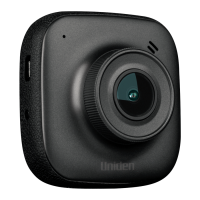
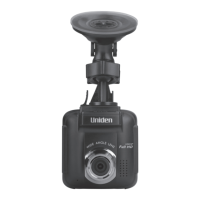
The Uniden iGO CAM 90/90R is an advanced accident CAM vehicle recorder designed to capture video footage while driving, providing a record of events on the road. This device is intended for use in a motor vehicle and is equipped with features to ensure reliable recording and ease of use.
Function Description
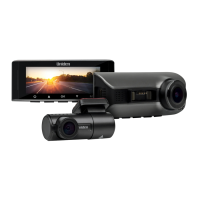
The primary function of the iGO CAM 90/90R is to record video footage from the front of the vehicle. The iGO CAM 90R model also includes a rear camera (RC90) to capture footage from the rear. An optional internal camera (IC90) is available for additional recording within the cabin. The device supports various recording resolutions, including 3840x2160P for single and twin-channel recording, 2560x1440P, and 1920x1080P, with higher resolutions offering sharper images but consuming more memory. The rear and internal cameras are fixed at 1080P resolution.
The iGO CAM 90/90R automatically powers on and begins recording when connected to a car charger and the vehicle supplies power. A flashing red dot icon and a recording timer indicate active recording. Recording can be stopped by pressing the OK button. The device uses a loop recording feature, which means it continuously records video clips of a set length. If the "Off" option is selected for loop recording, the recorder will not loop record, and files will not be overwritten on the micro SD card.
A G-Sensor is integrated to detect sudden impacts or collisions. When an impact is registered, the current recording file is automatically locked, preventing it from being overwritten by normal video recordings. Users can also manually lock recordings by pressing the M button while recording.
The device features a Parking Mode, which requires the optional Hard Wire Kit (HWK-2) to function. In Parking Guard mode, the unit turns on and records for 60 seconds if it detects an impact. Parking Monitor mode initiates time-lapse recording (1 fps, playback in 30 fps) once the ACC current is cut off.
GPS functionality is built-in, allowing the device to record GPS coordinates, speed, and date/time stamps on the recordings. This data can be viewed later using the Uniden Player software. The device also includes a Wi-Fi access point, enabling control via the iGoCam app on mobile phones.
Usage Features
The iGO CAM 90/90R is designed for straightforward operation. It powers on automatically when connected to a car charger and starts recording. To manually power on, users press and hold the power button for at least 2 seconds. The device automatically powers off a few seconds after the car's engine is turned off, or can be manually turned off by pressing and holding the power button for 3 seconds.
The device features an LCD screen for live viewing, menu navigation, and playback. The main controls include a power button, OK button for selection and recording control, and UP/DOWN keys for navigation. The M button is used to open the Settings Menu, manually lock recording files, and switch between Record, Picture, and Playback modes.
Audio recording can be enabled or disabled through the settings. A microphone icon on the live view screen indicates when audio recording is active. The device also supports Wide Dynamic Range (WDR) to improve overall exposure in varying lighting conditions. Anti-Flicker settings can be adjusted based on the electrical power frequency in the area. Exposure settings allow adjustment of brightness sensitivity.
The iGO CAM 90/90R offers a Photo Mode, accessible by pressing and holding the M button from record mode. In this mode, users can take snapshots by pressing the OK button. A Playback Mode allows users to review saved videos and photos with audio. Files are organized into folders for normal recordings, locked/event recordings, and photos.
Voice Control is a convenient feature that allows users to operate the camera using specific voice commands, such as "Uniden, Turn On WiFi" or "Uniden, Take picture." The LCD Auto Off timer can be set to turn off the display after a period, or disabled entirely. A Car Plate Stamp feature allows users to edit and display their car's license plate on recordings.
The Uniden Player software, downloadable from the Uniden website, allows users to view recordings on a PC, trace routes on a map using GPS data, and manage files. The iGoCam app for iOS and Android devices provides remote control over the iGO CAM 90/90R via Wi-Fi. Through the app, users can preview live video streams, browse and playback files, transfer files to their mobile phone, take snapshots, and modify camera settings, including Wi-Fi SSID and password.
Maintenance Features
Regular maintenance is crucial for optimal performance. Users are advised to examine, check, and verify the device and its associated SD card at least once a month to ensure proper recording.
The device requires a compatible micro SD card (up to 128GB, minimum Class U3) for recording. It is essential to insert or remove the SD card only when the unit is turned off to prevent damage. Formatting the micro SD card before first use is recommended to avoid file corruption. The device includes a "Format SD Card Reminder" setting, which can be set to remind users every 15, 30, or 60 days to format their card. Before formatting, users should back up any important footage or photos, as formatting permanently erases all data.
The camera lens should be kept clean, and nothing should obstruct it to ensure clear video footage. The device should not be left in direct sunlight for extended periods or in temperatures above 60°C to prevent damage.
If the device malfunctions, a reset button is available. Pressing it with a fine pen or paperclip can restart the device. The "Factory Default Settings" option in the menu allows users to reset the device to its original settings, though this will not erase data on the SD card.
For GPS reception, it's important to note that tall buildings, tunnels, or poor weather can affect signal quality. Over-tinting or rain sensors on the windshield can also interfere with GPS reception. If the signal is unstable, users may need to adjust the dash camera's installation spot. Initial GPS signal acquisition can take 15-20 minutes, but subsequent acquisitions typically take about 3 minutes.
The manual strongly advises against disassembling, repairing, or modifying the device, and to only use the provided DC car adaptor to prevent damage.


 To Next Page
 General