EasyManua.ls Logo

Uniden UBC780XLT - User Manual

Uniden UBC780XLT
92 pages
Print Icon
To Next Page IconTo Next Page
Loading...
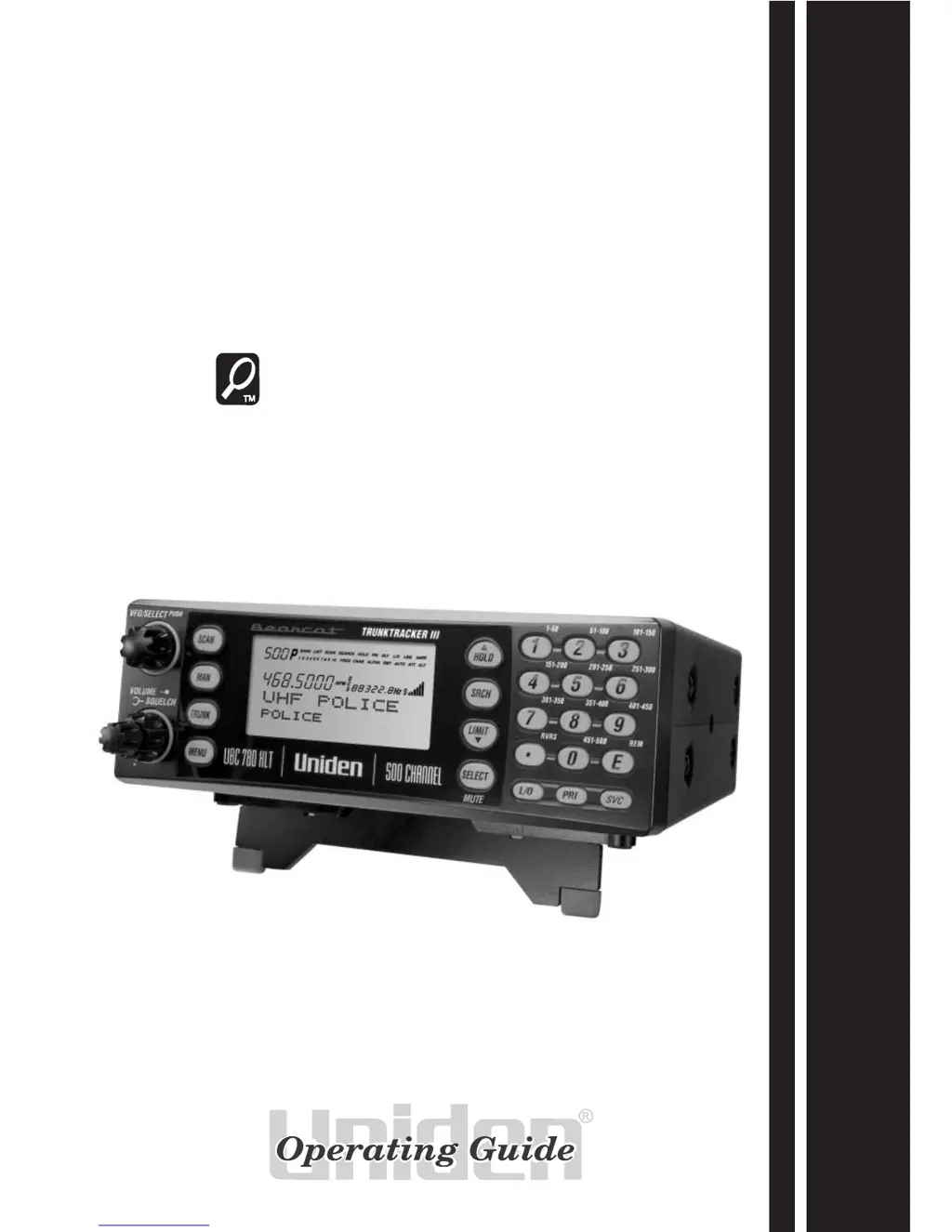
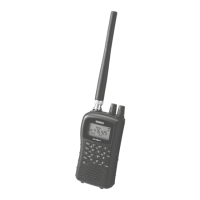
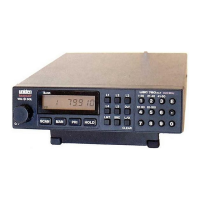
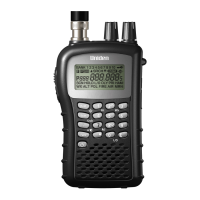
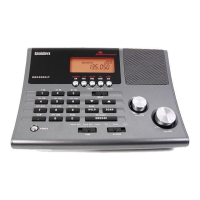
500-Channel Trunk Tracking Scanner
UBC780XLT
TRUNK TRACKER III

Table of Contents

Questions and Answers

  • P
    Pamela SandersAug 16, 2025
    Why won't my Uniden UBC780XLT Scanner stop scanning?
    • A
      Amy WilliamsAug 16, 2025
      If your Uniden Scanner won't stop scanning, you might need to adjust the squelch threshold. Also, check the antenna connection. Ensure that not too many channels are locked out, as this reduces the scanner's ability to find an active channel. Review each channel's frequency to confirm it's correctly stored in memory. It's also possible that none of the programmed frequencies are currently active.
  • J
    Jeanette VincentAug 19, 2025
    What to do if my Uniden Scanner won't start scanning?
    • B
      Breanna LeeAug 19, 2025
      If your Uniden Scanner won't start scanning, try pressing the SCAN key again. You might also need to adjust the SQUELCH control. Check to see if all channels are locked out.
  • B
    Brittany JohnsonAug 22, 2025
    Why is my Uniden UBC780XLT not tracking an EDACS system properly?
    • P
      Patricia HardyAug 22, 2025
      If your Uniden Scanner isn't tracking an EDACS system properly, the logical channel numbers (frequencies) for the system might not be programmed in the correct order. Check frequency resources and reprogram. Also, make sure that all frequencies for the system are programmed. Check frequency resources.
  • K
    Kelly Lane MDAug 26, 2025
    Why won't the weather scan work on my Uniden UBC780XLT?
    • C
      Christopher ChanAug 26, 2025
      If the weather scan isn't working on your Uniden Scanner, try adjusting the squelch threshold. Also, check the antenna.
  • R
    Rachel GrossAug 28, 2025
    Why won't my Uniden Scanner track?
    • K
      Karen WilsonAug 28, 2025
      Your Uniden Scanner may not be able to track the system you are trying to monitor. Ensure you press and hold TRUNK for 2 seconds to enter trunk mode. The data frequency may also be missing. Alternatively, change to a Type 1 Scanner setup.
  • K
    Kelly StevensAug 31, 2025
    What to do if my Uniden Scanner has improper reception?
    • A
      Amy BryanSep 1, 2025
      If your Uniden Scanner has improper reception, check the antenna connection or try moving and repositioning the antenna. You can also try moving the scanner to a different location. If you are in a remote area, you might need to use an optional multi-band antenna. Check with your dealer or a local electronics store for assistance.
  • J
    Janice WillisSep 3, 2025
    Why won't my Uniden UBC780XLT acquire data channel?
    • M
      Michael DavidSep 3, 2025
      If your Uniden Scanner will not acquire a data channel, adjust the squelch for trunking mode. Also, the frequency used for the data channel might be missing. Check your frequency list.
  • R
    Renee SmithSep 6, 2025
    Why won't my Uniden UBC780XLT Scanner stop during Scan List mode?
    • B
      Brandi AlexanderSep 6, 2025
      If your Uniden Scanner won't stop during Scan List mode, it could be because no IDs have been programmed, or the IDs you have stored are not active.
  • B
    Brian FoleySep 9, 2025
    Why am I missing replies to conversations on my Uniden Scanner?
    • S
      sandra00Sep 9, 2025
      If you're missing replies to conversations on your Uniden Scanner, try changing to a Type 1 Scanner setup. You can also try another Preset Fleet Map or program your own Fleet Map. Make sure that all of the system's frequencies have been entered.
  • M
    Mary LynchSep 12, 2025
    Why are the channel activity indicators flashing but no sound is heard on my Uniden UBC780XLT?
    • H
      harriscraigSep 12, 2025
      If the channel activity indicators are flashing but no sound is heard on your Uniden Scanner, it may be a telephone interconnect call, which are intentionally blocked by your scanner. Also, the ID in your display might not be active.

Summary

Introduction to the UBC780 XLT Scanner

Important Notice

Critical information regarding product modifications, operation, and warranty.

Scanner Front View and Display

Scanner Rear View

Scanner Terminology

Feature Highlights of the UBC780 XLT

Scanner Package Contents

Scanner Setup Guide

Antenna Setup

Instructions for connecting, mounting, and selecting antennas.

Vehicle Installation Methods

Guidance on typical mounting and vehicle-specific installation.

Powering Options

Connecting the scanner to vehicle power sources.

Desktop and AC Power Setup

Setting up on a desk and connecting to standard AC power.

Peripheral Connections

Connecting external speakers, earphones, clone cables, and tape recorders.

Basic Scanner Operation

Powering On and Setting Squelch

Steps to turn on the scanner and adjust the squelch control.

Understanding the Menu System

Scanner Programming

Storing Frequencies into Channels

Step-by-step guide to enter frequencies into memory channels.

Duplicate Frequency Alert

Explanation of the alert when a duplicate frequency is entered.

Storing Text Tags

How to assign alphanumeric tags to banks and channels.

Beep Alert and Programming Tips

Setting beep alerts and general advice for efficient programming.

Deleting a Stored Frequency

Process for removing stored frequencies from memory.

Scanning Operations

Accessing Specific Channels

Methods to manually select channels for monitoring.

RF Attenuation and Delay Settings

Adjusting signal strength and transmission pause duration.

Channel Lockout Procedures

How to prevent specific channels from being scanned.

Restoring Channels and Priority Scan

Unlocking channels and enabling priority scanning.

Changing the Priority Channel

Selecting a different channel as the priority channel.

Searching Operations

Setting a Search Range

Defining frequency limits for search operations.

Search Hold, Data Skip, and Frequency Skip

Features for controlling search behavior and skipping unwanted signals.

Storing and Auto-Storing Search Results

Saving found frequencies manually or automatically.

Squelch (SQ) Mode Configuration

Additional Menu Options for Searching

Service Search Functionality

Service Search Skip

How to skip unwanted frequencies during service searches.

Trunked Systems Overview

Trunked System Programming and Reception

Programming Trunking Frequencies

Steps to enter frequencies for trunked systems.

Selecting Trunking System Type

Choosing the correct trunking system type.

Trunked System Operations

Squelch and Reception Modes

Setting squelch for trunked reception and understanding reception modes.

ID Hold and Lockout Procedures

How to pause searches or exclude unwanted IDs.

Restoring IDs and Activity Indicators

Unlocking IDs and understanding channel activity displays.

Scan List Operations

Programming ID Scan Lists Manually

Manually programming ID lists.

ID Scan Mode

Scanning only programmed IDs in scan lists.

Trunking Priority and List Management

Setting priorities, storing IDs during search, deleting, and navigating lists.

I-Call Reception

Multi-Track Operation

Operational Details and Icons

How the scanner switches between systems and interprets status icons.

EDACS System Tracking

EDACS Features and Programming

EDACS tracking, frequency programming, and system organization.

An EDACS Trunked system

Understanding the organization of talkgroups in EDACS systems.

Special EDACS Features

AFS Entry, Alerts, and Patch Tracking

Utilizing AFS, emergency alerts, and following patched talkgroups.

LTR System Tracking

LTR Tracking Overview

Understanding LTR system characteristics and tracking.

Motorola System Tracking

Motorola Tracking Details

Explanation of Motorola system types and data transmission.

Fleet Map Configuration

Preset and Custom Fleet Maps

Choosing preset maps or programming custom ones.

Hybrid Systems and Motorola Frequencies

Programming hybrid systems and essential Motorola VHF/UHF frequencies.

Toggling the Status Bit

Control Channel Only Mode

Disconnect Tone Detect Option

Remote Interface and PC Control

PC Control and Parameters

Connecting to a PC and configuring communication settings.

Scanner Cloning

Transferring programming data between scanners.

Additional Features

Display and Audio Customization

Adjusting dimmer, key beep, screen mask, and mute functions.

Recording and Tuning Features

Enabling recording, selecting steps/modes, and using VFO for tuning.

Care and Maintenance

General Use and Location Advice

Basic operation tips, memory loss, and optimal scanner placement.

Cleaning, Repairs, and Birdies

Instructions for cleaning, seeking repairs, and handling receiver birdies.

Troubleshooting Scanner Issues

Scanner Specifications

Glossary of Terms

Appendix Information

Preset and User-Defined Fleet Maps

Tables and details for configuring fleet maps for Type I systems.

UBC780 XLT Shortcuts

Uniden UBC780XLT Specifications

General IconGeneral
BrandUniden
ModelUBC780XLT
CategoryScanner
LanguageEnglish

Related product manuals