_ 29
09
GUI – Menu screen
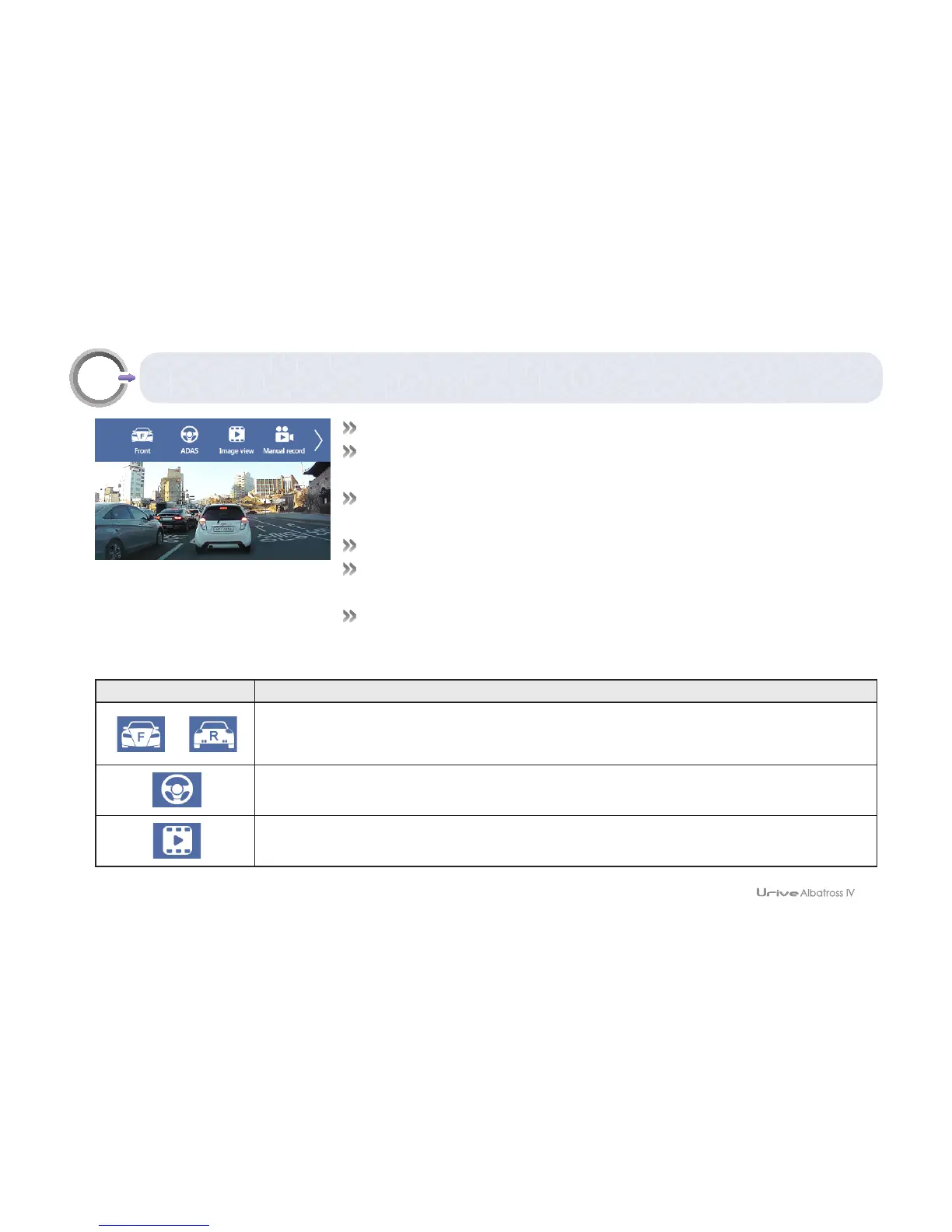
# In the driving mode, touch the LCD to show the menu bar.
# The menu bar has normally 9 icons: Front view, Rear view, ADAS, Image view,
System condition etc.
# Users can navigate the menus by touching the left and right arrow buttons on
the top of the LCD.
# In the menu screen, video and voice recording doesn't stop.
# Screen saver on: With no action for 1 minute, it shifts to the screen saver,
which turns off the LCD in 2 minutes if there is no action again.
# Screen saver off: With no action for 2 minutes, the LCD is turned off.
Icon Meaning
Front / Rear view
Select the real-time screen direction. Touch this function to change the front/rear video.
The icon will also be changed in accordance with the video.
ADAS
You can set the driver support function such as LDWS, FCWS, and FVSA.
Image view
Lists recorded videos



 To Next Page