Need help?
Do you have a question about the usa-spec BT45-TOY and is the answer not in the manual?
Safety guidelines and recommendations for installing and operating the BT45 module to ensure proper function and prevent damage.
Details on Bluetooth versions, profiles (A2DP, AVRCP), and device requirements for optimal performance with the BT45.
Factors influencing music information display, including radio capability, OS version, and Bluetooth profiles.
Step-by-step guide for installing the BT45 interface, including preparation, connection, and module placement.
Visual guides illustrating the connection process for the BT45 interface module to newer and older Toyota radios.
Visual guide showing optimal placement positions for the BT45 microphone within the vehicle for clear audio capture.
Step-by-step procedure for pairing your smartphone or Bluetooth device with the BT45 interface, including emulation mode considerations.
Procedure for answering, rejecting, and ending incoming phone calls using the BT45 interface and vehicle controls.
Instructions on initiating phone calls directly or via voice commands, and ending calls using the BT45 system.
Steps to switch an active call between the vehicle's hands-free system and the connected mobile phone's handset.
Procedure to control audible prompts for incoming calls and caller announcements, customizing the voice prompt feature.
Information on using the 3.5mm AUX input for audio devices, including the required cable.
Details on the USB port's charging capabilities, including output specifications and cable requirements for charging devices.
Solutions for problems related to Bluetooth pairing, device detection, and maintaining a stable connection with the BT45.
Troubleshooting steps for issues where song titles or music information is not displayed correctly on the vehicle's radio.
Guidance for resolving problems with the USB charging port not working or low audio volume from the AUX input or Bluetooth stream.
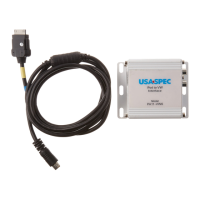
The USA SPEC BT45-TOY is a Bluetooth® music and phone interface designed for seamless integration with Lexus and Toyota OEM sound systems. This device enhances your vehicle's audio capabilities by providing hands-free phone calls and media streaming through Bluetooth (HFP and A2DP profiles). It allows users to wirelessly connect their smartphones or tablets to play stored music or stream audio from popular media apps like iHeart Radio, Pandora, Spotify, and YouTube.
One of the key functions of the BT45-TOY is its hands-free phone call capability, featuring built-in echo and noise cancellation for crystal clear sound quality. The all-speaker playback feature ensures a rich and dynamic music streaming experience. For added versatility, the device includes an additional 3.5mm auxiliary audio port, enabling playback from non-Bluetooth devices. It also offers a USB charging port to keep your devices powered on the go.
The BT45-TOY utilizes plug & play technology, leveraging the OEM radio's ability to accept an external CD changer or Satellite Radio. It converts this input into a Bluetooth phone/audio streaming/AUX input source, ensuring that existing factory-installed options such as Bluetooth HandsFreeLink, LiveTraffic, Navigation, CD changer, Satellite radio, RSE (rear seat entertainment system), and AUX/USB input remain fully functional.
Installation of the BT45-TOY requires careful attention to the provided instructions. Users are advised to read the entire manual before starting the installation, as it typically involves removing parts of the vehicle's dashboard or backseat. Professional installation is recommended. The interface module should be securely installed using Velcro or wire ties, kept away from moving parts like the gas pedal. It's crucial not to open, disassemble, or modify the BT45-TOY, as this will void the warranty. The device should also not be exposed to extreme temperatures, humidity, or direct sunlight. For safety, users are reminded not to operate the Bluetooth device while driving and to always give full attention to the road.
Before installation, all CDs should be removed from the radio's in-dash CD player/changer. The DIP switches on the BT45 module must be set according to the chart provided in the manual to select the desired emulation mode (CDC, CDC1, MP3, MD, DVD, or SAT). This setting tells the radio which mode to use for the BT45's Bluetooth phone/audio source. If the radio has trouble recognizing the BT45-TOY, users can try other emulation modes by changing the DIP switches. Specifically, DVD mode is recommended for 2005 and newer models equipped with navigation radios featuring an "MP3" logo on the face. For Delphi radios (with a face-code starting with "AD"), MD or SAT emulation mode should be used.
The installation process involves removing the radio from the dashboard and following detailed cable connection diagrams. Once the BT45 interface module is connected, the microphone needs to be installed in one of the recommended locations for optimal hands-free call performance. Optional cables for the 3.5mm AUX port and USB charging port can also be installed at this stage. After all connections are made, it's essential to complete the pairing process and make a couple of test calls before reassembling the car's interior.
Bluetooth device pairing involves enabling Bluetooth on your phone, turning the vehicle's ignition ON, and scanning for available devices. The BT45-TOY should appear as "BT45-TOY" in the list of available devices. Once selected, the pairing process will take place, and a "CONNECTED" voice prompt will be heard from the vehicle's audio system. The radio will briefly display the device's name. Some devices may require a PIN during pairing, which is "1234".
For media streaming, if music is stored on your device, it will typically start playing automatically after the "CONNECTED" voice prompt. If not, pressing TUNE UP or SEEK/TRACK UP can initiate playback, or users can manually start playback from their preferred media app. If the radio cannot display music information due to app or device compatibility, the BT45-TOY will assign track numbers to the audio tracks. Switching to the Bluetooth source from AM/FM, CD, or XM depends on the emulation mode chosen. In SAT Emulation Mode, pressing the SAT button accesses the Bluetooth source. In CDC, CDC1, MP3, MD, or DVD Emulation mode, pressing the DISC or CD button accesses the Bluetooth source.
Music playback control varies slightly between emulation modes. For SAT Emulation Mode, track changes are controlled by pressing/turning the TUNE UP/DOWN button(s)/knob on the radio. Play and pause are managed by pausing directly from the device, and then pressing/turning the TUNE UP button/knob on the radio to resume. Volume is adjusted by setting the phone's volume to MAX and then using the radio or steering wheel's volume control. Note that in SAT mode, steering wheel controls are designed for PRESET changes and cannot be used to change tracks. In CDC, CDC1, MP3, MD, DVD Emulation mode, track changes are controlled by pressing/turning the SEEK/TRACK UP/DOWN button(s)/knob on the radio or the TRACK UP/DOWN button on the steering wheel. Play and pause are similar, with the radio displaying "[PAUSED]" when paused. Volume adjustment follows the same procedure.
Hands-free phone calls are a core feature. When an incoming call is received, the BT45-TOY automatically mutes the current audio source and switches to Bluetooth. Users will hear "you have a call from (caller #)" or "Private" if caller ID is unavailable. If the voice prompt feature is disabled, only the phone's ringtone will be heard. This automatic switching feature is not supported by Delphi radios. To answer calls in SAT Emulation Mode, press/turn the TUNE UP button/knob on the radio. For Delphi radios, the SAT button must be pressed manually to switch to Bluetooth before answering. To end or reject calls, press/turn the TUNE DOWN button/knob. After a call, the system remains in Bluetooth source, requiring manual selection to return to the previous audio source. In CDC, CDC1, MP3, MD, DVD Emulation mode, calls are answered by pressing/turning the SEEK/TRACK UP button/knob on the radio or the TRACK UP button on the steering wheel. Calls are ended or rejected by pressing/turning the SEEK/TRACK DOWN button/knob on the radio or the TRACK DOWN button on the steering wheel.
Making calls can be done directly from the phone or by engaging the phone's voice dialing function (Siri/Google Now). The BT45's microphone will pick up voice commands. As soon as an outgoing call is dialed, the BT45-TOY automatically switches the audio source to Bluetooth. Calls are ended by pressing the TUNE DOWN button in SAT mode or the SEEK/TRACK DOWN button/steering wheel TRACK DOWN button in CDC/MP3/MD/DVD modes. The environment inside a moving vehicle can affect the accuracy of voice recognition.
Transferring an active call from hands-free to handset is possible. In SAT Emulation Mode, pressing/turning the TUNE UP button/knob transfers the call. Pressing it again transfers the call back to hands-free mode. In CDC, CDC1, MP3, MD, DVD Emulation mode, pressing/turning the SEEK/TRACK UP button/knob on the radio or the steering wheel TRACK UP button performs the transfer.
The voice prompt feature can be enabled or disabled. This involves turning the vehicle's ignition ON, going to the Bluetooth source, disabling Bluetooth on the phone, waiting 5 seconds, and then turning the TUNE or SEEK/TRACK knob to the right to ENABLE or to the left to DISABLE. This action affects both the voice prompt and caller ID announcement features.
The AUX port provides a 3.5mm audio input, requiring a separate cable. In SAT Emulation Mode, pressing the TYPE/FOLDER UP button or PRESET 6 button accesses the AUX device. In CDC, CDC1, MP3, MD, DVD Emulation mode, pressing the DISC UP button for DISC-6 accesses the AUX device. The USB charging port offers a maximum output of 2.1 amps at 5 volts, but a charging cable is not included.
Troubleshooting tips are provided for common issues. If the volume is low with RSE, a separate BT-TOYR cable might be needed for certain year models. RSE is identified by a DVD player in the back of the vehicle. For low hands-free call volume, adjust the phone's volume to MAX first, then use the radio's volume controls. If unable to pair, delete/forget the BT45-TOY from the phone's Bluetooth settings, reset the phone, and retry pairing. For Android devices, ensure "Only visible to paired devices" is unchecked. If steering wheel controls are not working for calls or media playback in SAT emulation mode, it's because they are designed for PRESET changes; consider using CDC emulation mode if this feature is important. If music info (song titles) is not displayed, confirm the device has Bluetooth profile AVRCP 1.4 or higher, iOS 6.0 or higher, or Android 4.0 or higher, and note that app compatibility varies. If the USB port isn't charging, ensure a data SYNC and CHARGE (USB 2.0 capability) cable is used, as not all USB cables support charging. For low volume from the AUX input, turn the volume on the connected device to MAX, then use the radio's volume control.
 General
| Product Type | Bluetooth Adapter |
|---|---|
| Compatibility | Toyota vehicles with factory radios |
| Features | Hands-free calling, audio streaming |
| Connectivity | Bluetooth |
| Control | Steering wheel controls |

 To Next Page