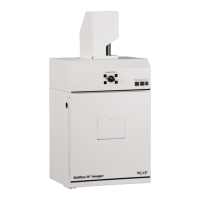
BioSpectrum Imaging System 15
Install the Camera Driver
1. Plug in the 90 degree USB cable from the camera into the USB port. Ensure that the camera is
connected to its own dedicated USB port and not to a USB hub or other similar shared device.
2. The computer should display Found New Hardware. Click Yes, Next, Install from a list, Next,
Don’t search, Next, double click on Show all Devices, click Have disk, and then Browse.
3. Browse to the C:\Windows\system32\drivers folder and select the STUSB.inf file.
4. Select Open and then OK to install the camera.
5. Select Finish.
Note: The installation may cause a warning message stating that the drivers are “not verified by
Microsoft”. Select Continue Anyway and the drivers will be installed correctly
MegaCam 810, OptiChemi 610 and BioChemi 510 Cameras
Camera Specifications
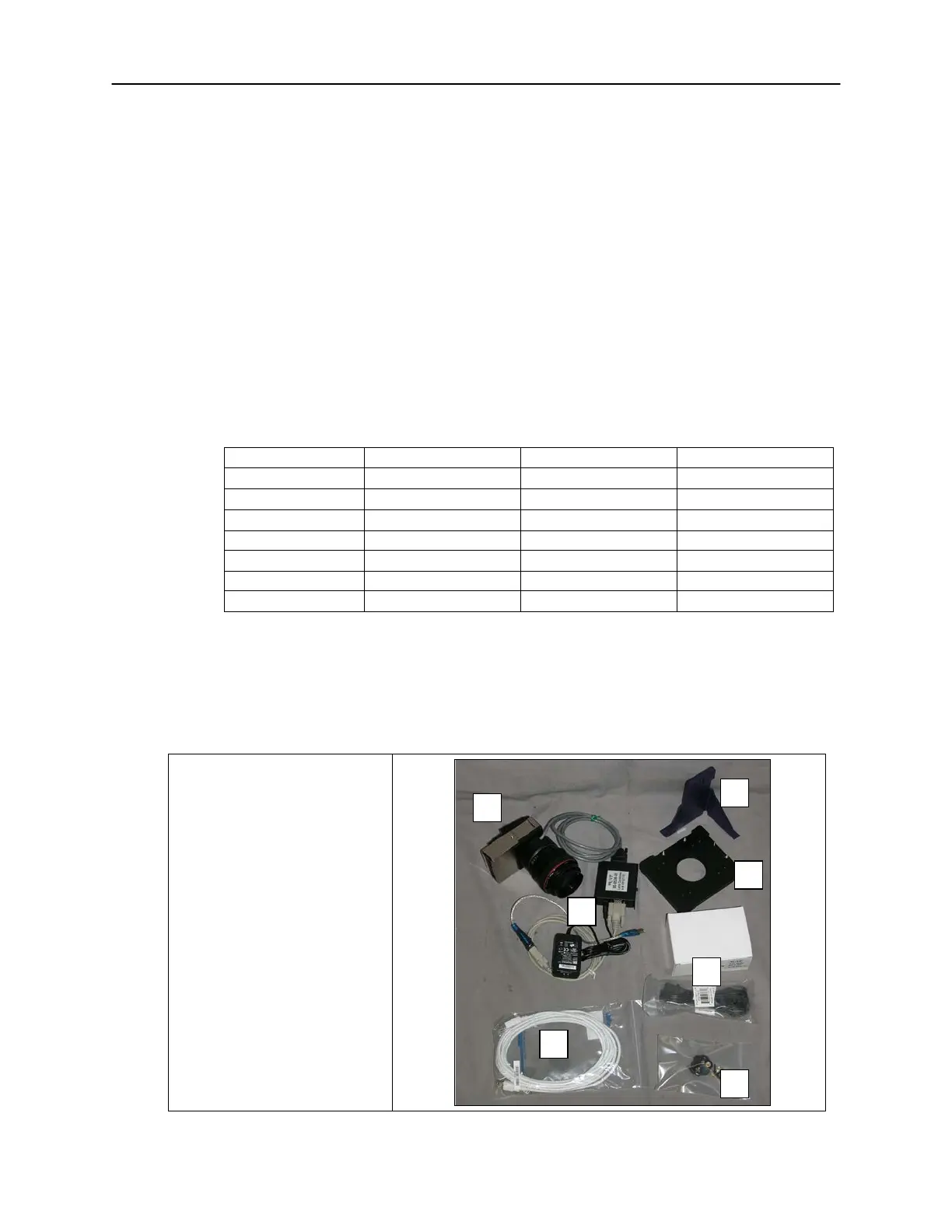
Components
Note: Some components may not be shipped with all systems.
Note: The MegaCam 810, OptiChemi 610 and BioChemi 510 cameras use many of the same
components and are installed in a similar manner. Therefore, the installation instructions herein will
refer to all three cameras interchangeably.
1. USB Cable
2. MegaCam 810/OptiChemi
610/BioChemi 510 Camera
3. Base Mount (ships attached
to the darkroom)
4. Bracket
5. Black Thumb Screw and
Brass Thumb Nuts
6. Camera Lens & Controller
7. Lens Controller Power
Supply Cable


 To Next Page