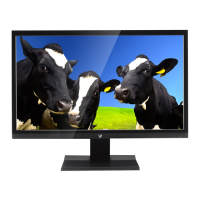
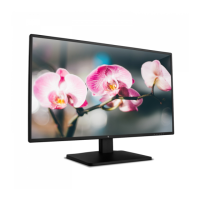
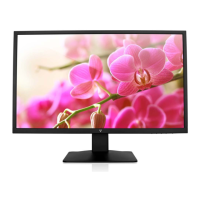
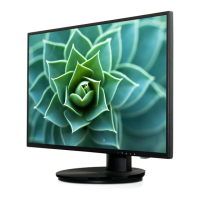
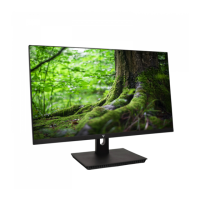
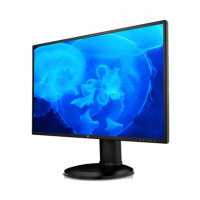
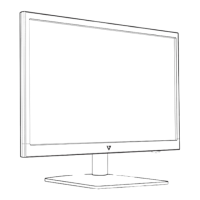
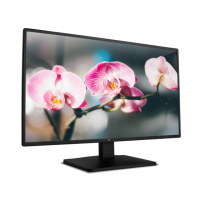
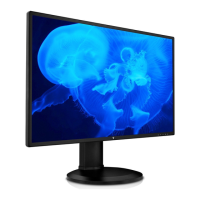
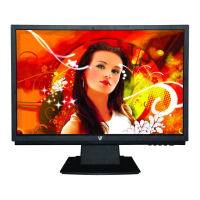
This document is a user manual for a 21.5" Full HD Widescreen LED Monitor, model L215ADS. It provides comprehensive instructions for setting up, operating, maintaining, and troubleshooting the device, ensuring users can maximize its functionality and longevity.
Function Description
The L215ADS monitor is designed to display visual content from various input sources, offering a Full HD (1920x1080) resolution for clear and detailed images. It functions as a primary or secondary display for computers, allowing users to view documents, browse the internet, watch videos, play games, and perform other tasks that require a visual interface. The monitor also includes integrated speakers for audio output, eliminating the need for external speakers in many scenarios. Its widescreen aspect ratio is suitable for multimedia consumption and multitasking, providing ample screen real estate. The LED backlight technology contributes to energy efficiency and a slim design.
Usage Features
The monitor offers a range of features to enhance user experience and flexibility.
Getting Started:
The initial setup involves a straightforward assembly process. Users first insert the monitor post into the base, securing the stand. Then, the assembled stand slides into a dedicated slot on the back of the monitor. Once the physical assembly is complete, users connect the necessary cables: an AC power cord for power, a VGA cable or HDMI cable for video input, and an audio cable if using an analog audio source. The monitor supports both VGA and HDMI video inputs, providing compatibility with a wide range of devices. After connecting the cables, the monitor is ready to be powered on along with the computer.
Control Panel/Back Panel:
The monitor features an intuitive control panel, typically located on the front or bottom bezel, and various ports on the back panel.
- LED Indicator: A small light that indicates the power status of the monitor (e.g., on, standby).
- Power On/Off Button: Used to turn the monitor on or off.
- Input Select/Confirm Select Button: Allows users to switch between different video input sources (VGA, HDMI, Auto) and confirm selections within the On Screen Display (OSD) menu.
- Scroll Up/Increase Button: Navigates upwards through OSD menu options or increases selected values.
- Scroll Down/Decrease Button: Navigates downwards through OSD menu options or decreases selected values.
- OSD Menu On/Off Button: Opens or closes the On Screen Display menu, which provides access to various monitor settings.
- Audio In Port: For connecting an external audio source, especially when using a VGA connection or if the HDMI audio is not preferred.
- VGA Port: An analog video input port for connecting to older computers or devices.
- HDMI Port: A digital video and audio input port for connecting to modern computers, gaming consoles, and other multimedia devices.
- Power Cable Port: Where the AC power cord connects to supply power to the monitor.
On Screen Display (OSD) Functions:
The OSD menu is a powerful tool for customizing the monitor's display and audio settings.
- Automatic Adjustment: This function automatically adjusts horizontal position, vertical position, phase (fine tune), and clock (H. size) for optimal screen display, particularly useful for analog VGA inputs.
- Contrast/Brightness:
- Contrast: Manually adjusts the white level of the foreground image. Users can increase or decrease contrast.
- Brightness: Manually adjusts the overall luminance of the video. Users can increase or decrease brightness.
- DCR (Dynamic Contrast Ratio): Detects the distribution of visual signals and optimizes contrast. When DCR is active, manual brightness and ECO adjustments are disabled.
- ECO Mode: Allows users to change the ECO mode, which can save energy. When ECO mode is active, contrast, brightness, and DCR adjustments are disabled.
- Input Source: Allows users to manually select the input signal (VGA, HDMI, or Auto) when the Input Select button is pressed.
- Audio Adjustment:
- Volume: Adjusts the speaker output volume.
- Mute: Turns the audio mute function on or off.
- Audio Input: When using HDMI input, users can select whether the audio source comes from Line-In or HDMI.
- Color Setting:
- Color Modes: Provides preset color modes such as cool, normal, warm, and user color, allowing quick adjustments to the color temperature.
- User Color: Enables individual adjustments for red (R), green (G), and blue (B) components, offering fine-tuned color customization.
- Blue Light Reducer: Reduces the amount of blue light emitted from the monitor, which can help reduce eye strain. It includes three user-selectable presets.
- Picture Mode: Offers five user-selectable presets optimized for different content types:
- Standard: Default setting for general Windows environments.
- Game: Optimized for PC gaming.
- Video: Optimized for movies and video content.
- Landscape: Optimized for displaying outdoor scenery images.
- Text: Optimized for text editing and viewing in word processing environments.
- Information: Displays current input signal information from the graphic card, including resolution and refresh rate.
- Manual Image Adjustment:
- H./V. Position: Adjusts the horizontal and vertical position of the video on the screen.
- Horizontal Size: Adjusts the width of the screen image.
- Fine Tune: Adjusts the delay time of data and clock.
- Sharpness: Adjusts the clarity of non-Full HD (1920x1080) signals.
- Video Mode Adjust: Selects the video mode between 16:9 and 4:3 aspect ratios.
- Menu Setting:
- Language Select: Allows users to choose from available OSD languages.
- OSD Position: Adjusts the horizontal and vertical position of the OSD menu itself on the screen.
- OSD Time Out: Sets the duration after which the OSD menu automatically turns off if no interaction occurs.
- OSD Background: Toggles the OSD menu background on or off.
- Memory Recall: Resets all video and audio controls to their factory default settings.
Maintenance Features
Proper care and maintenance are crucial for the longevity and optimal performance of the L215ADS monitor. The manual provides clear guidelines for both general care and safety.
Care:
- Environmental Protection: Users should avoid exposing the monitor directly to sunlight or other heat sources to prevent damage and reduce glare. The monitor should be placed in a well-ventilated, clean, and dry area.
- Physical Handling: It is important not to place any heavy objects on top of the monitor. The monitor should also be kept away from strong magnetic objects, motors, transformers, speakers, and TV sets, as these can interfere with its operation or cause damage.
- Cleaning: Before cleaning, the monitor should always be unplugged. The cabinet should be cleaned with a clean, dry cloth. Non-ammonia-based cleaners should be applied to the cloth, not directly onto the glass screen, to avoid streaks or damage.
Safety Tips:
- Abnormal Operation: If the monitor emits smoke, an unusual odor, or abnormal noises, the power cord must be immediately removed, and a service center should be contacted.
- Internal Components: Users are explicitly warned not to remove the rear cover of the monitor cabinet. The display unit contains high-voltage parts that can cause electric shock, even when the power cord is disconnected.
- Professional Repair: Users should never attempt to repair the monitor themselves. All repairs should be performed by a qualified technician or service center.
- Water Exposure: If the monitor gets wet, it should be unplugged immediately, and a service technician should be consulted.
- Power Cord and Cables: Heavy objects should not be placed on the power cord or other cables to prevent damage.
- VESA Mounting: If a VESA mounting kit is purchased separately, it must be UL-Listed and installed by service personnel to ensure safety.
Troubleshooting:
The manual also includes a troubleshooting section to help users resolve common issues.
- No Power:
- Verify that the AC power cord is securely connected to both the power adapter and the monitor.
- Check if the power outlet is supplying proper voltage by plugging in another electrical device.
- Ensure all signal cables are correctly installed.
- Power On but No Screen Image:
- Confirm that the video cable (VGA or HDMI) is tightly secured to the video output port on the computer.
- Adjust the monitor's brightness settings.
- Wrong or Abnormal Colors:
- If any colors (red, green, blue) are missing, check the video cable for secure connection. Loose or broken pins in the cable connector can cause improper color display.
- Connect the monitor to another computer to determine if the issue is with the monitor or the original computer's graphics output.
By following these instructions, users can effectively operate, customize, and maintain their L215ADS monitor, ensuring a reliable and enjoyable viewing experience.

 Need help?
 General

 To Next Page