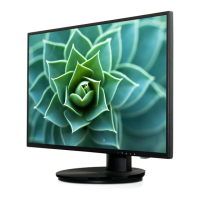
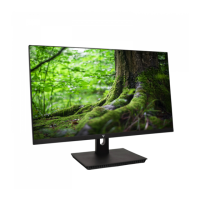
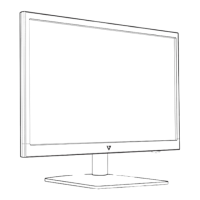
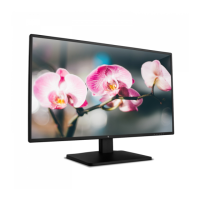
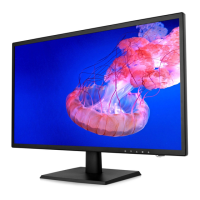
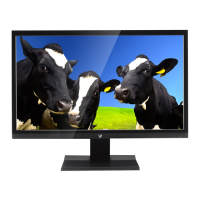
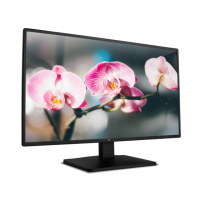
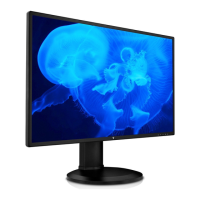
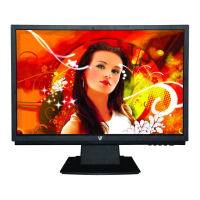
This document is a user manual for a 23.6" Full HD Widescreen LED Monitor, model L236VA. It provides comprehensive information on getting started, control panel functions, on-screen display (OSD) features, technical specifications, care and maintenance, troubleshooting, and safety/FCC warnings.
Function Description:
The L236VA is a 23.6-inch Full HD Widescreen LED monitor designed for displaying visual content from a computer or other compatible devices. It supports various input sources and offers a range of adjustments for optimal viewing experience.
Important Technical Specifications:
- LCD Panel: 59.9cm (23.6") TFT with LED backlight.
- Power Management: VESA DPMS compatible, Off Mode < 0.5 W.
- Displayable Resolution: Full HD 1920 x 1080 max.
- Vertical Frequency: 60Hz max.
- Pixel Dimension: 0.2715(H) × 0.2715(V) mm.
- LCD Display Color: 16.7M colors.
- Tilt: -3°~18° (±3°).
- Active Display Area: 521.28(H) × 293.22(V)mm.
- Temperature: Operating: 0°C ~ + 40°C; Storage: -20°C ~ + 60°C.
- Compliance: CE, CB, FCC, EPA7.0, NOM, Mexico Energy.
- Power: Input Voltage AC100-240 V.
- Speaker: 1W x 2.
- Power Consumption: In Operation: 16.0Wh; In Standby: 0.152Wh.
Usage Features:
Getting Started:
The package includes the monitor, AC power cord, VGA cable, audio cable, and a quick start guide.
Installation involves:
- Inserting the post into the base.
- Sliding the post into the monitor slot.
- Connecting the necessary cables (HDMI, VGA, Audio In, Audio Out, Power Cable) to the back panel.
- Powering on the computer and monitor.
Control Panel/Back Panel:
The monitor features control buttons on the front/bottom for easy access:
- Power On/Off: To turn the monitor on or off.
- Menu/Select: To access the OSD menu and confirm selections.
- Scroll Up/Increase (▲): To navigate up in menus or increase values.
- Scroll Down/Decrease (▼): To navigate down in menus or decrease values.
- Auto/Exit: To automatically adjust settings or exit the OSD menu.
The back panel includes ports for:
- Power Cable
- Audio Out
- Audio In
- VGA
- HDMI
On Screen Display (OSD) Functions:
The OSD menu allows for extensive customization of the monitor's display and audio settings.
- Automatic Adjustment (AUTO): Automatically adjusts Horizontal Position, Vertical Position, Phase (Fine Tune), and Clock (H. Size) of the screen.
- Contrast/Brightness:
- Contrast: Adjusts the foreground white level of the screen image.
- Brightness: Adjusts the luminance of the video.
- DCR (Dynamic Contrast Ratio): Detects visual signal input distribution and creates an optimized contrast.
- ECO: Allows changing ECO mode, which disables brightness adjustment when active.
- Input Source: Allows switching input signal to VGA, HDMI, or Auto.
- Audio Adjustment:
- Volume: Adjusts speaker output volume.
- Mute: Turns mute ON/OFF.
- Audio Input: Selects audio source (Line-In or HDMI) when in HDMI input.
- Color Setting:
- Color Modes: Offers cool, normal, warm, and user color presets.
- User Color: Individual adjustments for red (R), green (G), and blue (B) components.
- Information: Displays current input signal information from the graphic card, including resolution and refresh rate.
- Manual Image Adjustment:
- H./V. Position: Adjusts horizontal and vertical position of the video.
- Horizontal Size: Adjusts the width of the screen image.
- Fine Tune: Adjusts the delay time of data and clock.
- Sharpness: Adjusts clarity for non-Full HD (1920x1080) signals.
- Video Mode Adjust: Selects video mode from 16:9 or 4:3.
- Picture Mode: Provides 5 user-selectable presets for optimal display environments:
- Standard: For general Windows environment and monitor default setting.
- Game: Optimized for PC game environment.
- Video: Optimized for movie and video environment.
- Landscape: Optimized for displaying outdoor scenery images.
- Text: Optimized for text editing and viewing.
- Menu Setting:
- Language Select: Choose from available languages.
- OSD Position: Adjusts horizontal and vertical position of the OSD menu.
- OSD Time Out: Sets the duration after which the OSD automatically turns off.
- OSD Background: Turns the OSD background On or Off.
- Memory Recall: Recalls factory settings for Video & Audio controls.
Troubleshooting:
The manual provides solutions for common issues:
- No Power: Check AC power cord connection, power adapter, power outlet, and signal cables.
- Power on but no screen image: Ensure video cable is securely connected and adjust brightness.
- Wrong or abnormal colors: Check video cable connection for loose or broken pins, or connect the monitor to another computer to diagnose.
Maintenance Features:
Care:
- Avoid direct sunlight or heat sources; place the monitor away from the sun to reduce glare.
- Ensure the monitor is in a well-ventilated, clean, dry area.
- Do not place heavy objects on top of the monitor.
- Keep the monitor away from magnets, motors, transformers, speakers, and TV sets.
Safety Tips:
- If smoke, abnormal noise, or odor occurs, immediately remove the power cord and contact a service center.
- Never remove the rear cover; the unit contains high-voltage parts.
- Do not attempt to repair the monitor yourself; always call a qualified technician.
Safety Info & FCC Warning:
- Operate only with correct power sources.
- Do not attempt self-repair.
- Unplug before cleaning; use a clean, dry cloth with non-ammonia based cleaner.
- FCC compliance: Class B digital device, requires grounded power supply cord and shielded video interface cable with bonded ferrite cores. Unauthorized changes void user's authority.
- WEEE regulation: Do not dispose of as normal trash; refer to recycling information.
- CAN ICES-3(B)/NMB-3(B) compliance: Device complies with Part 15 of FCC Rules, subject to two conditions (no harmful interference, and acceptance of received interference).

 Need help?

 To Next Page
 General