Need help?
Do you have a question about the V7 L27ADS and is the answer not in the manual?
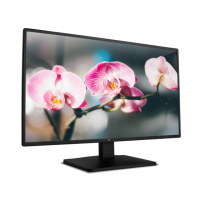
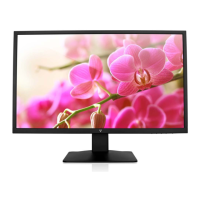
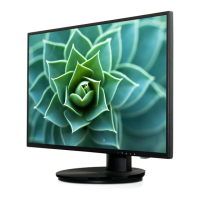
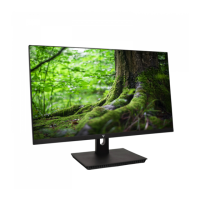
This document serves as a user manual for a 27-inch Full HD Widescreen LED Monitor, model L27ADS, providing comprehensive instructions for its setup, operation, and maintenance. The monitor is designed to offer a high-quality visual experience for various applications, from general computing to gaming and multimedia consumption.
The L27ADS monitor is a display device that connects to a computer or other video sources to present visual information. It features a Full HD resolution, providing crisp and clear images across its widescreen LED panel. The monitor is equipped with multiple input options, including VGA, DVI, and HDMI, allowing for flexible connectivity with a wide range of devices. It also includes audio input and output ports, enabling users to connect external speakers or headphones for an integrated audio-visual experience. The monitor's design incorporates a user-friendly control panel and an intuitive On Screen Display (OSD) menu system, making it easy to adjust various display settings to suit individual preferences and environmental conditions.
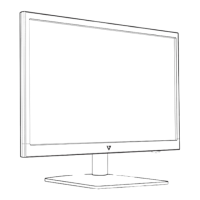
Setting up the L27ADS monitor is a straightforward process, beginning with the physical assembly of the stand. Users are instructed to insert the post into the base and then slide the assembled post into the monitor slot, ensuring a stable foundation for the display. Once the physical setup is complete, the manual guides users through connecting the necessary cables. This involves connecting the video cable (VGA, DVI, or HDMI, depending on the source) and the AC power cord. The monitor is designed to be powered on in conjunction with the computer, providing a seamless startup experience.
The monitor's control panel, located on the front, offers quick access to essential functions. These include a power on/off button, an input/select button for switching between video sources, and scroll up/down buttons for navigation and adjustment within the OSD menu. A dedicated OSD menu on/off button allows users to access and exit the comprehensive settings interface. The back panel of the monitor houses the various input and output ports, including the VGA, DVI, and HDMI ports for video input, and audio in/out ports for sound management. The power cable connection is also located on the back panel.
The On Screen Display (OSD) is a key feature for customizing the monitor's performance. It is organized into several main categories, each offering a range of adjustable parameters. The "Automatic adjustment" function is particularly useful for quickly optimizing the display, automatically adjusting horizontal position, vertical position, phase (fine tune), and clock (H. Size) of the screen for the best possible image.
Under "Contrast/Brightness," users can manually fine-tune the picture format, contrast, brightness, DCR Mode, ECO Mode, and Over Drive settings. Contrast adjusts the white level of the screen, while brightness controls the overall luminance. The DCR (Dynamic Contrast Ratio) function can be toggled on or off to enhance the contrast dynamically. ECO Mode provides various power-saving options, though it disables contrast, brightness, and DCR adjustments when active. Over Drive allows users to adjust the strength of motion picture quality, with five levels of adjustment available.
The "Input source" option enables users to switch between VGA, DVI, and HDMI inputs, accommodating different connected devices. The "Audio adjustment" menu provides controls for speaker volume and a mute function. For HDMI input, users can also select the audio source from either Line-In or HDMI.
"Color setting" offers various color modes, including cool, normal, warm, and user-defined options. In "User color" mode, individual adjustments for red, green, and blue components are possible, allowing for precise color calibration. The "Picture mode" feature provides five user-selectable presets optimized for different content types: Standard (for general use), Game (for PC gaming), Video (for movies and videos), Scenery (for outdoor images), and Text (for word processing).
The "Information" section displays details about the current input signal from the graphic card, such as resolution and refresh rate. "Manual image adjustment" provides granular control over H./V. Position, Horizontal size, Fine tune, Sharpness, and Video mode. Users can adjust the horizontal and vertical position of the video, the width of the screen image, and the delay time of data and clock. Sharpness can be set to three levels, and the video mode can be switched between Aspect Ratio 4:3 or Full Screen.
The "Menu setting" category allows users to customize the OSD itself. This includes "Language Select" for choosing the OSD language, "OSD Position" for adjusting the horizontal and vertical placement of the OSD menu on the screen, and "OSD time out" for setting how long the OSD remains visible before automatically turning off. An "OSD background" option allows users to toggle the background of the OSD on or off. Finally, the "Memory recall" function enables users to revert video and audio controls to their factory settings.
Proper care and maintenance are crucial for ensuring the longevity and optimal performance of the L27ADS monitor. The manual provides several guidelines to help users maintain their device.
For general care, it is advised to avoid exposing the monitor directly to sunlight or other heat sources, and to place it in a well-ventilated, clean, and dry area to prevent glare and overheating. Users should refrain from placing heavy objects on top of the monitor and keep it away from magnetic objects, motors, transformers, speakers, and TV sets, as these can interfere with its operation.
Safety tips are also emphasized to prevent damage to the monitor and ensure user safety. In the event of smoke, abnormal noise, or unusual odors emanating from the monitor, users are instructed to immediately remove the power cord and contact a service center. It is strictly advised not to remove the rear cover of the monitor cabinet, as it contains high-voltage parts that can cause electric shock, even when the power cord is disconnected. Users should never attempt to repair the monitor themselves and should always seek assistance from a qualified technician or service center.
Troubleshooting common issues is also covered. If the monitor has no power, users should check that the AC power cord is securely connected to both the power adapter and the monitor, and that the power outlet is supplying proper voltage. All signal cables should also be checked for secure installation. If the monitor powers on but displays no screen image, users should ensure the video cable is tightly secured to the computer's video output port and try adjusting the brightness. For wrong or abnormal colors, checking the video cable for secure connection and intact pins is recommended, as loose or broken pins can cause improper connections. Connecting the monitor to another computer can help diagnose if the issue lies with the monitor or the original computer.
The manual also includes important safety precautions and FCC warnings. It states that the monitor should only be operated with the correct power sources indicated on its label. Users are warned against attempting repairs themselves and against removing the monitor cabinet due to high-voltage components. The monitor should be kept in a clean, dry environment and unplugged before cleaning. Cleaning should be done with a clean, dry cloth and a non-ammonia-based cleaner applied to the cloth, not directly to the screen.
FCC radio frequency interference statements are provided, indicating that the monitor complies with Class B digital device limits. Users are advised on how to correct potential interference, such as reorienting the receiving antenna, moving the monitor and receiver further apart, or connecting the monitor to a different circuit. To maintain FCC compliance, a grounded power supply cord and a shielded video interface cable with bonded ferrite cores must be used. Unauthorized changes or modifications to the monitor will void the user's authority to operate the device.
Finally, the manual addresses environmental considerations, noting that the monitor should not be disposed of as normal trash in Europe due to WEEE regulations. Information on recycling drop-off areas can be obtained from local authorities or retailers. The device also complies with CAN ICES-3(B)/NMB-3(B) and carries certifications such as Energy Star, TÜV Rheinland, and GS (geprüfte Sicherheit), indicating adherence to various quality and safety standards.
 General
| Screen Size | 27 inches |
|---|---|
| Resolution | 1920 x 1080 (Full HD) |
| Panel Type | IPS |
| Aspect Ratio | 16:9 |
| Brightness | 250 cd/m² |
| Contrast Ratio | 1000:1 |
| Response Time | 5 ms |
| Connectivity | VGA, HDMI |
| Refresh Rate | 60 Hz |
| Viewing Angle | 178° (H) / 178° (V) |
| Power Consumption | 25W |
| Dimensions (W x H x D) | 612.1 x 452.6 x 185.4 mm |

 To Next Page