EasyManua.ls Logo

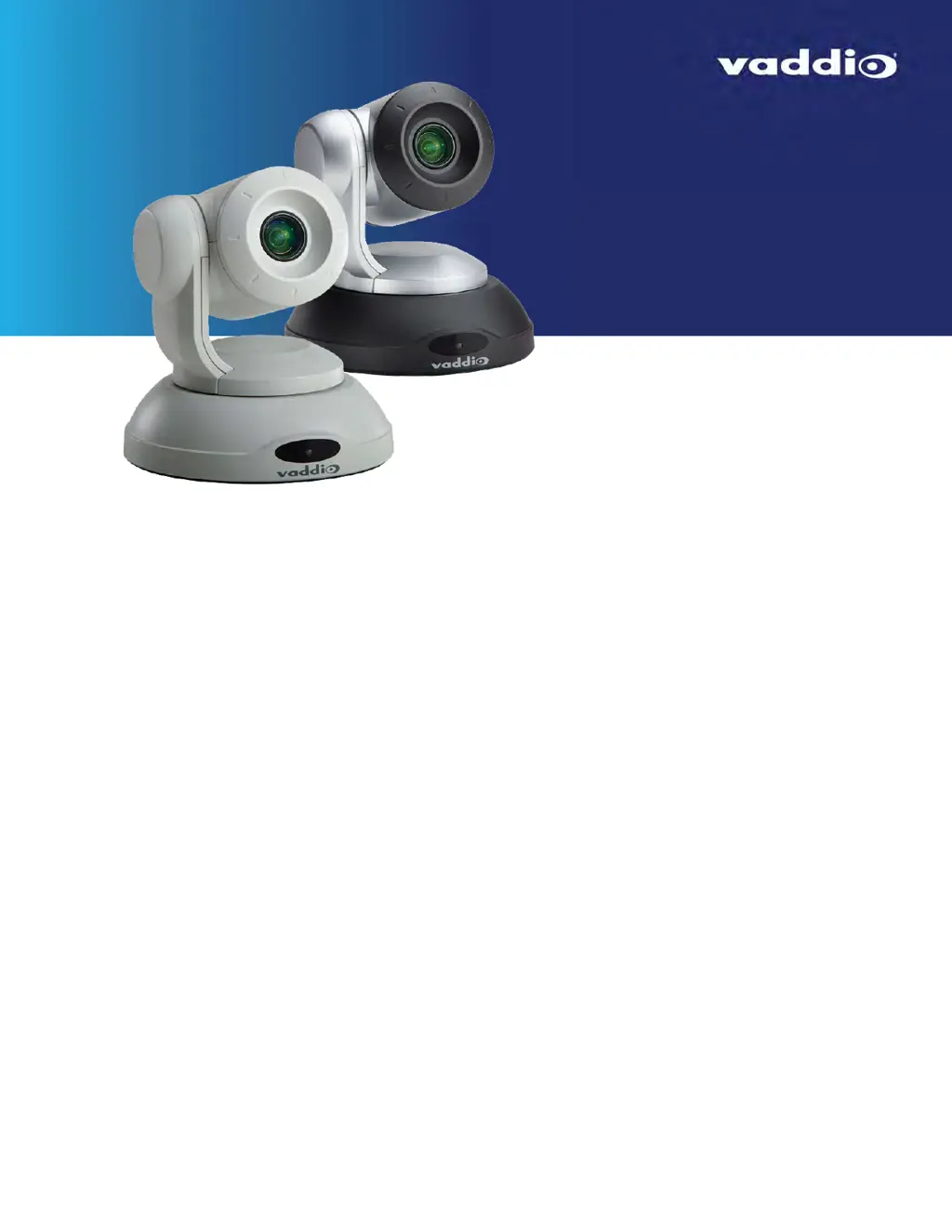
VADDIO ConferenceSHOT 10 - User Manual

VADDIO ConferenceSHOT 10
38 pages
Print Icon
To Next Page IconTo Next Page
Loading...
Configuration and Administration Guide for
ConferenceSHOT 10
Enterprise-Class PTZ Conferencing Camera
Document 411-0002-32 Rev. B
January 2017

Table of Contents

Other manuals for VADDIO ConferenceSHOT 10

Questions and Answers

  • N
    newmanadamAug 16, 2025
    Why VADDIO ConferenceSHOT 10 loses all its settings when power is cycled?
    • J
      Janice Nguyen MDAug 16, 2025
      The VADDIO IP Camera may lose all its settings when power is cycled if all the DIP switches are in the ON position. To resolve this, set the DIP switches to their proper positions, with the default being all OFF.
  • J
    Jamie ReedAug 19, 2025
    What to do if the VADDIO IP Camera has no light on the front?
    • M
      Mr. Gavin YoungAug 19, 2025
      If the VADDIO IP Camera displays no light on the front, several issues could be at play. First, verify all cables are functional by testing them with other devices. Second, ensure the wall outlet is active by plugging in another device. If these steps fail, the camera or its power supply might be faulty, requiring you to contact your reseller or Vaddio Technical Support.
  • J
    johnstonjohnAug 22, 2025
    Why VADDIO ConferenceSHOT 10 IP Camera does not respond to the remote, but the web interface is available?
    • M
      Melissa CarrollAug 22, 2025
      If your VADDIO IP Camera doesn't respond to the remote, but the web interface is accessible, ensure the remote is using the correct IR channel by pressing the Camera Select 1 button. Also, check and replace the remote batteries.
  • V
    Victoria NelsonAug 26, 2025
    How to fix VADDIO ConferenceSHOT 10 IP Camera not responding to commands via RS-232 connection?
    • S
      Samantha DuncanAug 26, 2025
      If the VADDIO IP Camera's web UI is available, but the camera does not respond to commands via RS-232 connection, first, ensure that the RS-232 cable is properly connected and functional by testing with a known good cable. Second, verify that the camera's RS-232 settings match those of the controlling device. You can view or change the camera's baud rate on the System page in the web UI.
  • T
    Tyler WigginsAug 28, 2025
    What to do if VADDIO IP Camera responds to the remote but the web interface is not available?
    • M
      Michael ParsonsAug 28, 2025
      If the VADDIO IP Camera responds to the remote, but the web interface is unavailable, it might be using a different IP address than the one you are trying to access. Press the Data Screen button on the remote to display the camera's information and check its IP address.
  • K
    Kathleen WalkerAug 31, 2025
    Why VADDIO IP Camera status light continues to blink blue?
    • M
      miguelalexanderAug 31, 2025
      If the status light on your VADDIO IP Camera continues to blink blue, it may indicate that the USB cable is not connected. Connect the USB cable to resolve this issue.
  • W
    wilsonjeremiahSep 3, 2025
    How to enable H.264 video stream on VADDIO ConferenceSHOT 10 IP Camera?
    • N
      norman11Sep 3, 2025
      If you are not getting an H.264 video stream from your VADDIO IP Camera, ensure that IP streaming is enabled in the web interface on the Streaming page.
  • M
    Mark ConnerSep 6, 2025
    How to enable USB video stream on VADDIO IP Camera?
    • E
      erin60Sep 6, 2025
      If you are not getting a USB video stream from your VADDIO IP Camera, ensure that USB streaming is enabled on the Streaming page in the web interface.
  • D
    David WilsonSep 9, 2025
    What does it mean when the status light blinks yellow on VADDIO IP Camera?
    • K
      Kimberly ScottSep 9, 2025
      If the status light on your VADDIO IP Camera blinks yellow, it indicates that the pan or tilt motor is out of calibration. Reset the pan and tilt motors to correct this issue.
  • T
    Terri RussoSep 12, 2025
    What to do if VADDIO IP Camera is not responding to the remote and the light is yellow?
    • M
      Matthew GonzalezSep 12, 2025
      If the light on your VADDIO IP Camera is yellow and it's not responding to the remote, a firmware update may be in progress. Wait a few minutes and try again when the light turns blue.

Summary

Overview of ConferenceSHOT 10 Camera

Key Features of ConferenceSHOT 10

Lists the key features and capabilities of the ConferenceSHOT 10 camera.

Using the Vaddio IR Remote Commander

IR Remote Commander Quick Reference

Provides a quick guide to remote control buttons and their functions for basic camera operations.

Details of Vaddio Remote Functions

Storing a Camera Preset with IR Remote

Instructions on how to save the current camera position as a preset using the IR remote.

Web Interface for Camera Control

User Access Levels for Web Interface

Administrative Access in Web Interface

Web Interface Quick Reference Guide

Web Tasks for All Users: Camera Controls

Admin: Managing Access and Passwords

Admin: Configuring Network and Time;Date Settings

Specify Time Zone and NTP Server

Instructions for setting the camera's time zone and configuring the NTP server for automatic time synchronization.

Admin: Configuring Streaming Settings

Admin: Color, Lighting, and Speed Adjustments

Admin: Reboots and Firmware Updates

Start a Firmware Update

Step-by-step guide for downloading and installing firmware updates for the camera.

Camera Switch Settings Configuration

Admin: Contacting Vaddio Technical Support

Admin: Viewing Diagnostic Logs

Troubleshooting and Care for Camera

Correct a Motor Calibration Error

Instructions for resetting pan and tilt motors when the status light blinks yellow or an error message appears.

Restoring Default Camera Settings

VADDIO ConferenceSHOT 10 Specifications

General IconGeneral
Megapixel2.38 MP
Sensor typeCMOS
Sync systemInternal
Optical zoom10 x
White balanceAuto, Manual, One push
Gain control typeAuto/Manual
Focal length range3.8 - 38 mm
Optical sensor size1/2.8 \
Aperture range (F-F)1.8 - 3.4
Minimum illumination1 lx
Aperture number of steps16
Effective sensor resolution2.14 MP
Signal-to-Noise Ratio (SNR)50 dB
Back Light Compensation (BLC)Yes
Optical zoom (super-wide mode)11 x
Horizontal field of view (tele)7.6 °
Horizontal field of view (wide)67 °
Maximum working distance (tele)1000 mm
Minimum working distance (wide)10 mm
Focal length range (super-wide mode)3.8 - 41.8 mm
Wide end viewing angle (super-wide mode)74 °
Maximum frame rate- fps
Supported video modes1080i, 1080p
Maximum video resolution- pixels
Pan range-165 - 165 °
Product colorBlack, Silver
Tilt angle range-30 - 90 °
Tilt speed (max)90 °/sec
Ethernet LAN (RJ-45) ports2
USB 3.2 Gen 1 (3.1 Gen 1) Type-B ports quantity1
Input current3 A
DC input voltage12 V
Storage temperature (T-T)-5 - 60 °C
Operating temperature (T-T)0 - 40 °C
Operating relative humidity (H-H)20 - 80 %
Cables includedAC, USB
Weight and Dimensions IconWeight and Dimensions
Depth145 mm
Width155 mm
Height163 mm
Weight1360 g

Related product manuals