EasyManua.ls Logo

VADDIO DocCAM 20 HDBT - User Manual

VADDIO DocCAM 20 HDBT
70 pages
Print Icon
To Next Page IconTo Next Page
Loading...
Integrator's Complete Guide to the
DocCAM 20 HDBT
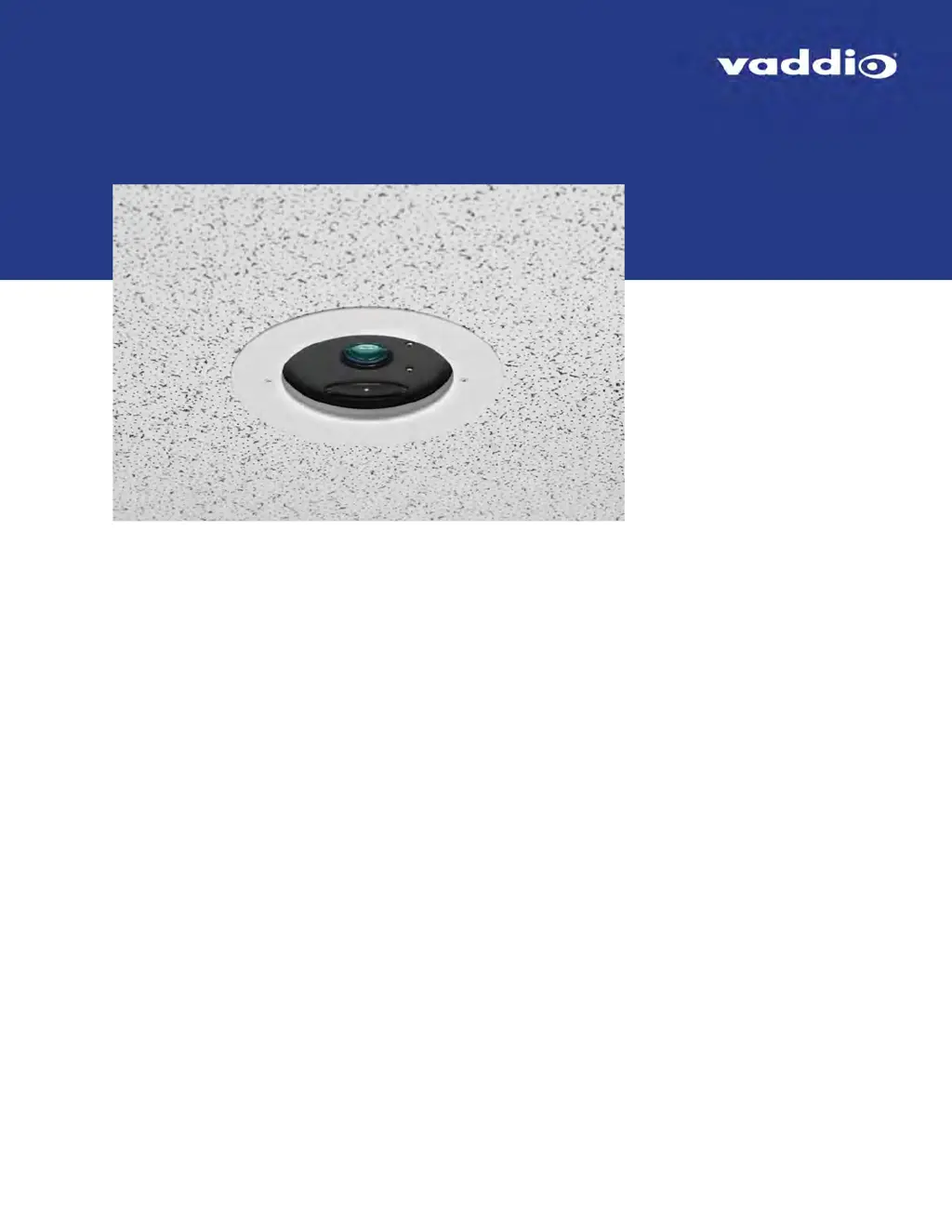
Ceiling-Mounted Document Camera
Document 411-0017-30 Rev A
November 2017

Table of Contents

Other manuals for VADDIO DocCAM 20 HDBT

Questions and Answers

  • S
    Samantha HolmesAug 17, 2025
    What to do if VADDIO DocCAM 20 HDBT is not responding?
    • D
      Daniel PetersAug 18, 2025
      If your VADDIO Document Camera isn't responding, with no status light, video, or response to the remote, here's what to check: * First, ensure the camera is receiving power from its source (OneLINK device or PoE+ injector) and that the cable is securely connected. If power is confirmed, the cable or the camera itself might be faulty. * If the status light is off, the camera might be in standby mode. Try pointing the remote at the camera and pressing the Power button. * Also, the remote might not be using the same IR channel as the camera. Press the Camera Select 1 button on the remote, and try the other Camera Select buttons if needed. * Finally, the camera might be confused and needs a reboot. Try rebooting or power-cycling the camera.
  • S
    Steven AllenAug 20, 2025
    Why VADDIO Document Camera does not respond to the remote?
    • D
      donna29Aug 20, 2025
      If your VADDIO Document Camera isn't responding to the remote, but the web interface is accessible, the issue might be: * The remote and camera are not using the same IR channel. Try pressing the Camera Select 1 button on the remote, or other Camera Select buttons. * IR is switched off. Turn IR on via the System page, DIP Switches tab. * The remote's batteries are dead. Replace the batteries in the remote.
  • T
    Tracy MoralesAug 23, 2025
    How to fix VADDIO DocCAM 20 HDBT when it never finishes initializing?
    • D
      Donald CruzAug 23, 2025
      If your VADDIO Document Camera never finishes initializing and the light is purple, this indicates that the camera is not receiving enough power. Use PoE+ instead of PoE, as PoE does not deliver sufficient power.
  • N
    Natasha RiveraAug 26, 2025
    What to do if VADDIO DocCAM 20 HDBT Document Camera does not respond to the remote and the light is yellow?
    • J
      Jason HigginsAug 26, 2025
      If your VADDIO Document Camera is not responding to the remote and the light is yellow, this indicates that a firmware update is in progress. Wait a few minutes, and try again when the light turns blue.
  • J
    John JordanAug 28, 2025
    What to do if VADDIO DocCAM 20 HDBT responds to the remote but the web interface is not available?
    • K
      Katherine PerezAug 28, 2025
      If the VADDIO Document Camera responds to the remote but the web interface is unavailable, the camera might not be using the IP address you are browsing to. Press the Data Screen button on the remote to see camera information.
  • W
    William SharpAug 30, 2025
    How to troubleshoot VADDIO DocCAM 20 HDBT not responding to RS-232 commands?
    • K
      Kimberly MartinAug 30, 2025
      If the VADDIO Document Camera's web UI is available but the camera does not respond to commands sent via RS-232 connection to the OneLINK device, consider the following: * The RS-232 cable to the OneLINK device may not be connected, or could be faulty. Connect a known good cable. * The camera's baud rate setting might not match the settings on the controlling device. Check the baud rate setting at both ends to ensure they match. The camera's baud rate setting is available on the System page in the web UI.
  • A
    Amanda PalmerSep 1, 2025
    How to enable H.264 video stream on VADDIO Document Camera?
    • M
      Michele GreenSep 1, 2025
      If there is no H.264 video stream from your VADDIO Document Camera, ensure that streaming is enabled on the Streaming page in the web interface.
  • W
    Wanda StarkSep 4, 2025
    Why is the laser pointer off-center in VADDIO DocCAM 20 HDBT Document Camera?
    • C
      Cody HancockSep 4, 2025
      If the laser pointer is off-center in the image area of your VADDIO Document Camera, the laser pointer is out of alignment. Contact Vaddio Technical Support.
  • D
    destiny69Sep 6, 2025
    What to do if VADDIO Document Camera does not respond to the remote but the web interface is available?
    • D
      Dawn AndersonSep 7, 2025
      If your VADDIO Document Camera isn't responding to the remote, but the web interface is accessible, here are a few things to check: * Ensure the remote and camera are using the same IR channel by pressing the Camera Select 1 button on the remote. If needed, try the other Camera Select buttons. * Verify that IR is enabled in the system settings (System page, DIP Switches tab). * Replace the remote's batteries with new ones.
  • D
    Debra WalkerSep 12, 2025
    Why VADDIO Document Camera never finishes initializing and the light is purple?
    • K
      Kimberly WilsonSep 12, 2025
      If your VADDIO Document Camera never finishes initializing and the status light is purple, it might not be receiving enough power. Try using PoE+ instead of PoE, as PoE may not deliver sufficient power.

Summary

Overview of the DocCAM 20 HDBT

Key Product Features

Details the technical specifications and features of the DocCAM 20 HDBT camera.

Unpacking the Camera

DocCAM 20 HDBT Variants

Lists components for different DocCAM 20 HDBT models and regions.

Camera Overview and Components

Features for Installation

Highlights camera features relevant to installation, like enclosure and connectors.

Connector Panel and Operational Features

Status Light Indicator

Explains the meaning of the camera's status light colors and states.

Installing the Camera

Warranty and Cabling Precautions

Provides crucial cautions to prevent warranty voidance during installation.

Pre-Installation Checks and Connections

Power and Connection Options

Describes methods for connecting power and data using OneLINK or PoE+ injector.

Installation Planning and Requirements

Selecting the Installation Area

Guides on choosing the optimal location for camera installation in different ceiling types.

Tile Ceiling Installation Process

Tile Ceiling Preparation

Details the steps to prepare a suspended tile ceiling for camera mounting.

Completing Tile Ceiling Installation

Hard Ceiling Installation Process

Hard Ceiling Preparation

Outlines the steps to prepare a hard ceiling for camera installation.

Completing Hard Ceiling Installation

Powering Up the Camera

Describes how to power on the camera and what to expect during initialization.

Using the IR Remote Control

IR Remote Cheat Sheet

Provides a quick reference table for common IR remote functions and their buttons.

IR Remote Details

Storing and Clearing Presets

Explains how to save and clear camera positions and settings using the IR remote.

Web Interface Access

Getting the Cameras IP Address

Guides on how to find the camera's IP address for web interface access.

Accessing the Web Interface

Explains how to connect to the camera's web interface using a browser.

Administrative Access to Web Interface

System Administration

Configuring Network Settings

Guides on setting up the camera's network configuration, including IP addressing.

Managing Access and Passwords

Configuring IP Streaming

Editing IP Streaming Settings

Rebooting the Camera

Configuration Management

Restoring Factory Settings

Installing Firmware Update

Firmware Update Process

Outlines the procedure for downloading and installing firmware updates for the camera.

Technical Support and Diagnostics

Configuring Camera Behavior

Setting Video Output Resolution

Details how to set the video output resolution and frame rate for the camera.

Setting Zoom Presets

Adjusting Room Lighting

CCU Scene Settings

Explains how to use and select pre-defined or custom CCU scenes for lighting adjustments.

Operating Camera from Web Interface

Telnet Serial Command API

Camera Zoom Control via API

Camera Focus Control via API

Camera Preset Control via API

Camera Resolution Control via API

System Control via API

System Reboot and Factory Reset

Details commands for rebooting the system and performing a factory reset.

RS-232 Serial Communication

RS-232 Commands: Zoom and Focus

RS-232 Commands: Color and Light Management

Product Specifications

Troubleshooting and Care

Status Light Checks for Troubleshooting

Advises checking the status light color to diagnose initial camera issues.

Identify and Resolve Common Issues

Provides a table to help identify and resolve common camera operational problems.

Warranty Information

VADDIO DocCAM 20 HDBT Specifications

General IconGeneral
BrandVADDIO
ModelDocCAM 20 HDBT
CategoryDocument Camera
LanguageEnglish