EasyManua.ls Logo

VADDIO Extreme USB 2.0 Extender TX - User Manual

VADDIO Extreme USB 2.0 Extender TX
16 pages
Print Icon
To Next Page IconTo Next Page
Loading...
© 2013 Vaddio - All Rights Reserved. Extreme USB 2.0 Extenders, Document Number 342-0468 Rev D
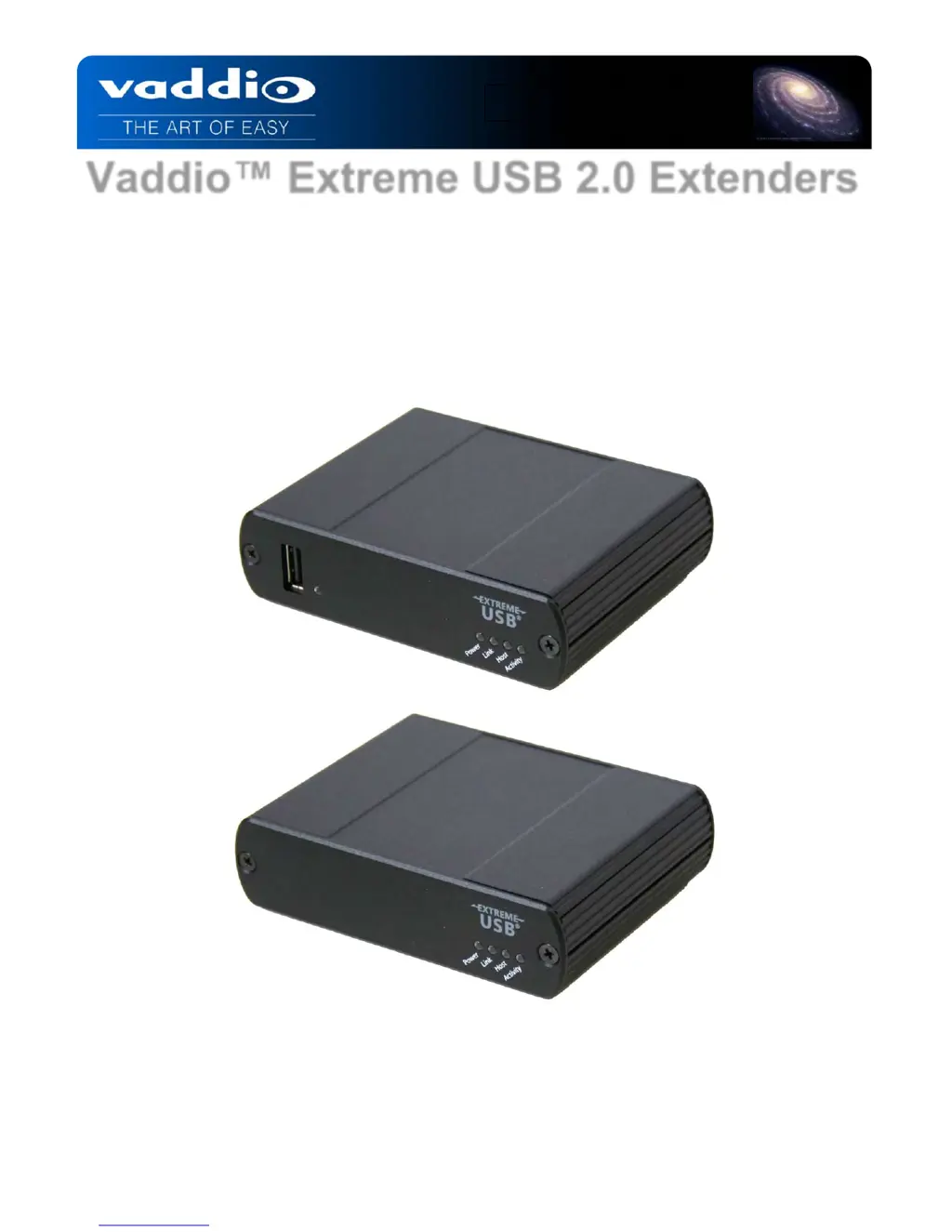
Vaddio™ Extreme USB 2.0 Extenders
Part Numbers:
999-1005-022 - North America
999-1005-122 - International
Extreme USB 2.0
Extender TX
Extreme USB 2.0
Extender RX
Installation and User Guide

Questions and Answers

  • J
    joybakerAug 15, 2025
    What to do if all LEDs on both the RX unit and the TX unit of VADDIO Extreme USB 2.0 TX Extender are on, but the USB device does not operate correctly?
    • J
      Joshua ThompsonAug 15, 2025
      First, disconnect the VADDIO Extender from the computer. Connect the USB device directly to the USB port on the computer. If the device still doesn’t operate properly, consult the user documentation for the device. Update your system BIOS, chipset, or USB Host controller drivers from your System/Motherboard manufacturer’s website. If the device operates properly when directly connected to the computer, connect another device (of a different type) to the Extender and then connect the Extender to the computer. If the second device does not operate, the Extender may be malfunctioning and you should contact technical support. If the second device operates properly, the first device may not be compatible with the Extender.
  • J
    John HawkinsAug 18, 2025
    What does it mean if the Device LED is orange on the VADDIO Extreme USB 2.0 TX and the units are no longer functioning?
    • S
      Shawna MillerAug 18, 2025
      An orange Device LED indicates an overcurrent condition. This occurs when the USB device draws more power than the USB specification allows (500mA). Power cycle the TX Unit to resolve this issue.
  • M
    molly82Aug 21, 2025
    Why are the Host LEDs on the TX and RX units of VADDIO Extreme USB 2.0 TX blinking?
    • K
      Kathleen AllenAug 21, 2025
      The TX unit may be in suspend/standby mode, or no USB devices are attached to the TX unit. To resolve this, recover/resume the operating system from standby mode (refer to the PC’s operating system documentation) or attach a USB device to the system.
  • M
    Mike ToddAug 25, 2025
    What to do if the USB device is attached to TX unit’s USB port but TX device LED is off in VADDIO Extender?
    • L
      Leslie SantosAug 26, 2025
      Ensure the appropriate driver is installed on the computer operating system, or that the device uses UVC (universal video class) drivers. Install the required USB device driver on the computer before attaching the USB device to the TX unit. Consult your USB device documentation and power the USB device with the additional USB device manufacturer supplied power supply (if available).
  • A
    Angela CoxAug 28, 2025
    How to fix VADDIO Extreme USB 2.0 TX Extender when link LEDs on the TX and RX units are off?
    • J
      John Hill DDSAug 28, 2025
      The link LEDs are off because there is no connection between the TX and RX units. Check the Cat-5e connection and the cable, avoiding pull-through or EZ type RJ-45 connectors. Ensure the pin-outs use 568B straight through standard. Try connecting a short, known good patch cable between the TX and RX units. If this works, there is a Cat-5 cabling problem.
  • J
    jjohnsonSep 1, 2025
    What does it mean if Host and LINK LEDs on RX / TX units of VADDIO Extreme USB 2.0 TX Extender blink intermittently?
    • T
      Tyler ThomasSep 1, 2025
      The TX and RX units may not have the same firmware revision. To solve this, use a different TX / RX pair that has the same firmware revision or upgrade the TX /RX firmware. Contact technical support for assistance.
  • M
    Michael KingSep 3, 2025
    What to do if the Link LED on RX unit is on but the Host LED on RX unit is off on VADDIO Extreme USB 2.0 TX?
    • T
      Taylor ParkerSep 3, 2025
      Disconnect all USB devices from the TX unit. Disconnect the RX unit from the computer and the TX unit from the AC power adapter. Reconnect the RX unit to the computer and the TX unit to the AC power adapter. Then, check in the Universal Serial Bus controllers section of Device Manager to ensure that the RX unit is recognized as a “Generic USB Hub.”
  • K
    Kevin MorrisSep 7, 2025
    What to do if all LEDs on the RX unit (PC-Host side) of VADDIO Extender are off?
    • D
      Diamond ColeSep 7, 2025
      The RX unit is not receiving enough power from the USB port. Ensure the USB connection between the RX unit and the host PC is properly installed, using a USB 2.0 rated cable with USB 2.0 signals. Try moving the USB connector to another USB port on the host PC, as some PCs have internal hubs and adequate power may not be available on every port.
  • J
    Jessica WalshSep 12, 2025
    Why are all the LEDs on the TX unit (device side) of VADDIO Extreme USB 2.0 TX off?
    • S
      Samuel PetersenSep 12, 2025
      The TX unit is not receiving power from the AC Adapter. Ensure that the AC power adapter is properly connected to the TX unit. Also, check the viability of the AC electrical outlet and confirm that the TX unit’s power LED comes on when plugged into a working outlet.

Summary

Anatomy of the Extreme USB 2.0 Extenders

Installation Instructions and Verification

Basic Connectivity Diagram

Troubleshooting Common Issues

No LEDs on RX Unit

Addresses the problem of all LEDs on the RX unit being off.

No LEDs on TX Unit

Addresses the problem of all LEDs on the TX unit being off.

Link LEDs Off

Troubleshoots the scenario where Link LEDs on both TX and RX units are off.

Link LED On, Host LED Off

Diagnoses the issue when the Link LED is on but the Host LED is off.

Host LED Blinking

Resolves the problem of the Host LED blinking on TX and RX units.

Device Not Operating Correctly

Addresses issues where USB devices are not recognized or function improperly.

TX Device LED Off

Troubleshoots when the TX device LED is off despite the USB device being attached.

Device LED Orange

Addresses the orange Device LED, indicating an overcurrent condition.

Specifications

Product Specifications

Details technical specifications including range, device support, power, and dimensions.

Compliance and Declaration of Conformity

VADDIO Extreme USB 2.0 Extender TX Specifications

General IconGeneral
BrandVADDIO
ModelExtreme USB 2.0 Extender TX
CategoryExtender
LanguageEnglish

Related product manuals