EasyManua.ls Logo

VADDIO USB 3 - User Manual

VADDIO USB 3
14 pages
Print Icon
To Next Page IconTo Next Page
Loading...
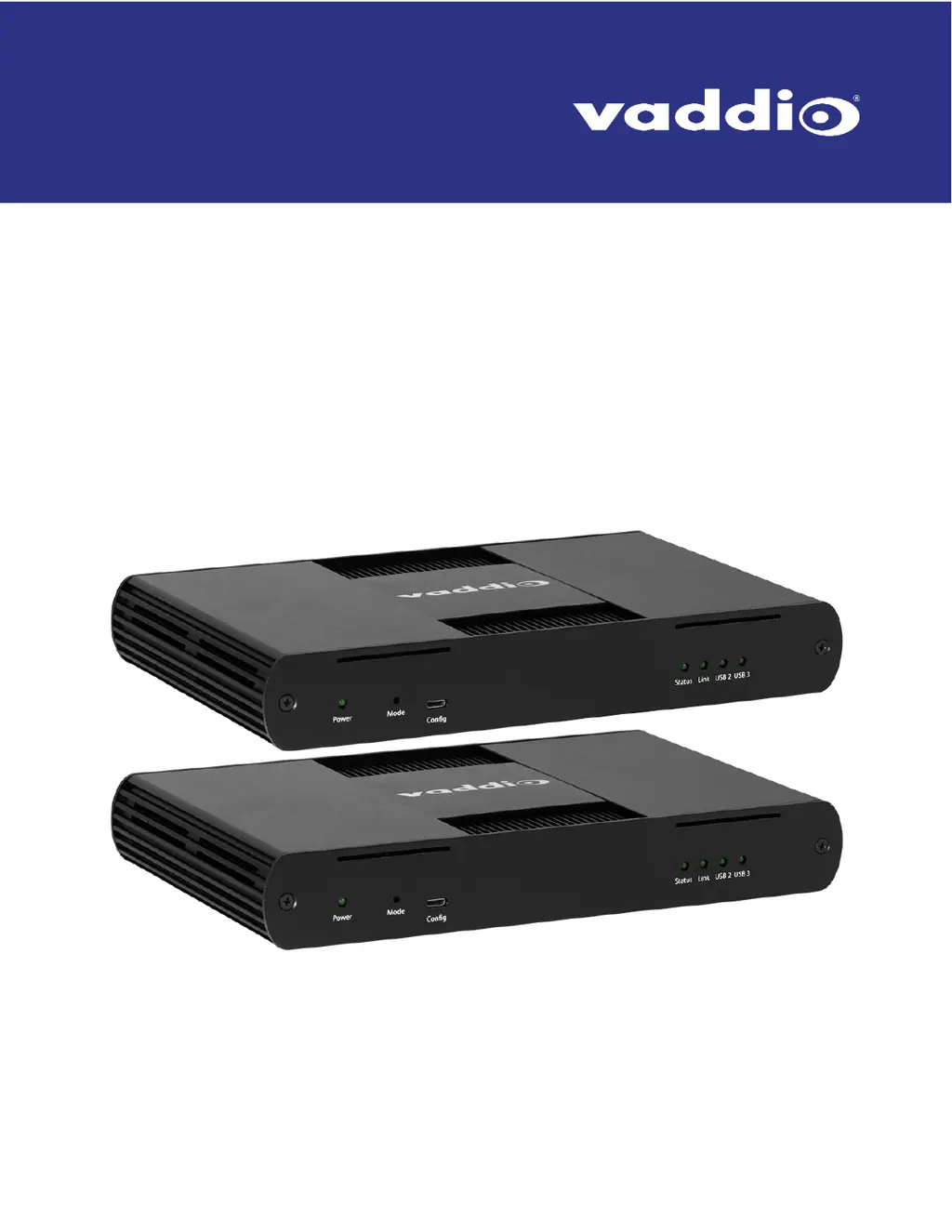
USB 3 Extenders
4-Port
Point-to-Point Extender System
User Guide
Document 411-0024-30 Rev A
June 2018

Questions and Answers

  • J
    Jeffrey CuevasAug 14, 2025
    What to do if the USB device is not operating correctly with VADDIO Extender?
    • E
      eochoaAug 14, 2025
      If all LEDs are lit on both the Local and Remote VADDIO Extenders, but your USB device isn't working or is seen as an 'Unknown Device', try these steps: 1. Disconnect the extender from the computer. 2. Connect the USB device directly to the host computer; if it still fails, refer to the device's documentation. 3. Update your computer's BIOS, chipset, or USB controller drivers from the manufacturer's website. 4. If direct connection works, reconnect the device via the extender. If it fails, the extender might be faulty. Contact Technical Support. If a second device works fine through the extender, the first device might be incompatible.
  • K
    Kevin MossAug 17, 2025
    Why my USB 3 device is not working correctly with VADDIO Extender?
    • S
      stacy07Aug 17, 2025
      If a USB 3 device isn't running as USB 3 via the VADDIO Extender, or you see a 'Perform Faster' notification, try these steps: 1. Disconnect the extender from the computer. 2. Connect the USB 3 device directly to the computer. If it doesn't work as USB 3, check its manual or try a different USB port. 3. Update the computer's BIOS, chipset, or USB controller drivers from the manufacturer's website. 4. If it works directly, reconnect via the extender. If it fails, the extender may be faulty. Contact Technical Support. If a second USB 3 device works fine, the first might be incompatible.
  • D
    David WardAug 20, 2025
    How to fix blinking USB LEDs on VADDIO USB 3 Extender?
    • J
      Jason WatsonAug 21, 2025
      If the USB 2 or USB 3 LEDs are blinking on the VADDIO Extender, it means that the Local and/or Remote Extender is in suspend mode. This can occur if no USB devices are attached, a USB device is asleep, or the host computer is in sleep or hibernation. To resolve this: * Resume the operating system from sleep or hibernation (refer to your operating system’s documentation). * Connect a USB device to the Remote Extender. * Use the connected device. If the problem persists, contact Technical Support.
  • P
    Pamela WeeksAug 25, 2025
    Why are link LEDs off on VADDIO Extender?
    • M
      Megan GravesAug 25, 2025
      If the Link LEDs are OFF on both the Local and Remote VADDIO Extenders, it indicates there's no connection between them. To fix this, ensure that no more than 100m of Cat-6/Cat-7 cabling is connected between the units. Try connecting a short patch cable to check the link status. If the LINK LED then turns ON, the original cable is either defective or doesn't support the link.
  • Y
    youngjaniceAug 27, 2025
    What to do if all LEDs are flashing and system is not operational VADDIO USB 3?
    • B
      Benjamin WyattAug 27, 2025
      If all LEDs are flashing and the VADDIO Extender system is not operational, this means the unit has exceeded safe operating temperature. You should remove external heat sources or change the unit's location. Power cycle the unit to return to operation.
  • K
    Katherine LewisAug 30, 2025
    What to do if USB LEDs are off but Link LEDs are on VADDIO USB 3 Extender?
    • K
      Kathleen StrongAug 30, 2025
      If the LINK LEDs are ON but the USB 2 and USB 3 LEDs are OFF on the VADDIO Extender, follow these steps: 1. Disconnect all USB devices from the Remote Extender. 2. Disconnect the Local Extender from the host computer. 3. Disconnect AC adapters from both Extenders. 4. Reconnect the Local Extender to the host computer. 5. Reconnect the AC adapters to both Extenders. 6. Check that the Extenders have been detected as USB hubs in the operating system. If the problem is not resolved, contact Technical Support.
  • S
    Stacey ShepardSep 2, 2025
    Why all LEDs are flashing and system is operational VADDIO USB 3?
    • T
      Terry JimenezSep 3, 2025
      If all LEDs are flashing on the VADDIO Extender but the system is operational, it indicates the unit is or was operating at an unsafe temperature. Check the ambient temperature, ensuring it doesn't exceed 50°C (122°F). Power cycle the unit to remove the LED status.
  • E
    Erika SmithSep 6, 2025
    How to troubleshoot if all LEDs are off on VADDIO USB 3 Extender?
    • P
      Patrick BakerSep 6, 2025
      If all LEDs are OFF on the Local or Remote VADDIO Extender, it means the unit isn't receiving power. Ensure the AC power adapter is properly connected to the Extender and plugged into a working AC power source.
  • T
    Thomas Taylor MDSep 9, 2025
    What does it mean when LEDs are scrolling on VADDIO Extender?
    • O
      Oscar StephensonSep 9, 2025
      If the LEDs are scrolling from LEFT to RIGHT, starting with STATUS on your VADDIO Extender, it indicates that the unit is programming. Wait for the programming to finish.

Summary

Introduction

Features

Highlights key features like USB 3.1 support, extension distance, and plug-and-play operation.

Unpacking

Lists the items included in the USB 3 Extender system package for different regions.

A Quick Look at the USB 3 Extenders

The Local (Rx) Extender

Describes the local (receiver) extender, its connection to the computer, and its power supply.

The Remote (Tx) Extender

Installation

Preparing Your Site

Instructions for site preparation, including equipment placement and device proximity.

Cabling Guidelines

Recommendations for using shielded/foiled Cat-6/Cat-7 cables and maximum distance.

Other Items You Will Need

Lists necessary items not included with the system for installation.

Basic Connections

Optional Ethernet Pass-Through Connection

Connections for a Presenter BYOD Scenario

Installing the Extenders

Checking the Installation

Connecting a USB Device

Compatibility

Troubleshooting

Specifications

Technical Glossary

Contacting Technical Support

Compliance Statements and Declarations of Conformity

FCC Radio Frequency Interference Statement Warning

States compliance with FCC rules regarding interference.

CE Statement

Declares conformity with European Standards for the product.

IC Statement

Confirms compliance of the digital apparatus with Canadian standards.

WEEE Statement

Explains EU regulations for recycling electrical and electronic equipment.

Product Operation and Storage

Provides instructions for proper product operation, handling, and storage conditions.

VADDIO USB 3 Specifications

General IconGeneral
Connectivity TechnologyWired
Maximum Data Transfer Rate5 Gbps
USB StandardUSB 3.0
Connection TypeUSB
Distance100 m (330 ft)
Power SupplyExternal
CompatibilityUSB 3.0
InterfaceUSB Type-A
Power SourceAC Adapter
Operating Temperature0°C to 40°C
Storage Temperature-20°C to 60°C
CategoryExtender

Related product manuals