ProductionVIEW Precision Camera Controller
ProductionVIEW Precision Camera Controller Manual 341-770 Rev H Page 8 of 16
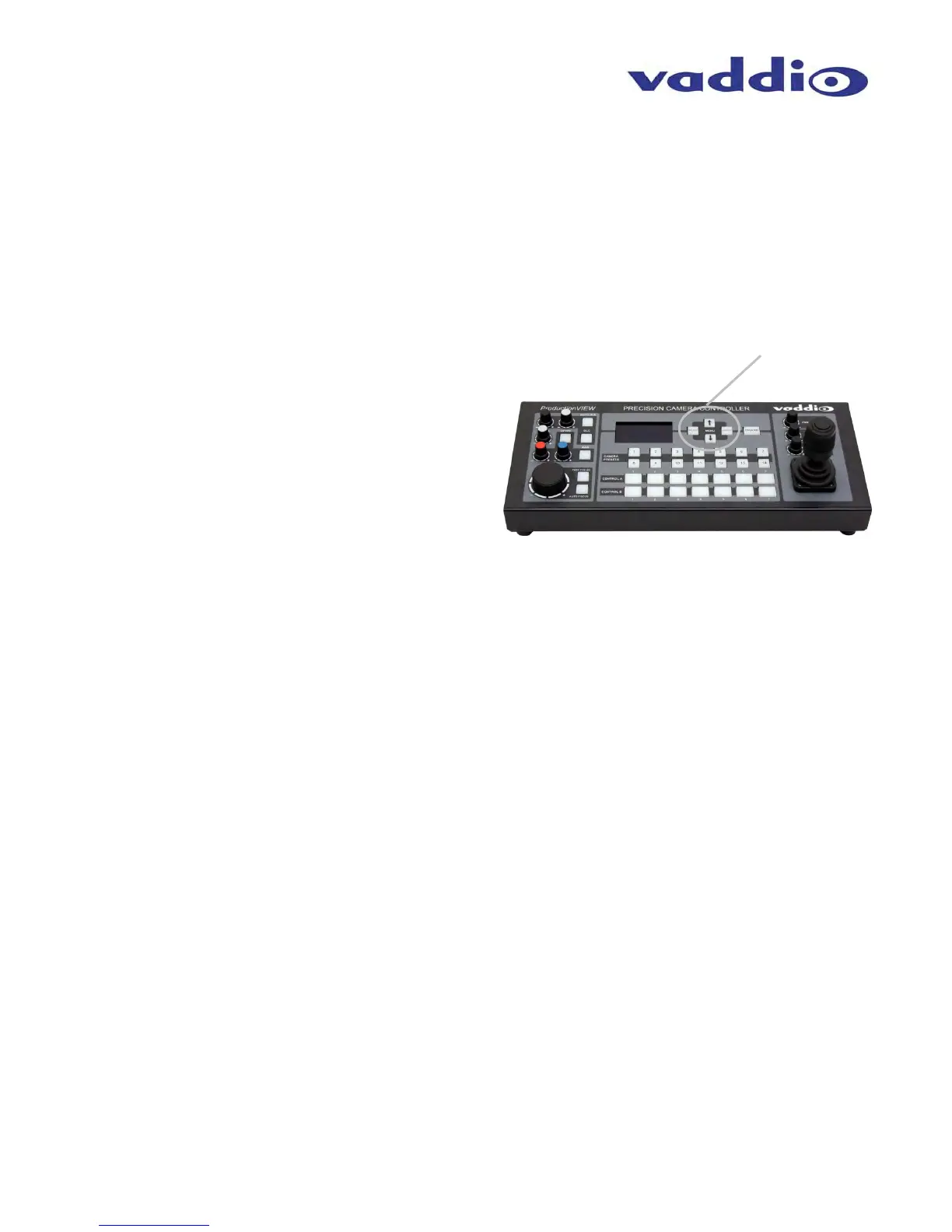
The 3-Axis Joystick:
Within the menus, the 3-axis joystick is programmable for pan, tilt and zoom direction control. The zoom-in/zoom-
out, tilt-up/tilt-down and pan-left/pan-right commands can be inverted on all 3-axis to customize control of the PTZ
cameras attached to Precision Camera Controller.
LCD Screen:
The LCD screen displays the menu structure, as well as information in real time as buttons are pressed, or
buttons pushed on the controller.
Note: The LCD is covered with a thin protective film, please remove this film carefully.
ProductionVIEW PRECISION CAMERA CONTROLLER Menu Structure
The ProductionVIEW Precision Camera Controller has a back lit, 8-line
LCD that displays the system menus. The menus are traversed with the
up and down arrows buttons, select and cancel buttons. The menu
structure is as follows:
1
st
Screen ProductionVIEW PC
V01.00.0X (software version 0X)
Rescan Cameras
Cam Search Menu
Default Camera
Default Preset
Rescan Cameras
>Select
>Start - Rescans control ports 1 through 7 to find the cameras connected
Cam Search Menu
>Select
>All Ports: (select search method – Auto, Sony, Canon, Panasonic)
>Port 01: (select search method – Auto, Sony, Canon, Panasonic)
>Port 02: (select search method – Auto, Sony, Canon, Panasonic)
>Port 03: (select search method – Auto, Sony, Canon, Panasonic)
>Port 04: (select search method – Auto, Sony, Canon, Panasonic)
>Port 05: (select search method – Auto, Sony, Canon, Panasonic)
>Port 06: (select search method – Auto, Sony, Canon, Panasonic)
>Port 07: (select search method – Auto, Sony, Canon, Panasonic)
NOTE: When using Panasonic cameras, it is necessary to select Panasonic to speed up the recognition of the cameras
when ProductionVIEW HD is turned on.
Default Camera (Automatic and Start-up Modes)
>Select
> 01 – 07
Selects camera 1 through 7 as the default camera (default is 01)
Default Preset (Automatic and Start-up Modes)
>Select
> 01 – 14
Assigns camera preset 1 through 14 as Default Preset on the default camera (default is 01)
CCU Mode
>Select
>All Ports: (Select method – Direct Cam Ctrl or CCU)
>Port 01: (Select method – Direct Cam Ctrl or CCU)
>Port 02: (Select method – Direct Cam Ctrl or CCU)
>Port 03: (Select method – Direct Cam Ctrl or CCU)
>Port 04: (Select method – Direct Cam Ctrl or CCU)
>Port 05: (Select method – Direct Cam Ctrl or CCU)
>Port 06: (Select method – Direct Cam Ctrl or CCU)
>Port 07: (Select method – Direct Cam Ctrl or CCU)
NOTE: When Vaddio Quick-Connect CCUs are used with ProductionVIEW Precision Camera Controller, CCU mode
disables the CCU functions on the Precision Camera Controller, allowing the user to control these functions from the
Quick-Connect CCU)
Menu
Section


 To Next Page