
 Need help?
Do you have a question about the Vaultek VT20i and is the answer not in the manual?
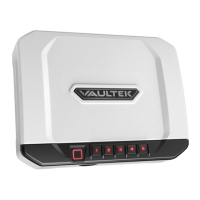
Personalized access for up to 20 unique fingerprints. See pages 08 to 11 for more information.
Numeric keypad with proximity sensor for rapid access. See page 06 for more information.
Open the safe with the Bluetooth app. See pages 13 and 14 for more information.
Activates after six incorrect keypad entries, disabling input for two minutes.
Key safety guidelines including not storing backup keys inside, avoiding moisture, heat/cold, and loaded guns.
Manufacturer and seller liability limitations regarding use and misuse of the safe.
Insert and turn the backup key 90 degrees clockwise to open the safe.
Place the 18650 rechargeable lithium-ion battery into the compartment; polarity is auto-detected.
Plug the micro-USB cable into the safe and a USB port or adapter for a 2.5-hour recharge.
LEDs above the micro-USB jack indicate battery level: 4 lights (full), 3 (80-100%), 2 (60-80%), 1 (40-60%), blinking (<20%).
Press and hold '5' for 3 seconds; digits '1'-'4' glow GREEN/RED indicating battery level.
The '1' button blinks 5 times and a beep sounds when opening, indicating critically low battery.
Codes must be 4-8 digits, keys not pressed simultaneously, new code overwrites old.
Enter default code, press PROGRAM, enter new code twice, press PROGRAM again to confirm.
Find product number on manual/battery door and 4-digit ID on keys.
Visit VAULTEKSAFE.COM/Support, fill out the form with required information, and submit.
Tips for accurate fingerprint scanning: finger placement, slight adjustments, clean sensor, try different fingers/scans.
Program 1st fingerprint by pressing PROGRAM, scanning finger 5 times until success confirmation.
Repeat steps 1-4 to program the second administrative fingerprint.
Scan an administrative fingerprint to authorize programming of new user fingerprints.
Place new finger on scanner, repeat scans until keys 1-5 are solid GREEN.
Press and hold '3' and '5', enter master code to erase all fingerprints from the safe.
Press and hold '2' and '4' to check for tampering; '3' key indicates status (RED=tamper, GREEN=ok).
Press and hold '1' and '3' to toggle system sounds ON/OFF; '2' key indicates status (GREEN=ON, RED=OFF).
Press and hold '1', '3', and '5' to save battery by disabling sensors and features.
Press and hold '5'; keys '1'-'4' glow GREEN/RED to indicate battery level.
Press and hold '1' to toggle interior LED light ON/OFF; controlled via 'LIGHT' button or app.
Download and install the Vaultek™ app for free from the Google Play Store, or Apple Store.
Ensure Bluetooth is ON, open app, select safe, and enter master code to finalize pairing.
Create a personal lock code within the app for enhanced security.
Unlock the safe remotely while within Bluetooth range.
Assign custom names to programmed fingerprints and delete individual ones via the app.
Track changes like unlock times, methods, settings adjustments, and deleted users.
Loop cable around an object, run through its eye, attach to safe mounting hole, and secure with nut.
Position safe, mark holes, drill pilot holes, then install and tighten screws for mounting.
Contact SUPPORT@VAULTEKSAFE.COM for issues not covered in the FAQ section.
One-year warranty against defects in materials/workmanship; covers repair or replacement upon proof of purchase.
Check battery; plug in AC adapter to recharge or use backup key if battery failed.
Uses 18650 rechargeable lithium-ion battery (3.7V, 2800mAh); replacement needs over 2000mAh.
Scars may affect fingerprint recognition; enroll multiple fingers and from the other hand.
Moisture can affect fingerprint scanning temporarily; keypad/app unaffected. Normal condition restores recognition.
Safe is allowed through US Customs/TSA; recommend enrolled user present for potential inspection.

 To Next Page
 General