Basic Operation Basic Operation
Dash Cam and Snapshot Button Pairing
1) Once the Dash Cam is turned on, press and hold the
Snapshot Button for 5 - 30 seconds until beep
sounds are heard indicating that they are synced.
The Snapshot Button enters standby mode if there
is no operation in 1 minute. Press again to restart
and take a photo.
EN/13
EN/12
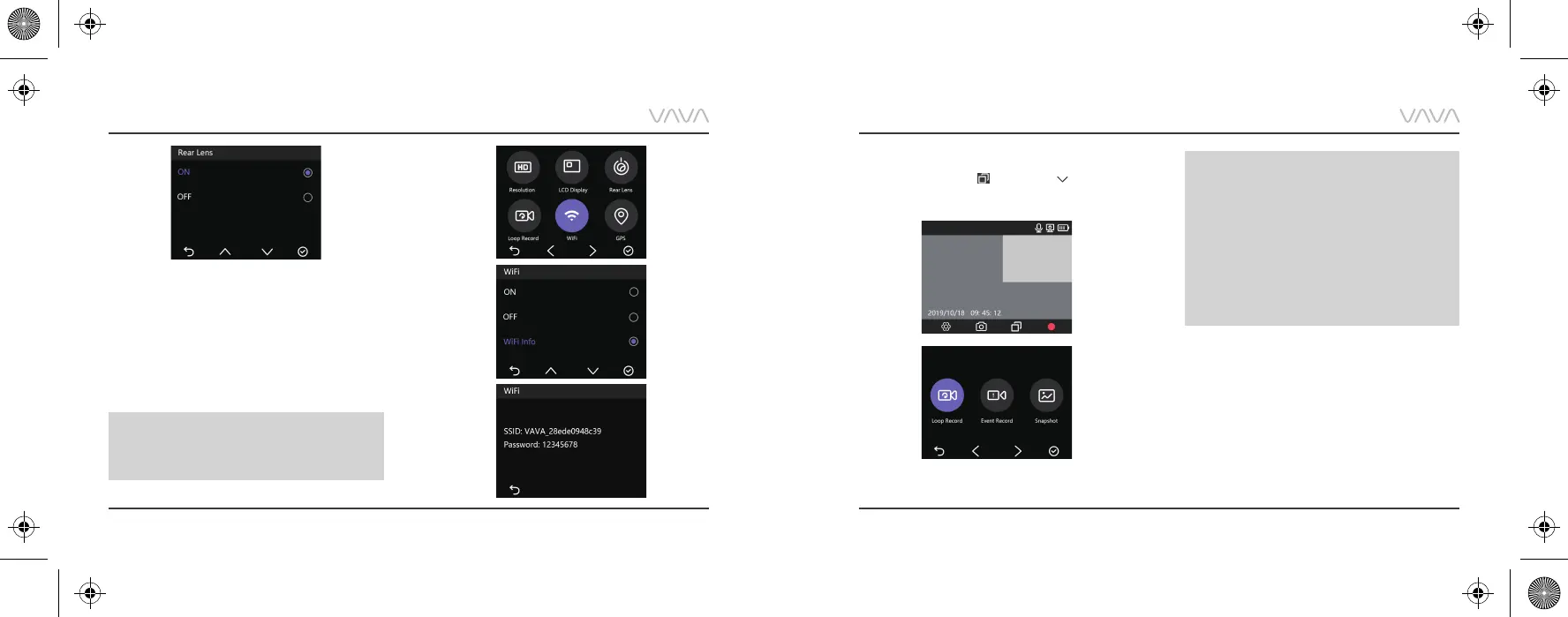
1) Select “Wi-Fi” to turn on/off the Dash Cam Wi-Fi.
2) Select “Wi-Fi Info” to check the Wi-Fi SSID and the
password.
3) You can change the Wi-Fi SSID and password after
connecting with VAVA Dash APP.
Exit video mode, select by pressing “ ” button to
preview the videos and photos recorded.
Note:
· Loop Record: Videos recorded during normal
driving. The videos will be shown in
chronological order.
· Event Record: Videos recorded in case of
emergency or videos recorded in Parking
Mode.
· Snapshot: Videos and photos captured via
Bluetooth button or VAVA Dash APP.
Wi-Fi Setting
Viewing Video/Photos on the Camera
Note:
Wi-Fi is off by default, please connect after
turning it on.



 To Next Page